Launch a dashboard
On a second monitor, on your phone or tablet, or on your wheel's USB screen.
- 5 min
- no game needed
Two ways
Your config starts everything at once: Home › Roll out. It can also start on its own with your game.
One dashboard:
- Dashboard: at the top, pick the device, a screen of your rig or Phone.
- Click a dashboard under Your dashboards: it shows on it.
- Put on the screen.
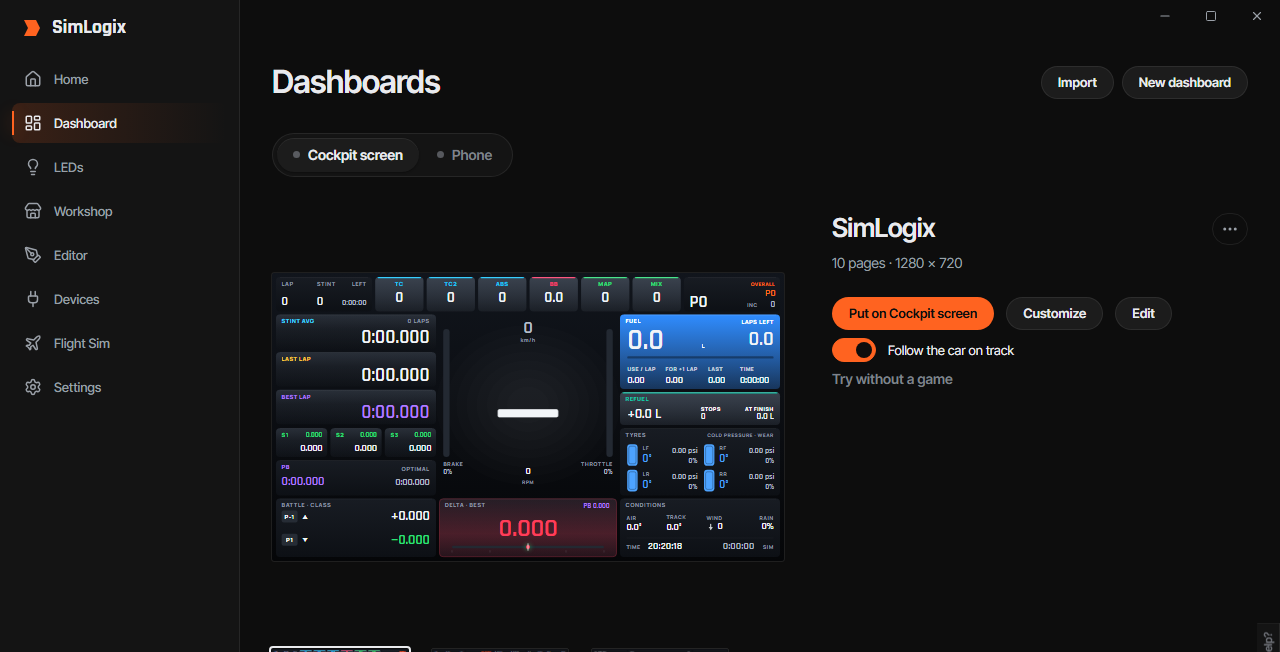
On the Dashboard page, a device’s green dot says it shows a dashboard; if it shows the one on top, Stop on the screen.
On a second monitor
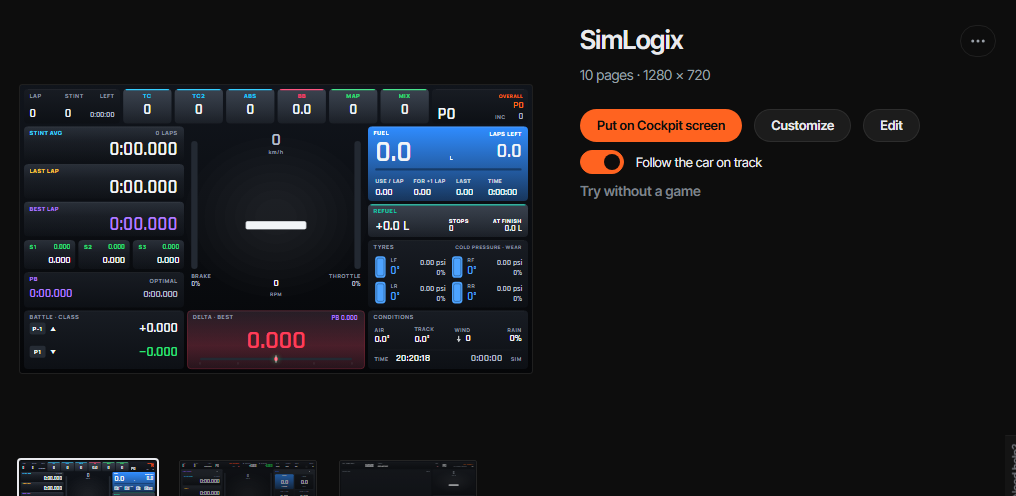
- The Cockpit screen device: a borderless window that stays above the game. The game keeps the keyboard and mouse.
- Follow the car on track: the screen switches to the dashboard tied to your car.
Picking the monitor
Pick the monitor in Devices: your monitors are drawn to scale there, a click picks the Dashboard target. Otherwise, the window opens at 1280 × 720 on the primary screen, not full screen.
On your phone or tablet
Nothing to install: the phone shows the dashboard in its browser, on the same Wi-Fi as the PC.
- Turn the phone on in your config (step Phone or tablet), or pick the Phone device then Put on the phone.
- Scan the QR code with the phone.
- It doesn’t connect? Allow in Windows Firewall, under the QR code, and accept Windows’ prompt.
The link, full screen, the access code
- With the config, the link is the same every time: bookmark it.
- The firewall rule only opens SimLogix to your local network.
- For full screen: on Android or iPad, tap the page; on iPhone, add it to the home screen. While it’s open, the phone’s screen doesn’t go to sleep, if its browser allows it.
- The QR code carries an access code, which the phone keeps. New code (in Devices, under Phone or tablet) changes it and disconnects the devices: scan again.
On your wheel’s USB screen
- Once: the screen’s Windows driver.
- Plug the screen straight into a port at the back of the PC, without a hub.
- Pick the screen at the top of the page, then Put on the screen.
The greyed-out button, the screen’s box
- Put on stays greyed out while the screen isn’t plugged in.
- Devices › the screen › Screen tab: On. Off, the screen receives nothing.
- A screen keeps its name and settings as long as it stays on the same port.
Good to know
No game needed: a dashboard starts empty, and comes alive as soon as your game runs.
“Stop” fades the USB screen to black: that’s intended.
The phone has to be on the same Wi-Fi as the PC.
Check it works
- The dashboard shows on its target.
- On the Dashboard page, under the preview, its screen says it shows it.
Stuck?
The phone doesn’t connect? Follow the The phone can’t reach the app sheet. The USB screen stays black? The The USB screen stays black sheet.