LEDs
Your wheel's LEDs and its lit buttons follow the revs, the flags and the pits. A profile drives them.
The LEDs page picks and adjusts: which profile goes on which wheel, its brightness, what it does with the game closed. To create or change what a profile does on track, the LED editor takes over.
Put a profile on your wheel
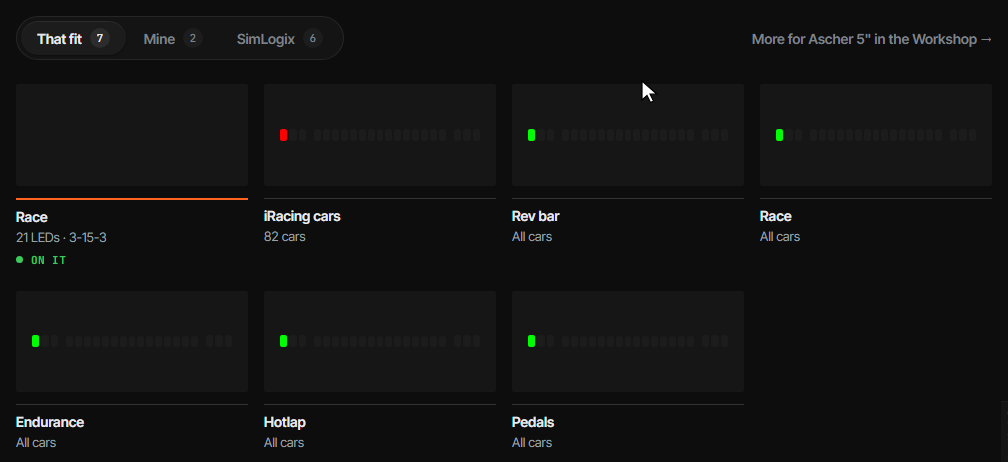
- LEDs: under the title, one pill per wheel, and On screen for the bar over the game. The chosen wheel shows large, lit by its profile.
- Further down, the profiles, those That fit first. Click one: the wheel shows it large, without changing anything yet.
- On the right, “Put on” your wheel puts it on (Put it here for the bar on screen). Its card says On it until you put another one. “Back to” the running one leaves the preview.
The SimLogix profiles are enough to get going: Rev bar, Race, Endurance…
Supported hardware
- Cube Controls, over USB: the CSX-3 is verified; the FPRO, AMG and GTX2 are recognised.
- Ascher Racing: the Artura ULTIMATE (its bar, its pods and its 14 lit buttons), the Artura PRO (its 14 lit buttons) and the Dash 5”. Their sheets come with the app: nothing to map.
- Conspit MAX 01, recognised straight away. Other Conspit wheels are found with “Search the serial ports”, with Conspit Link and any other LED program closed.
- No LED wheel: the On screen pill puts the bar over your screen. Show shows it; to place it, in the LED editor, the device settings › Move, then Esc locks it.
- Another device using the serial protocol of Arduino builds: New profile › My device isn't listed — scan ports.
- Close any other LED program first: two programs can’t hold the same wheel. With several wheels, each one has its own profile.
More profiles: the Workshop
“More for … in the Workshop”, at the end of the profile tabs, opens the community’s, those that fit your wheel first. Search a car or a style, pick one: it shows on the wheel.
“Install and put on” your wheel installs it and puts it on. Install only files it under Mine for later.
Adjust a profile
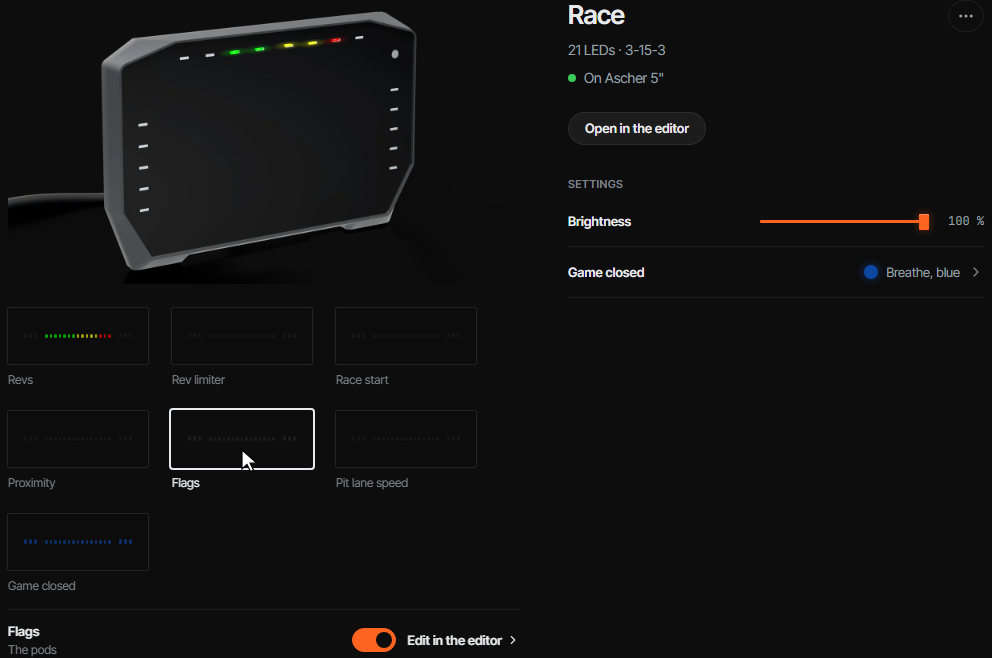
Under the wheel, what its bar does on track, as thumbnails: the revs, the limiter, each alert, then Game closed. A click plays the moment on the page’s wheel.
On the right, the profile driving the wheel, and Open in the editor. On a wheel with lit buttons, it has two parts: Bar and pods and Buttons.
- Settings: the Brightness, the Car you’re looking at, and Game closed, which unfolds: its animation (Comet, Breathe, Wave…), its colours, its speed.
- The moment chosen under the wheel says what it does. The start and the alerts have their switch; the revs and the limiter are always there. Each one offers Try it on the wheel, game closed included.
Changing a colour, a zone or an effect happens in the editor: Edit in the editor, under the chosen moment, opens it on that moment. A profile you look at without putting it on shows its moments, with nothing to adjust.
Lit buttons
On a wheel with lit buttons (the Artura), Buttons is set on the page, buttons picked on the wheel:
- At the top, their Brightness, apart from the bar’s: lowering the bar doesn’t touch it.
- At rest: click buttons on the wheel (or All, Left…), then a colour. What they do On press: Brighter, White or Nothing.
- Game closed: Like the bar, Their colours, Breathe, Wave or Off.
- What they do: one animation per source, such as Pit limiter or Flags. + New animation adds one: when, which buttons, which colour, which effect.
Import your profiles
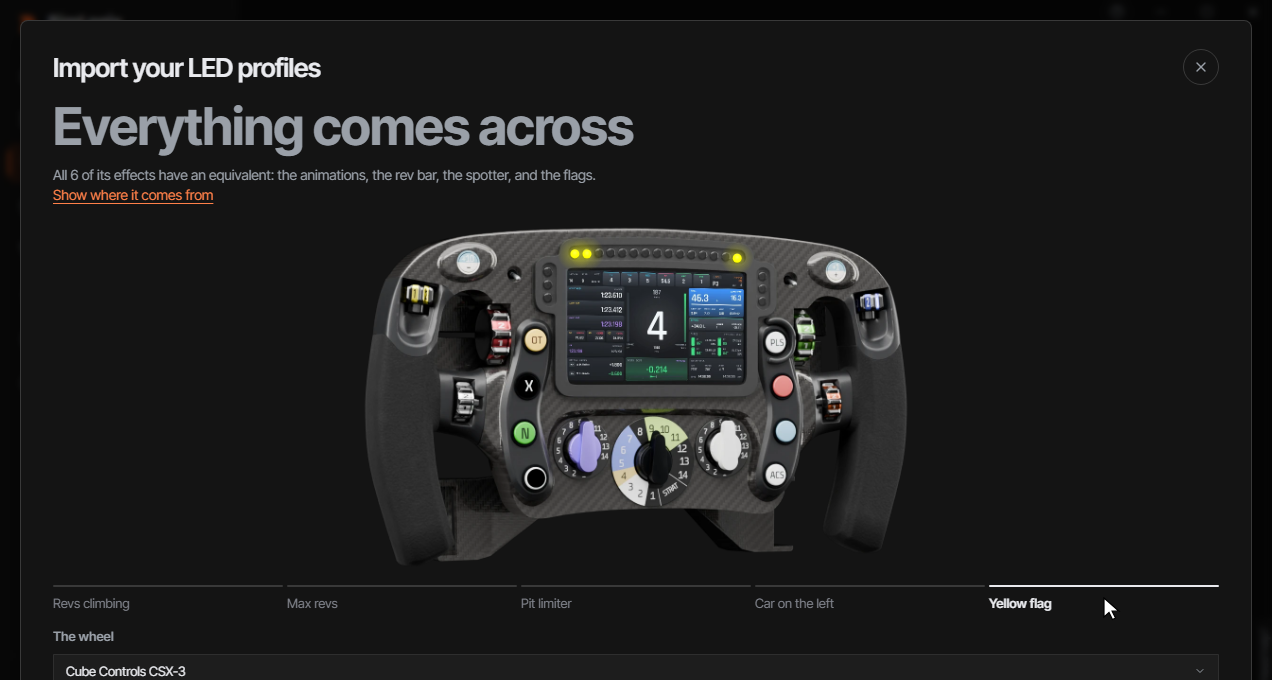
Import, next to the title: A file…, or Your LED profiles found on this PC when SimLogix finds some. It reads them without changing anything.
- The window first says what comes across, and the wheel plays the profile’s situations.
- If a profile has no rev bar, choose whether to add one. Otherwise, nothing to decide.
- Import this profile, or all at once: a new profile for each, and the one you were using runs on your wheel.
What comes across, what doesn’t
- A profile set up car by car gives one variant per car of the iRacing catalog, plus Other cars. A car outside the catalog is reported.
- A layer driven by a script or a formula doesn’t come across: SimLogix doesn’t run code from elsewhere. The detail is folded at the bottom of the window.
- Nothing is added on its own: a profile without a rev bar stays without one, unless you answer Yes.
- An imported profile isn’t offered again. Delete its copy and it’s offered again.
One variant per car
Your profile can change with the car. When you switch cars, SimLogix takes:
- the variant for that car;
- otherwise the one for its class;
- otherwise All other cars.
The page’s Car line picks the variant you’re looking at.
Create and link a variant, common layers
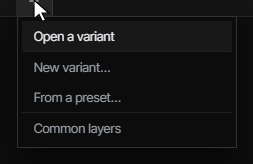
- Open in the editor, then + › New variant…. On track, the menu offers to link it to your car.
- A car only goes to one variant per profile. The class comes from iRacing, AMS2 and Le Mans Ultimate.
- Common layers: painted over every variant, for the flags or the spotter.
- A duplicated profile keeps the same variants as the original: changing one changes both profiles.
- In the editor, a change shows on the wheel at once, but is only written on Save (Ctrl+S). On the LEDs page, each setting is written at once.
Layers
In the editor, a variant stacks layers: rev bar, flags, warning lights… The top one wins, and a layer with nothing to show lets the ones below through.
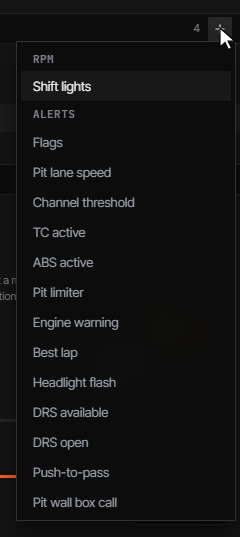
The Add a layer menu sorts them by family. Drag a layer to change its rank. A layer lights solid, blinking, with a white flash then its colour, or every other LED.
Light a layer only in some cases
Add a condition: a gear engaged, a threshold on a channel (revs, speed, pedals, engine), a warning light on, or the first seconds after ignition. All of a layer’s conditions must hold.
Shift points
The rev bar starts, fills and blinks at precise revs. Move the slider, then switch games.
Revs 6 900 rpm
Your own thresholds
- Manual: a start, end and limiter RPM, in rpm or as a % of max revs.
- Per gear: thresholds for each gear.
- Calibrate… sets the source and the three thresholds, from the session, a run or by hand.
Test without driving
On the page, with a moment chosen under the wheel or a buttons animation, Try it on the wheel plays it on your wheel for a few seconds, then puts it back as it was. On track, it waits until you leave. At the bottom of the editor, the test bench replays situations: rev to the limiter, pit exit, yellow flag… While it runs, your plugged-in wheels show it instead of the game. It switches off when you leave the editor.
Good to know
Reference
The 14 layers
RPM
| Layer | What it does |
|---|---|
| Shift lights | Rises with the revs, from the first LED to the limiter; the whole bar blinks at the limiter. |
Alerts
| Layer | What it does |
|---|---|
| Flags | Yellow, safety car, blue, white, green, red, chequered: solid, blinking, alternating, a flash or every other LED. |
| Pit lane speed | In the pit lane: under, at or over the limit. |
| Channel threshold | An engine channel crosses a threshold: oil, water, fuel pressure, fuel, battery. |
| Alert | A warning light: TC, ABS, limiter, engine, best lap, headlight flash, DRS, push-to-pass, and your team’s pit wall box call, lit until you enter the pits. |
Compare
| Layer | What it does |
|---|---|
| Delta color | The colour follows the delta; transparent without a reference lap. |
| Proximity | The spotter: the left or right half lights up. |
| Gauge | Fills with a channel: brake, throttle, speed… |
Strategy
| Layer | What it does |
|---|---|
| Low fuel | Under a fuel threshold, in litres. |
| Pit window | As the pit window nears. |
State
| Layer | What it does |
|---|---|
| Idle (off track) | Game closed and off track: solid, breathe, comet, wave or two colours. It’s set on the LEDs page (Game closed), not in the editor. |
| Race start | Ready, set, go. |
| Fixed color | A background; in black, it wipes out what’s below. |
| Pattern | Frames played in a loop. |
The iRacing cars profile
It starts from a community profile: one variant for each of the 86 iRacing cars, with its shift points and lights, plus common layers (spotter, flags, red strip over the pit limit). Written for 21 LEDs; on another wheel, its zones are scaled to fit. Outside iRacing, its bar follows the max revs.
Other details
- Renaming, changing the class or linking a car is saved at once, without Ctrl+Z.
- An unsaved change in the editor blocks switching variant, putting a profile on a wheel and the automatic car switch.
- Off with ignition off and in replay, ticked by default: ignition off, only the game-closed animation remains; in a replay, on track, everything goes dark.
- Headlight flash, the spotter, the start lights and the track’s pit limit come from iRacing only.
- Brightness only shows on the wheel; the running config sets its own on its wheels and turns off the ones unticked in it, and Devices sets each wheel’s maximum.
- A wheel that reports a different LED count from its profile is resized by itself: check your zones.
- A plugged-in wheel has no stop button; the on-screen bar does (Remove from the screen).
Check it works
- In LEDs, your wheel’s pill has a green dot, and its profile is on the right.
- On track, the bar rises with the revs.
- At the limiter, the whole bar blinks.
Stuck?
The LEDs stay dark? Follow the The LEDs don’t light up sheet, one question at a time.