R-Box
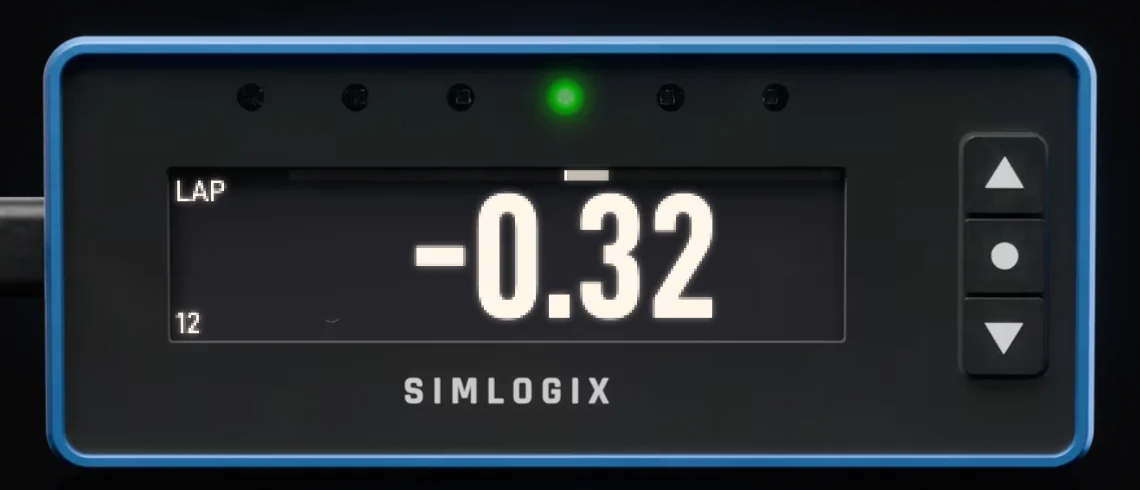
The R-Box shows what SimLogix computes: the delta, the speed, the lap time. One USB-C cable, and it's connected.
- firmware 0.4.2
- not on sale yet
An OLED screen, six LEDs and three keys: ▲, OK and ▼. The PC does all the computing; the R-Box shows it.
The R-Box manual, on the site, also covers mounting, specifications and safety.
Connect it
- Plug it into a USB port on the PC, directly or through a powered hub. The USB-C socket is on the left side; Windows recognises it without a driver.
- In SimLogix, Devices: the R-Box shows up within a few seconds.
- Go on track and complete a full lap: the screen then shows the delta, and the LEDs light up. Before that, it shows NO REF.
What SimLogix does
- SimLogix looks for the R-Box when it starts, then every two seconds. One R-Box at a time.
- In Devices, it has its sheet: its render, and its Firmware section. Unplugged, it stays listed: Unplugged.
- It has its own screens: it receives no dashboard and no LED profile.
- The delta and the LEDs compare against a best lap that SimLogix followed in full. The out lap from the pits doesn’t count.
The screens
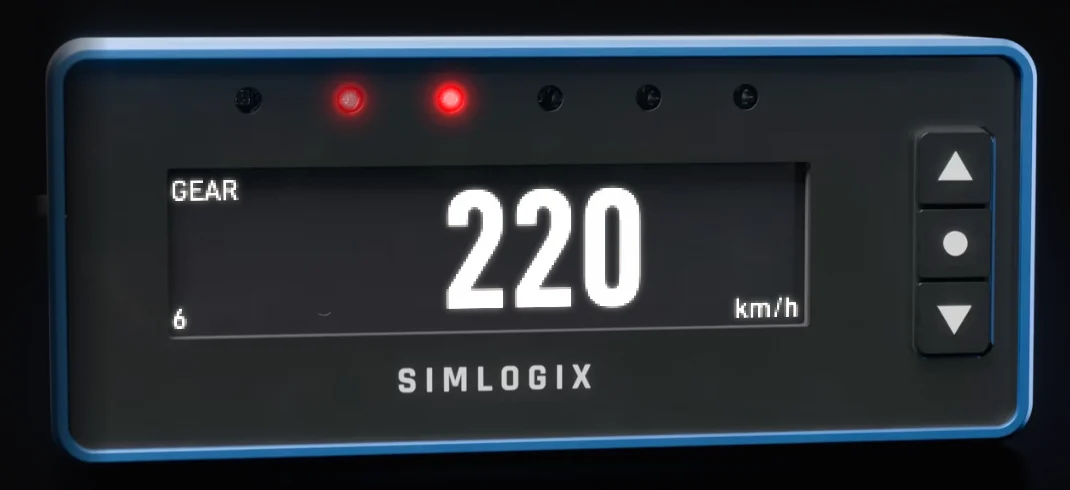
The R-Box starts on Delta. ▲ moves to Lap time, Laps, Lat G, Long G, Stint, SETTINGS, Speed and Max speed, then back to Delta; ▼ goes the other way.
A wheel button, or a position of a rotary switch, can also pick the screen: see below.
On Max speed, Lat G and Long G, OK resets the maximum.
Each screen in detail
- Delta: the gap to the best lap, and a bar that grows to the right when you gain. NO REF until SimLogix has a best lap. Below 65 km/h for a second and a half, the speed goes big and the delta small: that’s the slow view, for the safety car or the pit lane, set in the menu.
- Speed: the speed, the gear and the unit. Max speed: the highest.
- Lap time: the last lap, or the running clock. Crossing the line, the completed lap stays 5 seconds with its gap; a record shows inverted, with BEST.
- Laps: the current lap. Lat G and Long G: the lateral or longitudinal acceleration, its direction, and the maximum.
- Stint: the average lap time of the current stint, and its laps. The stint starts over when you leave the pit lane, after a stop or a trip to the garage; a pause or a drive-through doesn’t break it. The out lap counts in the laps, not in the average; neither does a lap through the pit lane, nor a lap over 107% of the stint’s best (a spin, a caution).
- Waiting: WAITING FOR GAME (nothing from the game), NO SIGNAL (a dropout), OFF TRACK (in the garage, in menus).
Picking the screen from the wheel
Each button, or each position of a rotary switch, can bring the R-Box to a screen. Other buttons can act as its keys: R-Box ▲, R-Box OK, R-Box ▼.
- Devices: press the button, or turn the rotary to the position you want.
- R-Box › R-Box page…, then the screen.
- Repeat for each position.
A config can have its own too: Buttons step, + Add a shortcut, Show an R-Box page (see Wheel buttons).
What SimLogix does
- The R-Box takes the screen on each press; its ▲ and ▼ keys keep control in between.
- The keys on the wheel press and release with the button: a long press is a long press.
- Plugged back in, it returns to the screen of the last button pressed since SimLogix started.
- An R-Box on firmware older than 0.3.0 ignores the button: update it (below).
Updating its firmware
SimLogix ships the latest R-Box firmware and writes it through the USB cable, in a few seconds.
- Devices, click the R-Box. The Firmware section shows its version, and the one the app ships when it is newer.
- Click the update button, “Update to 0.4.2” for instance. The R-Box shows UPDATING and its progress: do not unplug it.
- It restarts on its own and comes back with its new version: Up to date.
What SimLogix does
- The new firmware is written next to the old one, which stays in place until the end: a power cut, a pulled cable or a damaged image leave the R-Box on the old one.
- The new one is only kept once the R-Box has talked to SimLogix again. If it does not start, the R-Box goes back to the old one by itself.
- The menu settings stay as they are.
- Updating from the app starts with firmware 0.4.0. An older R-Box shows Firmware older than 0.4.0: it gets 0.4.0 over the cable once.
The menu
- ▲ or ▼ to SETTINGS, then OK.
- ▲ and ▼ pick a line, OK opens it. On a setting, ▲ and ▼ change the value, applied at once, and OK confirms it.
- Holding OK for a second goes back, then closes the menu: that’s when the R-Box saves.
The menu pages
- DELTA: the bar (OFF, or full scale from 2 to 30 seconds), the slow view, below which speed and after how long.
- LEDS: see below.
- LAP TIME: last lap or running clock, and how long to hold the completed lap, 2 to 20 seconds.
- SCREEN: the unit (km/h, mph, knots), brightness, the inverted or flipped picture, gamma.
- PANEL: the panel’s fine settings.
- ABOUT: the firmware and protocol versions.
- FACTORY RESET: factory settings.
On screen, the OK key is called SELECT. The menu works with no game running.
The LEDs
They’re set in the R-Box, LEDS menu, not in the app’s LED editor. By default, they compare your speed with the best lap’s at the same point: red on the left if you’re slower, green on the right if you’re faster.
The other settings
- SPEED RANGE: the gap that lights all three LEDs on one side, 2, 5 or 10 km/h. 5 by default.
- SCALE on TIME: the time gap to the best lap, left to right, green when you gain, red when you lose.
- COMBO G, on the Delta screen: the grip you’re using. Off by default.
- SPEED ALERT, on the Speed screen: all red after one second above a speed you set. Off by default.
- BRIGHTNESS: brightness, 1 to 5.
- They show neither revs nor flags, and go dark on the waiting screens.
Good to know
Check it works
- The R-Box is in Devices.
- After a full lap, the Delta screen shows your gap to the best lap.
Stuck?
The R-Box doesn’t show up? Try another USB port, or another USB-C data cable, then unplug it for a few seconds and plug it back in. The screen stays on WAITING FOR GAME while the R-Box is in Devices: SimLogix gets nothing from the game, see The game runs, nothing comes through. An update did not complete: the R-Box kept its firmware; plug it straight into the PC and start it again.