Screens and devices
Second monitor, phone, wheel USB screen: where your dashboard shows up. And what SimLogix sees of your hardware.
A dashboard shows on three kinds of screens. You launch it on one of them, see Launch a dashboard, or your config turns them all on at once. All of them are set in Devices.
| Target | You need | Where to set it |
|---|---|---|
| Cockpit screen | a 2nd monitor | Devices › Full-screen dashboard |
| Phone or tablet | the same Wi-Fi as the PC | Devices › Phone or tablet, or the QR code at launch |
| USB screen | the Windows driver, once | Devices › the screen |
The Devices page
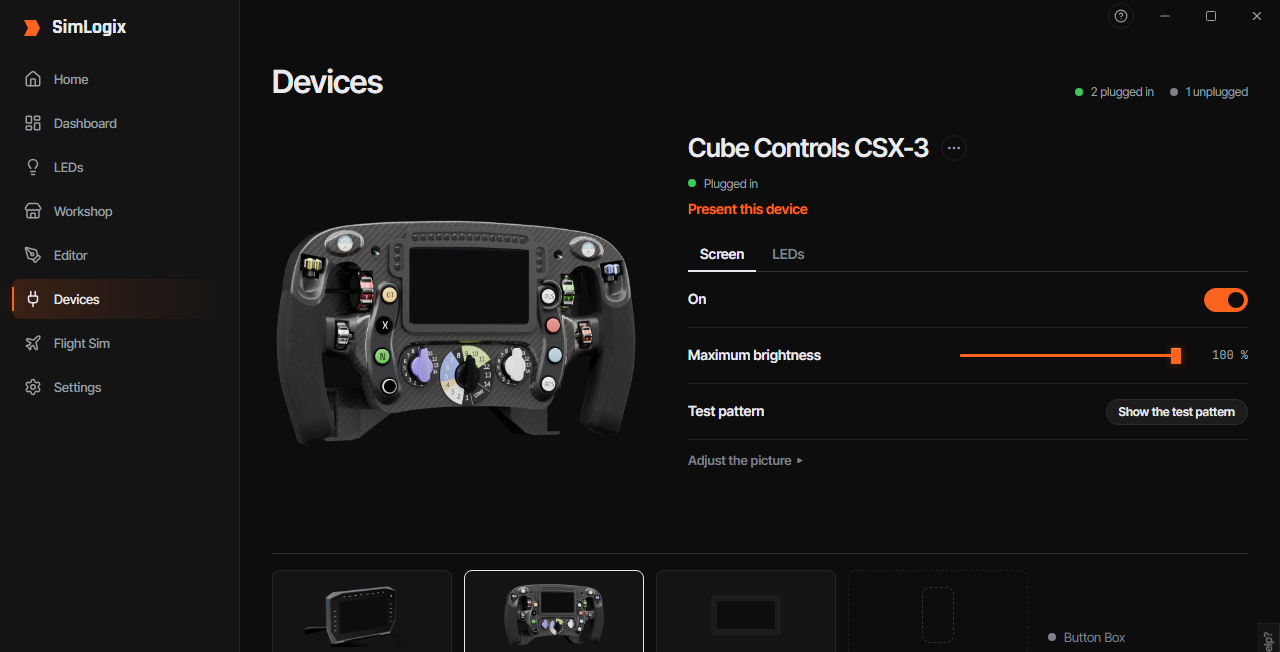
Everything SimLogix drives or listens to: screens, LEDs, wheels and button boxes. An unplugged device stays listed, and can still be set.
- At the bottom, Your gear in a row. Click a device, or press one of its buttons: it shows in large, with its state, and what to do when something’s wrong.
- Its parts in tabs: Screen, LEDs, Buttons, and the R-Box’s firmware.
- Present this device: its photo, its buttons named, its LEDs in place. The Ascher wheels and the Dash 5” come with theirs.
The “⋯” menu, identify, several links
- Identify makes its LEDs blink white; Rename gives it your name.
- One link per plug: serial for an Ascher Dash 5”’s LEDs, USB for its screen. The “⋯” menu splits off a link attached to the wrong device and gives back its original name.
- Two USB screens of the same model are filed under the right device from their wheel’s hub.
- Forget this device removes it from the list; unplugged, it also offers it as a button.
- Gamepads and pedals with no screen or LED are listed at the end of the row.
The cockpit screen
A borderless window, on the monitor of your choice, above the game. The game keeps the keyboard and mouse.
- Devices › Full-screen dashboard.
- Your monitors are drawn to scale there: click the dashboard’s one, it becomes the Dashboard target.
- Test pattern: the white frame should touch all four edges.
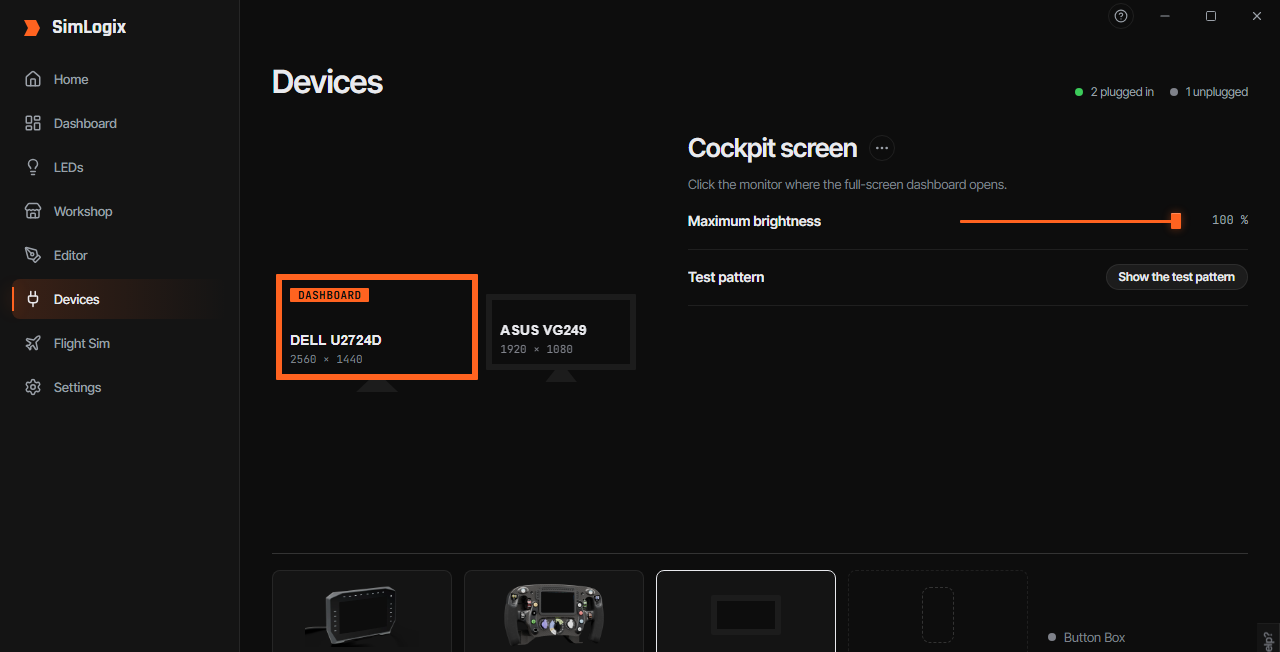
No monitor picked, brightness, one window, page dots
- With no monitor picked, or if it’s unplugged, the window opens at 1280 × 720 on the primary screen, not full screen.
- One cockpit window at a time.
- The page dots, at the bottom, only show when the mouse moves or on touch, then fade: a click on a dot opens its page.
- Maximum brightness: this screen’s ceiling for all your configs. The picture is dimmed before it’s shown.
The phone or tablet
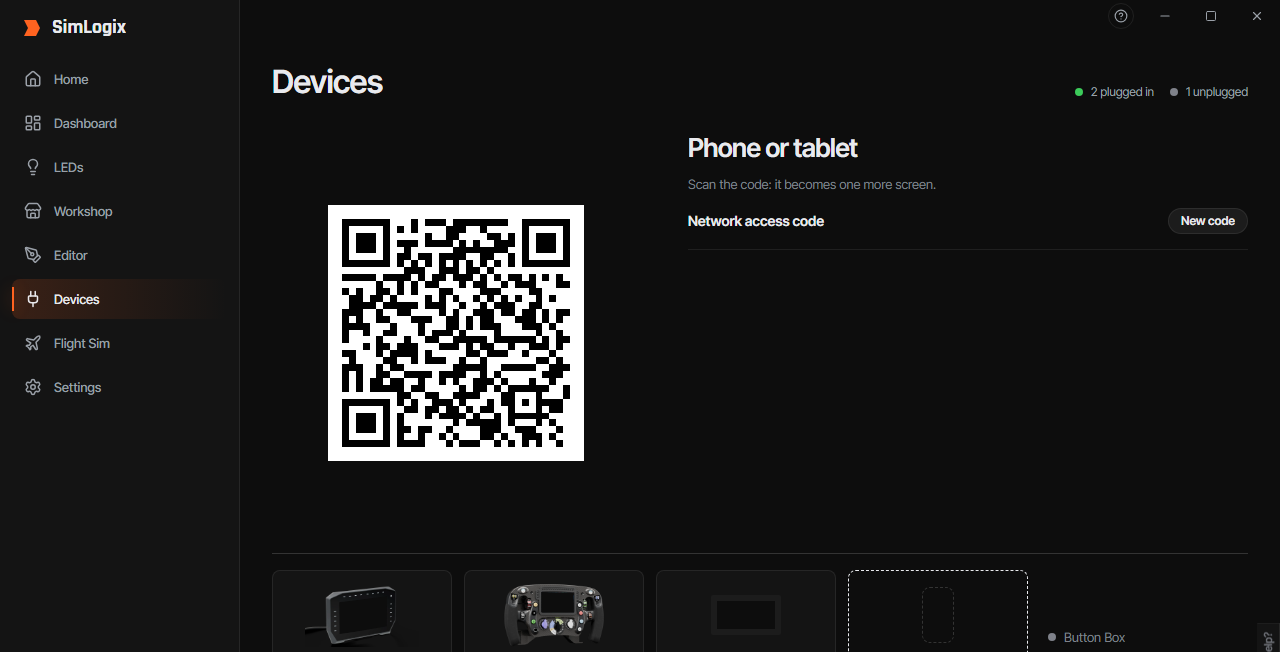
Nothing to install: the dashboard opens in the phone’s browser, on the same Wi-Fi as the PC.
- Devices, the Phone or tablet card, or launch a dashboard on the Phone device, or turn the phone on in your config.
- Scan the QR code.
- It doesn’t connect? Allow in Windows Firewall, under the QR code.
A dashboard at its size. Once opened in landscape, through your config’s link, the phone tells SimLogix its screen size. In your config, the Phone or tablet step then offers the dashboards made for it first, and New dashboard sized for it creates an empty one. Your AI assistant knows this format too.
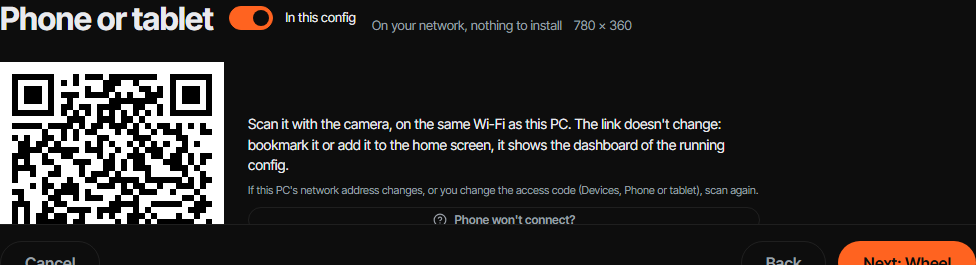
The link, gestures, the firewall, the access code
- With a config, the link is the same every time: bookmark it. It holds as long as the PC’s address on the network and the access code don’t change.
- The format kept is the last device’s to show that link in landscape: a phone and a tablet on the same link take turns.
- On the phone, a sideways swipe changes page; top to bottom, dashboard.
- On Android, a first tap on the page (without swiping) goes full screen and landscape, like the corner button; on iPad too, without forcing landscape. On iPhone, add the page to the home screen: it then opens full screen. The screen stays on if the browser allows it.
- The firewall rule, “SimLogix engine”, only opens SimLogix’s port, and only to your local network. Windows asks for your consent.
- The QR code carries an access code. New code, under Phone or tablet, changes it and cuts off every device: scan again.
The wheel’s USB screen
A VoCore screen, like the one on the Ascher Racing 5” or the Cube Controls CSX-3.
- Once only: the Windows driver.
- Plug it into a port at the back of the PC, without a hub.
- It shows up in Devices within a few seconds: launch a dashboard on it.
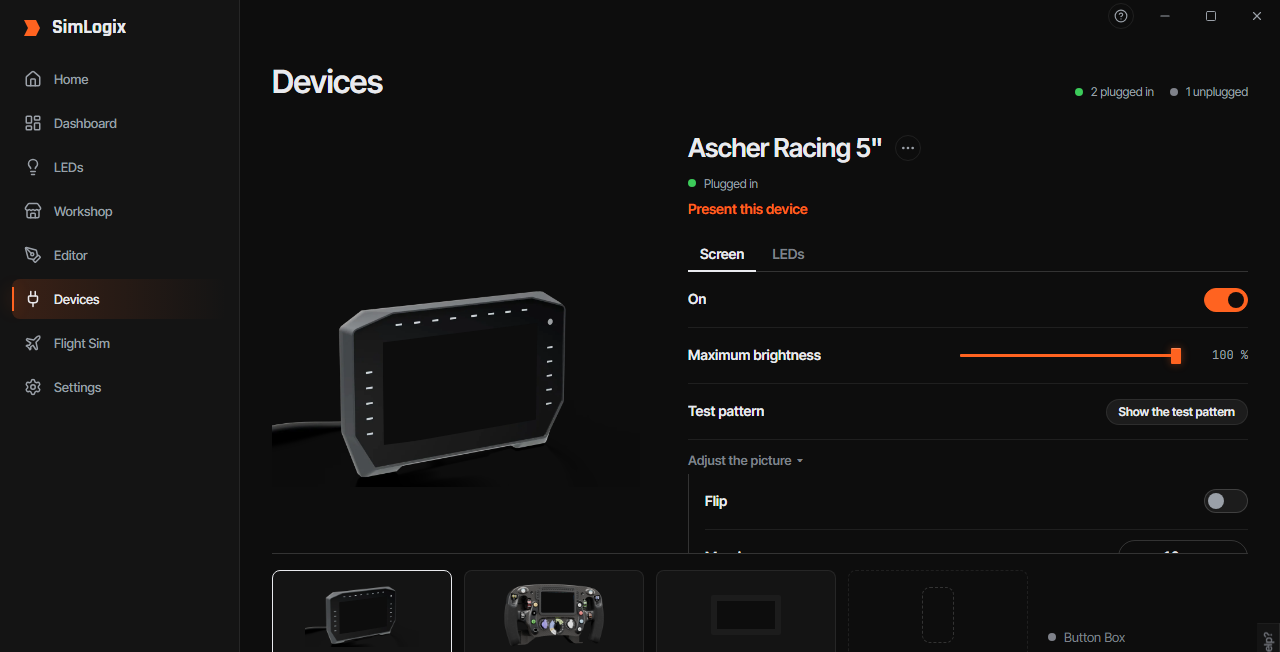
Frame rate, three screens, each screen’s settings
- It follows the frame rate set in Settings, up to 60 frames per second on the Ascher 5”, 25 on the CSX-3.
- Three USB screens at most.
- The device’s Screen tab: On, its brightness, Test pattern; folded under Adjust the picture: Flip, Touchscreen, Margin and Drawing.
- Touchscreen, on a screen that reports it, off by default: a swipe changes page, a touch makes the dashboard react if it uses it, like the SimLogix dash.
- Its name and settings follow the USB port: plug it back in the same place.
- With On off, SimLogix sends it nothing.
- “Stop” turns it off with a fade to black. Between sessions, it goes to your config’s waiting screen, then to sleep.
Your rig, in your configs
All your hardware is in Devices, plugged in or not. A config’s drawing, on the home page and in its editor, shows what that config lights up. Button shortcuts: Wheel buttons.
Good to know
Check it works
- Your USB screen is in Devices, plugged in.
- The test pattern fills the screen without spilling over.
- The phone shows the dashboard, moving with the game.
Stuck?
The USB screen stays black? Follow the The USB screen stays black sheet. The phone won’t connect? The The phone can’t reach the app sheet.