Team
The car of whoever is driving goes live to their teammates: their dashes, screens and phone follow it. End-to-end encrypted.
- Closed beta
- End-to-end encrypted
Team is in closed beta: nothing shows in the app until you turn it on.
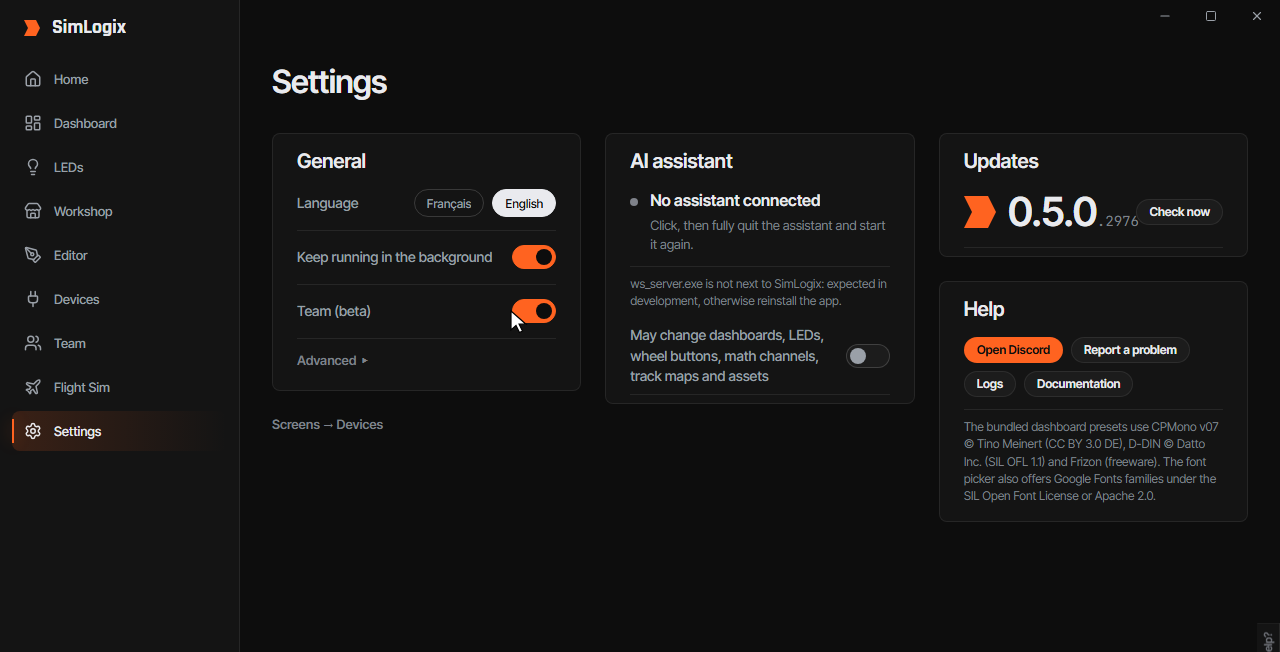
Turning it on
Settings › General: switch on Team (beta). The Team entry shows in the sidebar. Switch it off and everything goes away, nothing is sent any more.
Creating a team, or joining one
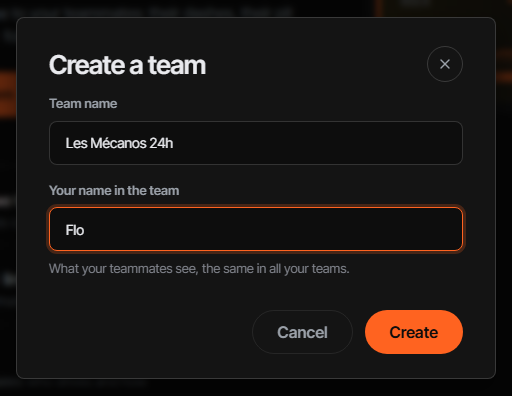
- Create: Create a team, its name, and yours. Your name is only asked the first time: it’s the same in all your teams. In the beta, it’s the name tied to your key: nothing to type, the same on each of your PCs.
- Invite: Invite copies the team’s link. Paste it in the team’s Discord. On voice, Settings › Code shows twelve digits to read out loud: they stand for the link for ten minutes, as long as the window is open.
- Join: click the link you received, then Open in SimLogix; your browser asks whether it may open the app, accept, and the app offers to join the team. By hand: Join a team, then paste the link, or type the code read to you. When you already have a team, My teams also offers Join a team.
The invite link, several teams
- The link is the team’s secret: whoever has it joins and reads what the team shares. The app never shows it, so it never ends up on a stream; it is only copied by Invite.
- Opened in a browser, it leads to simlogix.net/t, which opens SimLogix or says what to do by hand. The secret part, after the
#, is never sent to the site.
My teams
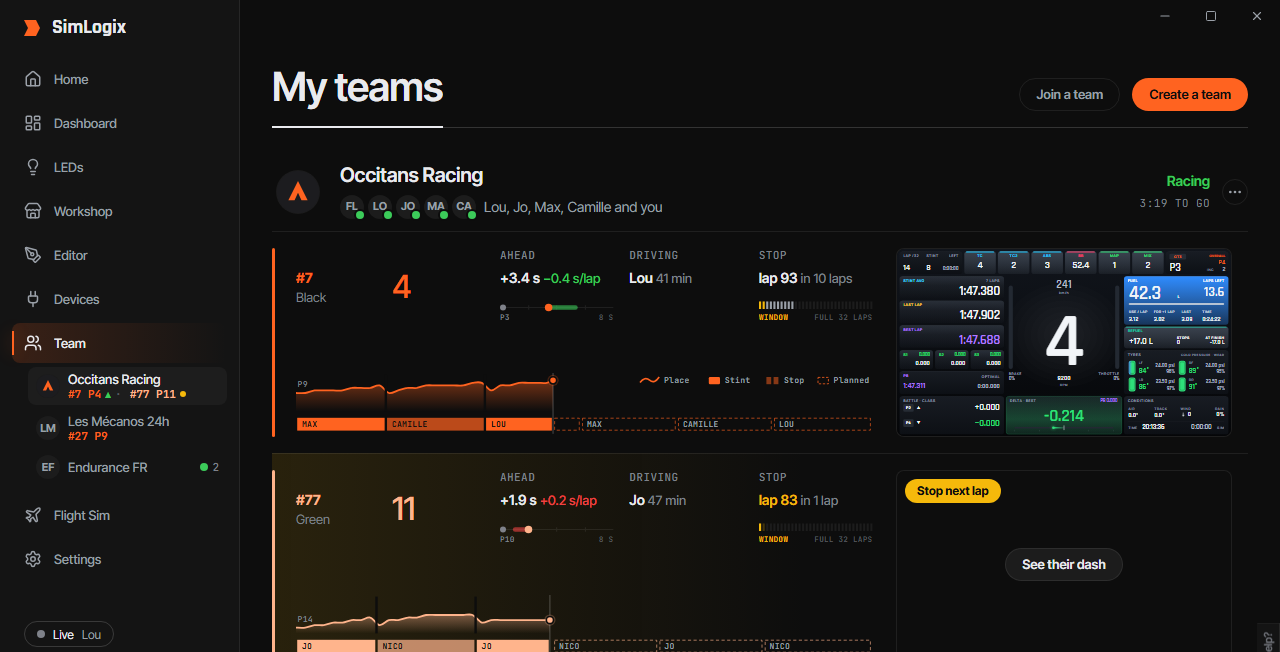
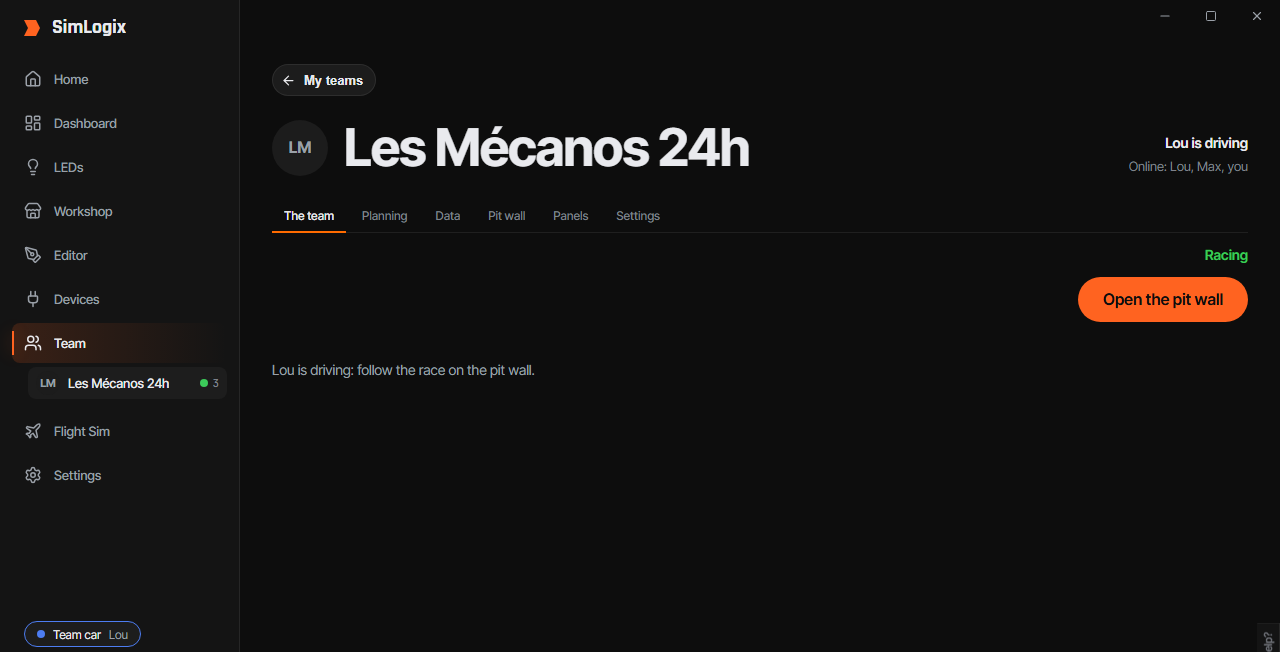
Team opens on My teams: all your teams, and who is online in each. A click on a team opens its tabs; “← My teams” brings you back here.
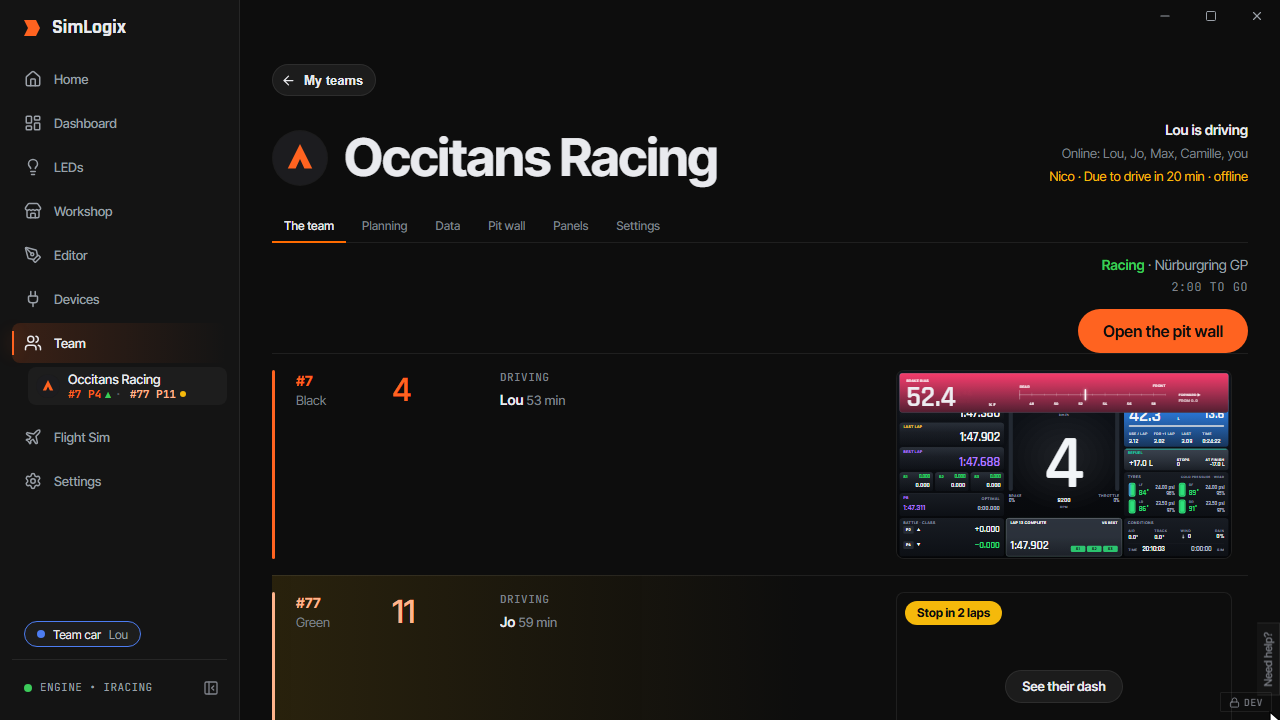
A team that is racing shows Racing and the time left, then one line per car:
- its position in its class;
- the gap ahead, and what it gains or loses each lap;
- who is driving, and for how long;
- the next stop, and the fuel in laps;
- the ribbon: the position lap after lap, the stints and the stops, then, dashed, the stints still planned in Planning, up to the flag;
- the live dash of the car in front, the one you follow in the open team. See their dash puts another car there.
- The open team gets your car when you drive: one at a time. This PC follows the others without sending anything. Opening another one during a race of the open team asks first.
- Leaving a team (its “…” menu, or Settings) puts it in the bin for 7 days: Rejoin takes it back, Erase now erases it from this PC.
What I see
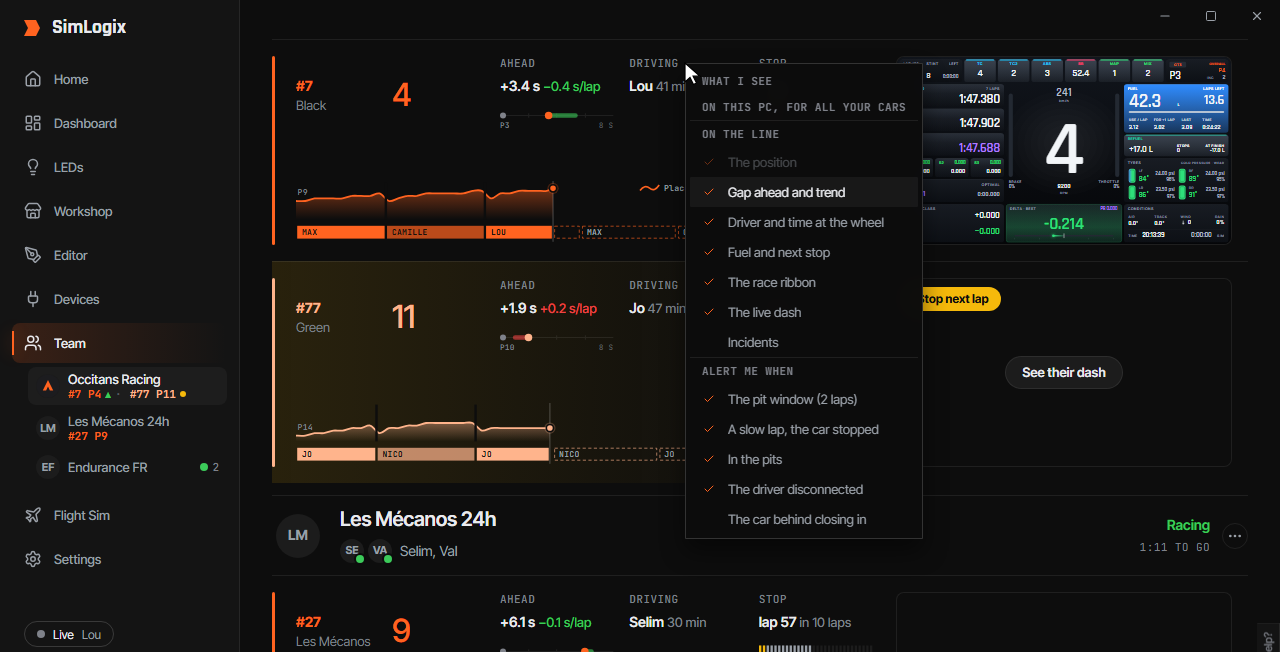
A right-click on a car’s line sets what the lines show, and what lights them up. It’s set on this PC, for all your cars; the position always shows.
A car that calls takes the colour of its alert, with its label: yellow to warn, red when you need to act.
| Alert | When |
|---|---|
| The pit window (2 laps) | The planned stop is two laps away or less. |
| A slow lap, the car stopped | A lap 3 s (or 3 %) slower than the stint average. In red: no lap for two laps. |
| In the pits | The car is on pit road. |
| The driver disconnected | The driver is no longer connected to the team. In red. |
| The car behind closing in | The car behind is less than 2 s back and gains 0.2 s per lap. Off by default. |
In the sidebar
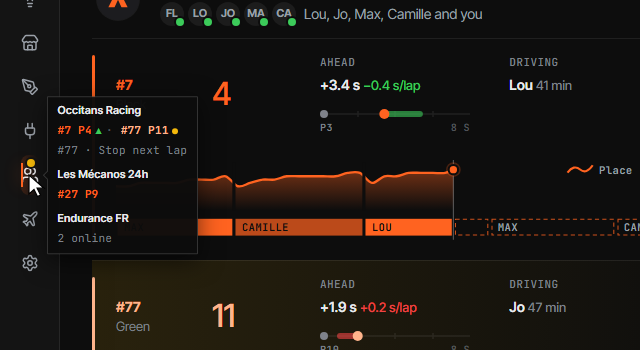
Under Team, the sidebar lists your teams. When calm: how many are online. When racing: their cars and positions, in the colour of their rank, ▲ or ▼ when a position changes, and a dot when a car calls. A click opens the team.
With the sidebar collapsed, a dot on Team: green when a team is racing, yellow or red when a car calls. On hover, the teams, their positions and their alerts.
At the wheel, and when the relay doesn’t answer
- The lines update every lap and at every pit road entry or exit; the live dash only comes from the open team.
- At the wheel, a click on another team leads to My teams: your car doesn’t switch team in one click.
- The relay doesn’t answer: a banner says so, and SimLogix keeps retrying. The lines keep their last picture, greyed, with its age (“Last info · 40 s”); so do the positions in the sidebar. No car is called stopped: we don’t know.
The team’s home
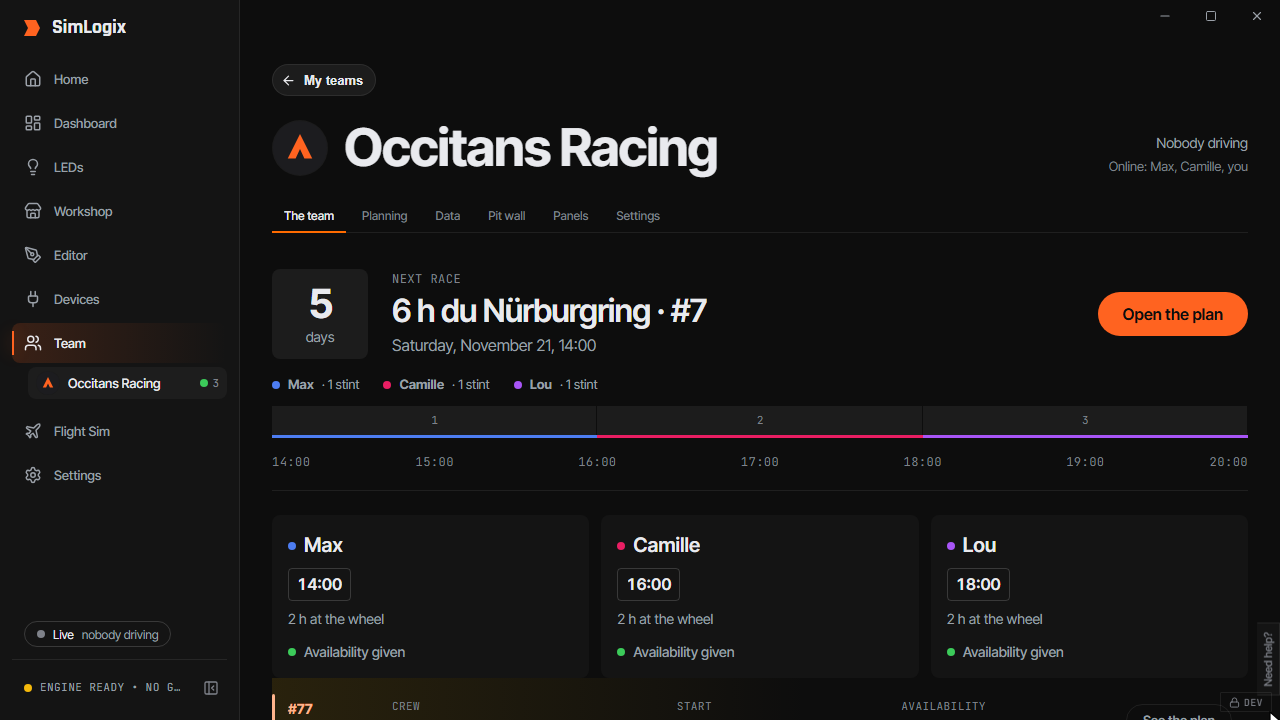
Entering a team opens its first tab, The team: which team, who’s connected, and that’s it.
- Who’s here, in a band: each connected member and what they’re doing (driving which car, backup, their session in the game — racing, qualifying, practising, and on which track —, their Team page, watching the car, online); after a rule, those this PC has seen before who aren’t here.
- On the right, the race: during a race, what’s left to run and Open the pit wall; otherwise the next race from Planning, its start, and Open the plan.
- During the week, one line per car: its crew, who starts, and the availability given for the next race, in amber when some is missing; then the championship, our cars’ place and points, the next round.
- On race day, the tab becomes the race mode: the race, who’s driving, the relief and their answer, the handovers; below the car lines once they’re running.
- During a race, each car in one line: who’s driving and for how long, its place, and the dash of the car your screens follow; See their dash brings another car to the front. A driver due at the wheel and offline shows in red.
- The race details (gap ahead, next stop, the ribbon) stay in My teams and on the pit wall.
The team and its cars
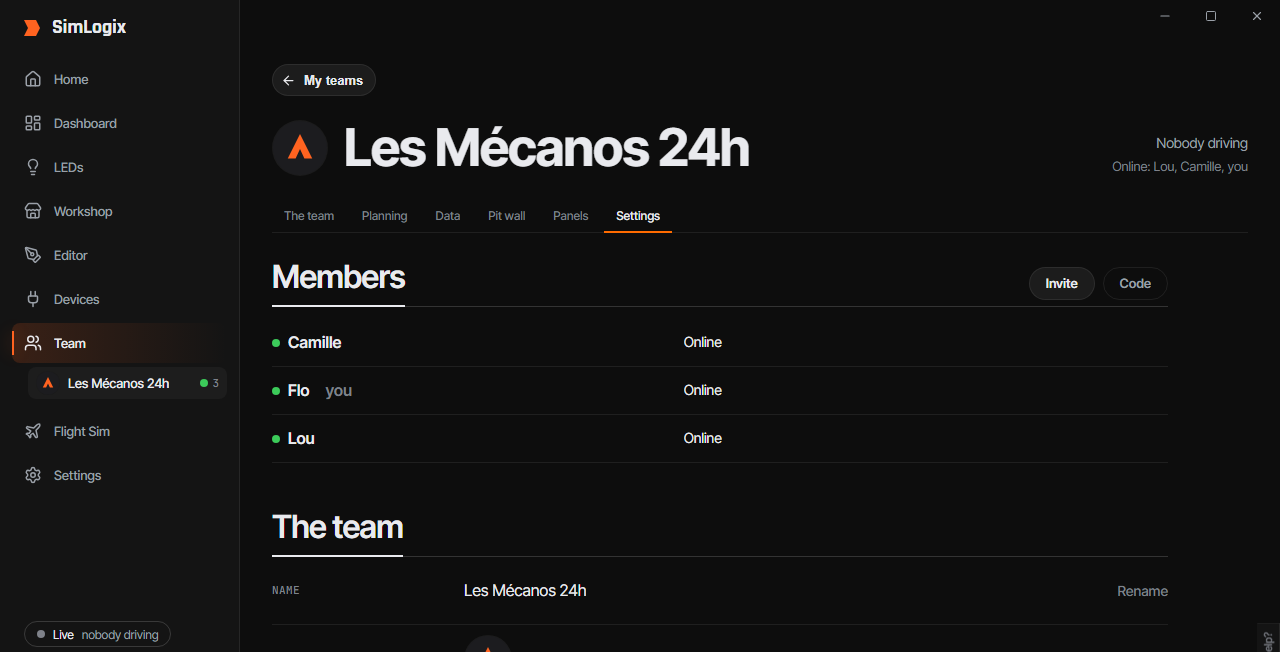
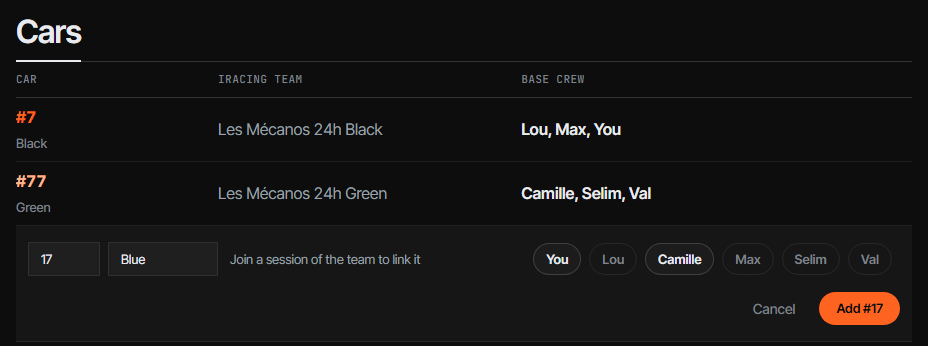
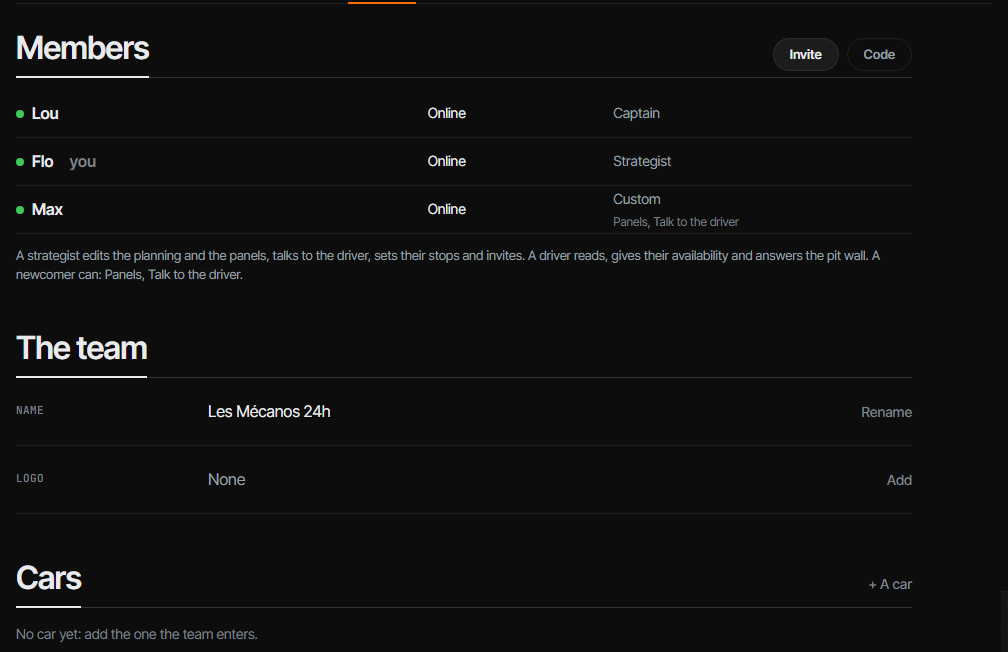
A team is a racing team: one link, and its cars. They are in Settings, below the members.
- The team: its name and logo, the same for everyone. The logo is shrunk before it leaves.
- Its cars: the number, the name, the iRacing team that enters it (linked from a session of the team) and the base crew. + A car adds one, inline; Edit changes or removes it.
- The colour follows the order, as in Planning: orange for the first, peach for the second, white after.
Planning
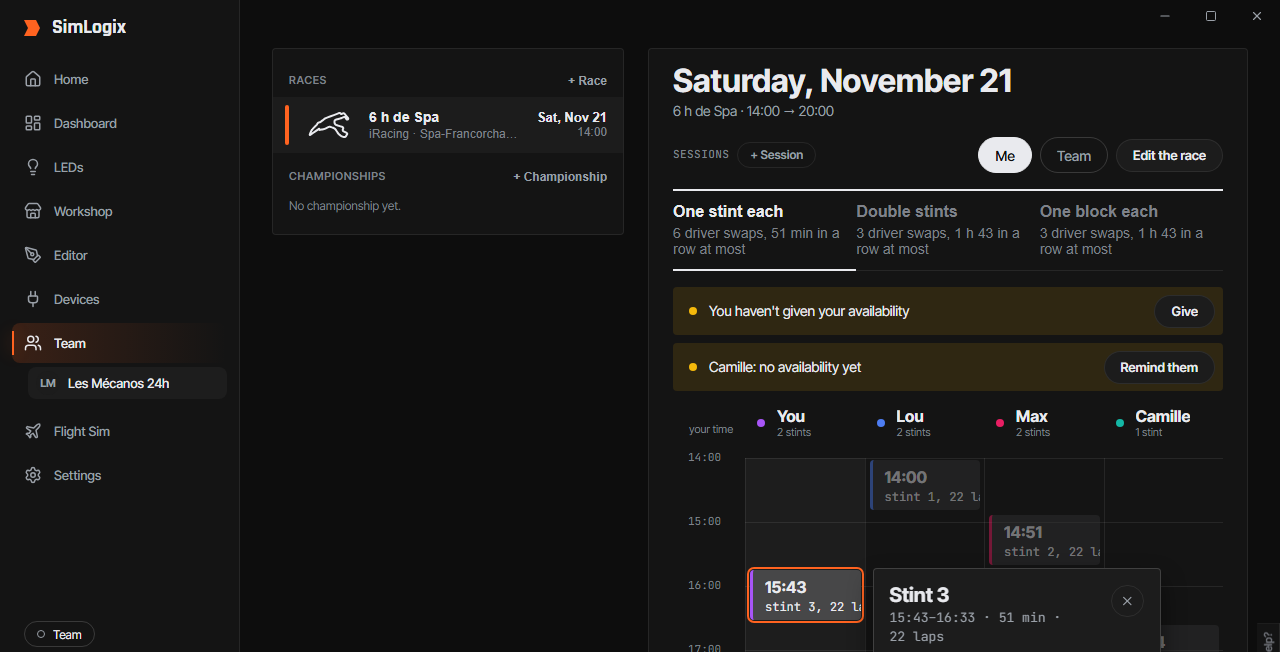
The Planning tab lists the team’s races and championships on the left, the next race first. For a race, it tells everyone when they drive, in their own PC’s time: one column per driver, yours first. Click a stint to open its card: its times, its laps, who’s before, who’s after. Without the right to change the planning (depending on your role, in Settings › Members), the tab is read-only: you give your availability, nothing else is offered.
- Me dims the others’ stints, Team shows them all.
- At the top, what’s left to do: your availability, a plan not shared yet.
- Handovers: who hands the wheel to whom, and when.
Your availability
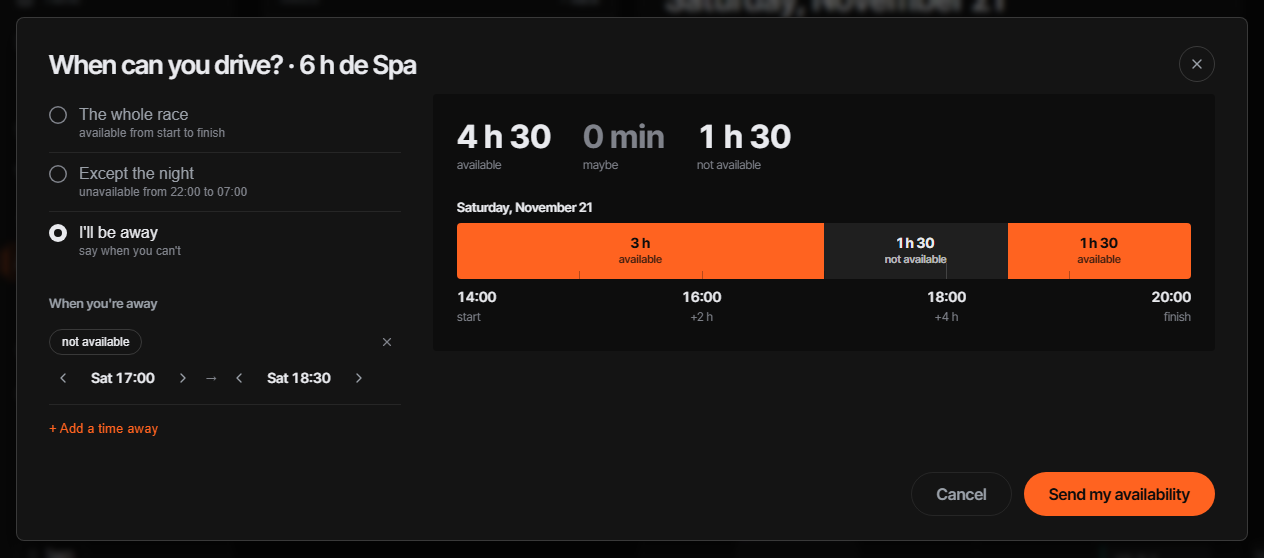
Give asks: when can you drive? Three choices: The whole race, Except the night (unavailable from 22:00 to 07:00) or I'll be away. A time away is set in your time, by the half hour (‹ ›); a click on its pill turns unavailable into maybe. On the right, the totals and the race as a bar. Then Send my availability: the plan takes it into account.
Preparing the race
Prepare a race (or Edit the race) opens the assistant, in four steps:
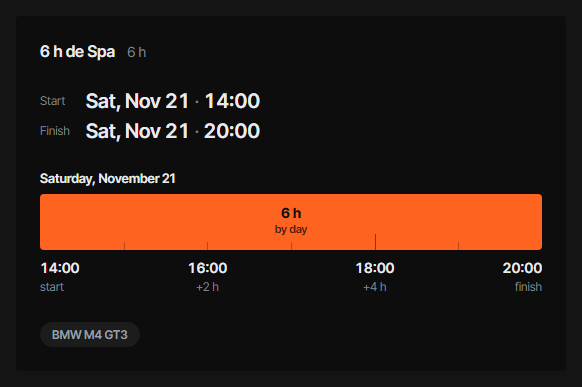
- The race: a special event from iRacing or Le Mans Ultimate, with its date or “to come”, or a race of your own; the start in your time: pick the day on the calendar (a dot under a day the team already races), type the time to the minute (14:30, 1430 or 14h30); for a race of your own, the length in hours and minutes, up to 48 h; the cars: tick the game’s classes and type your own cars (iRacing suggests its own), one tag each. The chosen race shows the start, the finish and the race over its days, the night shaded. It goes to the team straight away: that’s the availability request.
- Who drives (below).
- The plan, step by step (below).
- Share: what everyone will see, then Share the plan.
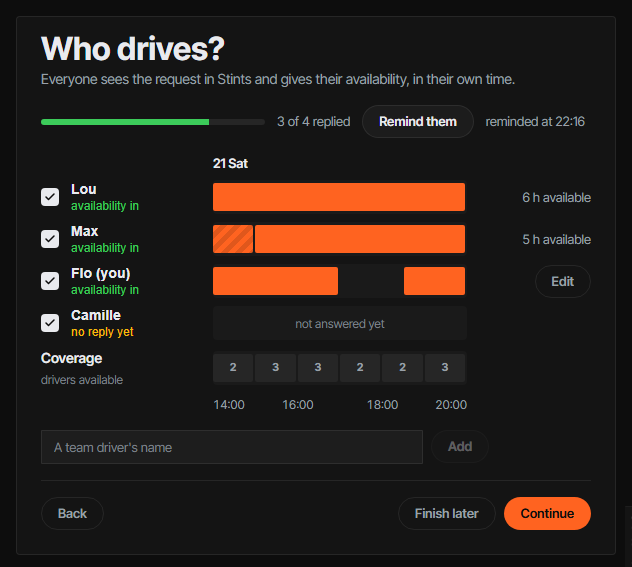
Who drives: tick the drivers; their availability is laid over the race, one row each. The Coverage row counts, hour by hour, the drivers available: orange at one, red at zero, and the gaps are written below. Remind them tells those who haven’t answered.
The plan
The plan is set in five questions, one per screen: pace, the stop, tyres, how you drive (double stints, fuel saving), rain. Skip, see the plan → takes you to the plan at any time. The plan driver by driver follows every setting, all the way to the flag: the laps are an estimate (≈), the race ends when the leader crosses the line after the time.
With no measurements, type your own values: the plan says it’s an estimate, and gets sharper as soon as the team drives five laps in practice.
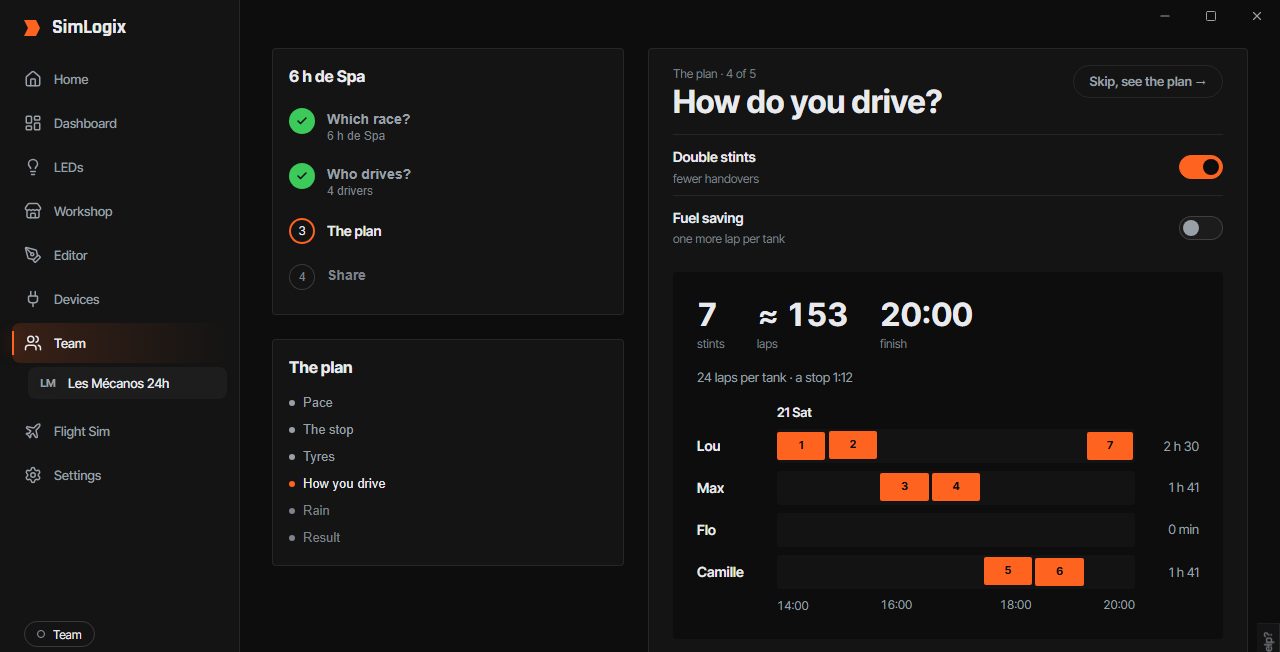
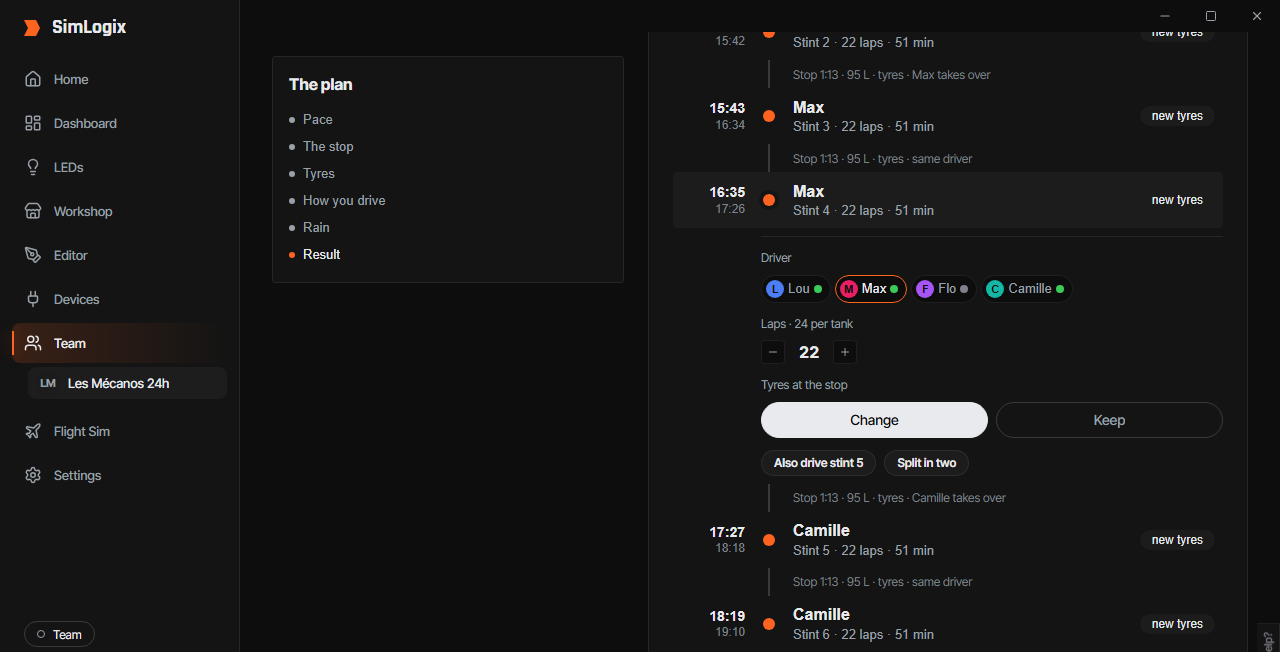
At the end, the plan as a timeline: each stint, its times and laps, the stop after it (length, litres, tyres, who takes over), and who drives how much, night included. Click a stint to adjust it: the driver (with their availability), the laps, tyres at the stop, carrying on into the next stint, Split in two. A change shows the old plan: Undo or Keep.
More settings: fuel, the stop in detail, how long a set of tyres lasts, and every value with its source: measured during a team session (Use its measurements), read from the car, game rule, set by hand, or a cautious value to adjust.
The weather: iRacing publishes its forecast the week before, hour by hour. Copy the chance of rain for each race hour; the wet plan, if ticked, has its tab next to the dry plan.
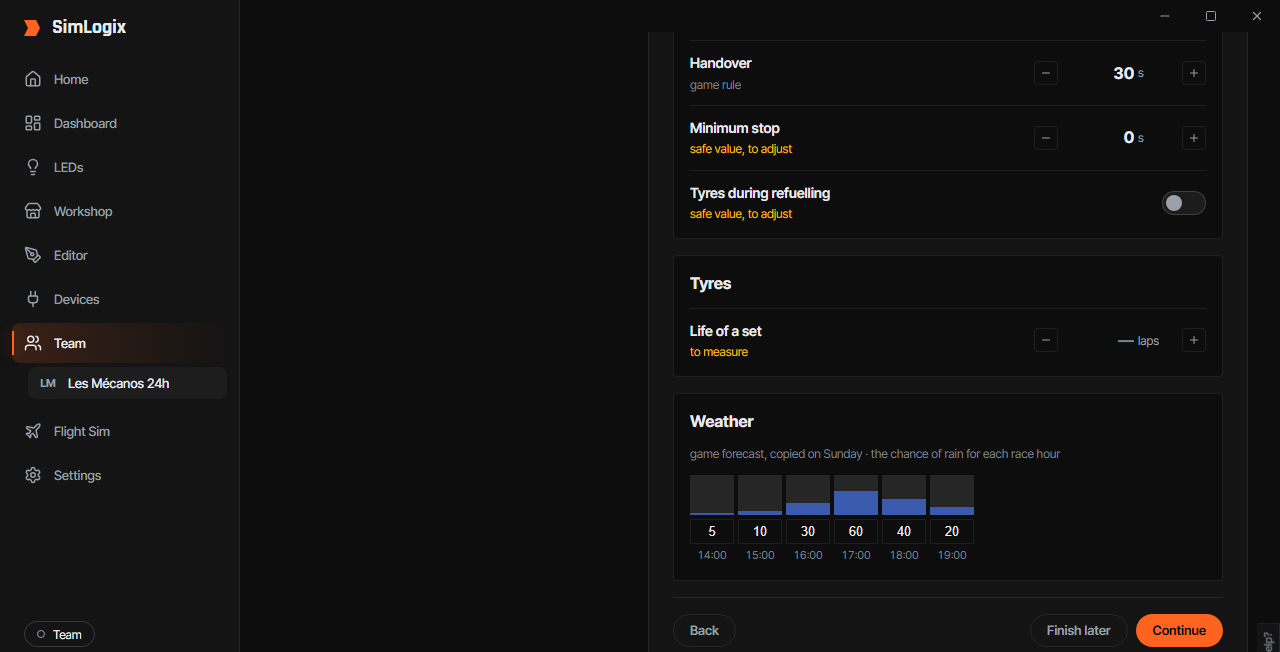
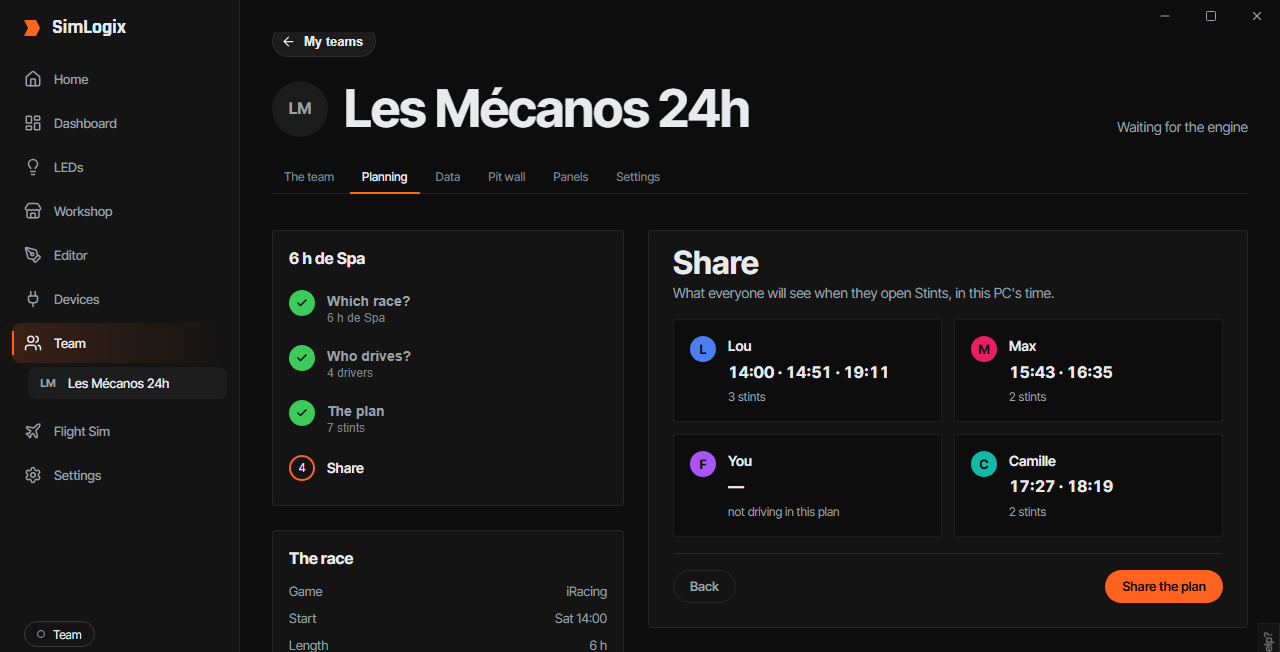
Share shows what everyone will see. Until Share the plan, the team sees the plan as last shared: Finish later keeps your work without changing anything for the others.
Race day
On race day, race mode takes the first tab, The team, recalibrated on the team’s journal: the race (elapsed, against the plan, expected finish), who’s driving and where they’re at, the relief and their answer. The calendar dims finished stints and fills the current one. Planning keeps the plan as it was shared; Edit the plan takes you there, the assistant open.
The next driver reads how long until they drive and answers OK, I'm driving or I can't. If the relief can’t drive, a card says who can drive that stint, with their availability.
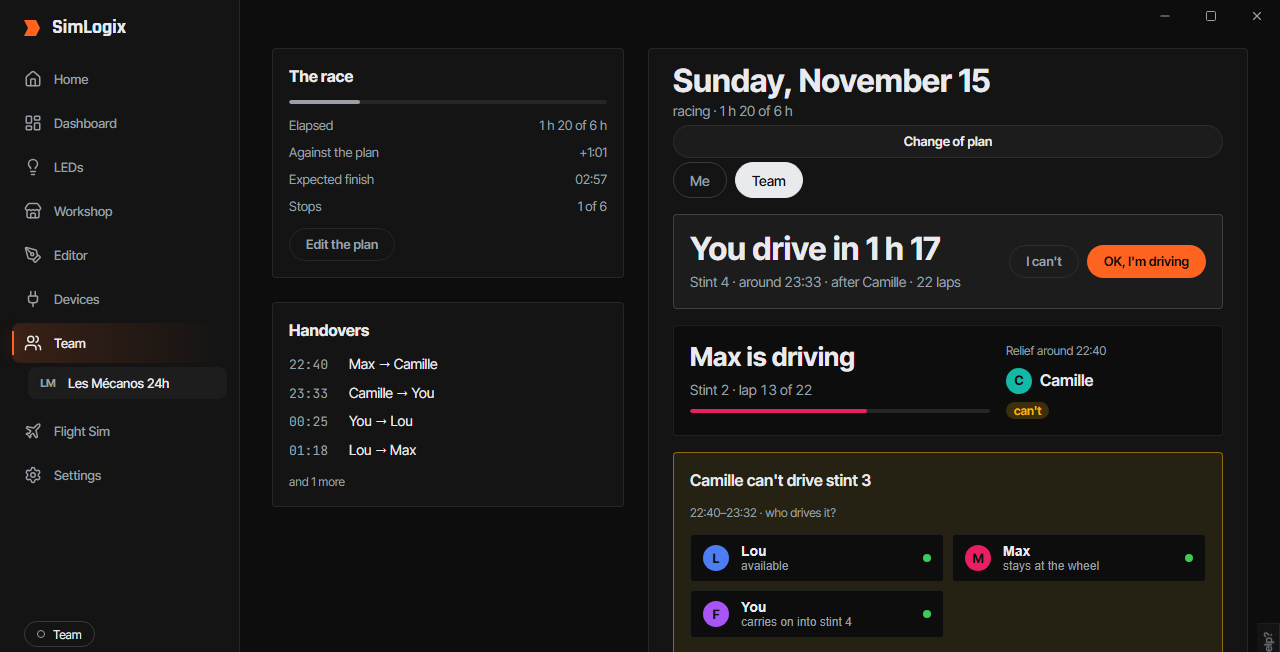
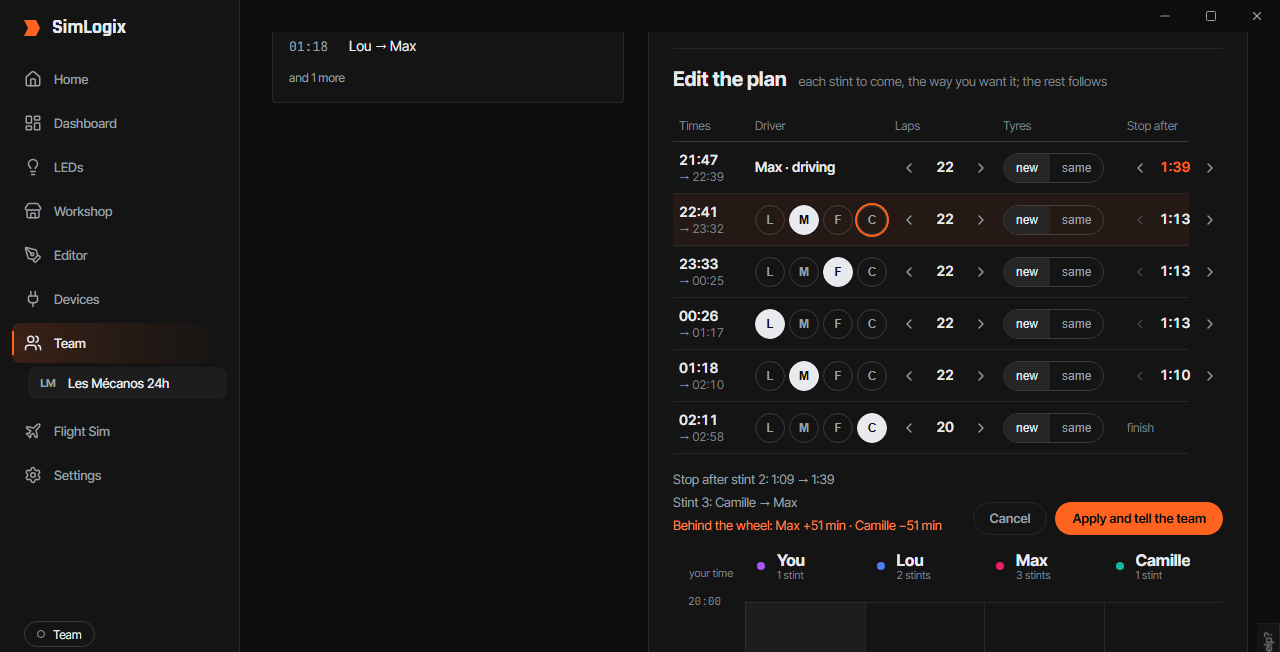
Change of plan: a crash, a penalty, a change of strategy. The plan opens for editing, from the current stint to the finish, and each stint is set exactly: the driver, the laps, the tyres, the length of the stop after it. The times, the relief and the calendar follow; below, what changed and what it does (laps at the finish, each driver’s time at the wheel). Apply and tell the team shares the plan: everyone’s app tells them.
Windows notifications
- The plan shared, or changed for you; your relief, twenty minutes before; the availability reminder.
- SimLogix open or minimised to the notification area.
- Each comes only once, and nothing for what you did yourself.
Rules, practice sessions, the plan that redoes itself during the race
- Rules: in the race, iRacing’s share (25% of an equal share of the laps), and if you want a maximum in a row and a maximum per driver. A broken rule shows above the calendar, the stint circled, with a way to change driver.
- While dragging a boundary or a stint, the calendar says what the move would change before you let go: a rule that breaks, longer stints in a row.
- Practice sessions: “+ Session”, under the race it prepares: the day, the time (told in everyone’s own time), the duration, the track and the car. Once told, the team answers “Are you coming?”; afterwards, the session is marked done.
- During the race, the plan redoes itself from what the team drives: a stop made sets the next stint, the pace and fuel use of the last ten clean laps redo the coming stints, rain counts. Each change goes into a history, and a measured change can be undone.
Championships
A league, a season: + Championship creates it with its game, its classes, its crew rules (drivers per car, time at the wheel) and our cars, each with its number and its crew for the season: From the team offers the ones of the team, with their base crew, and each keeps its colour. For an iRacing league, Fill in from a results file fills all of that in from the results file of one of its races.
In the list, the championship shows our places, the next round and how long until it starts; a click opens its page.
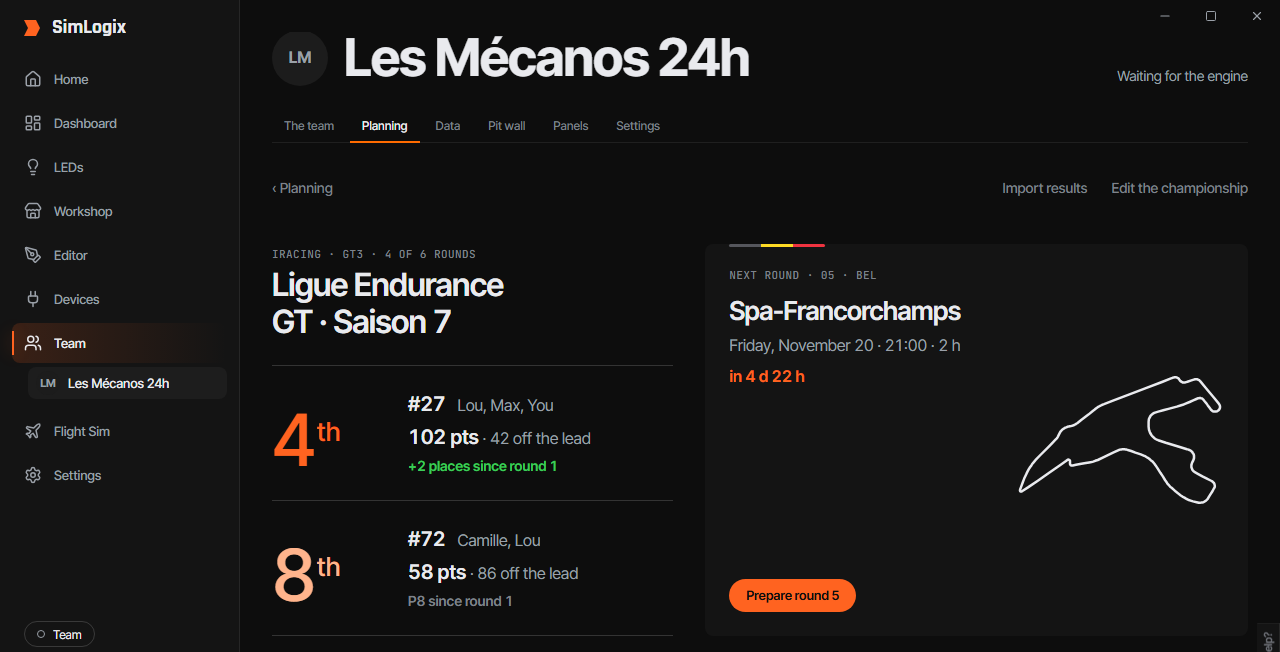
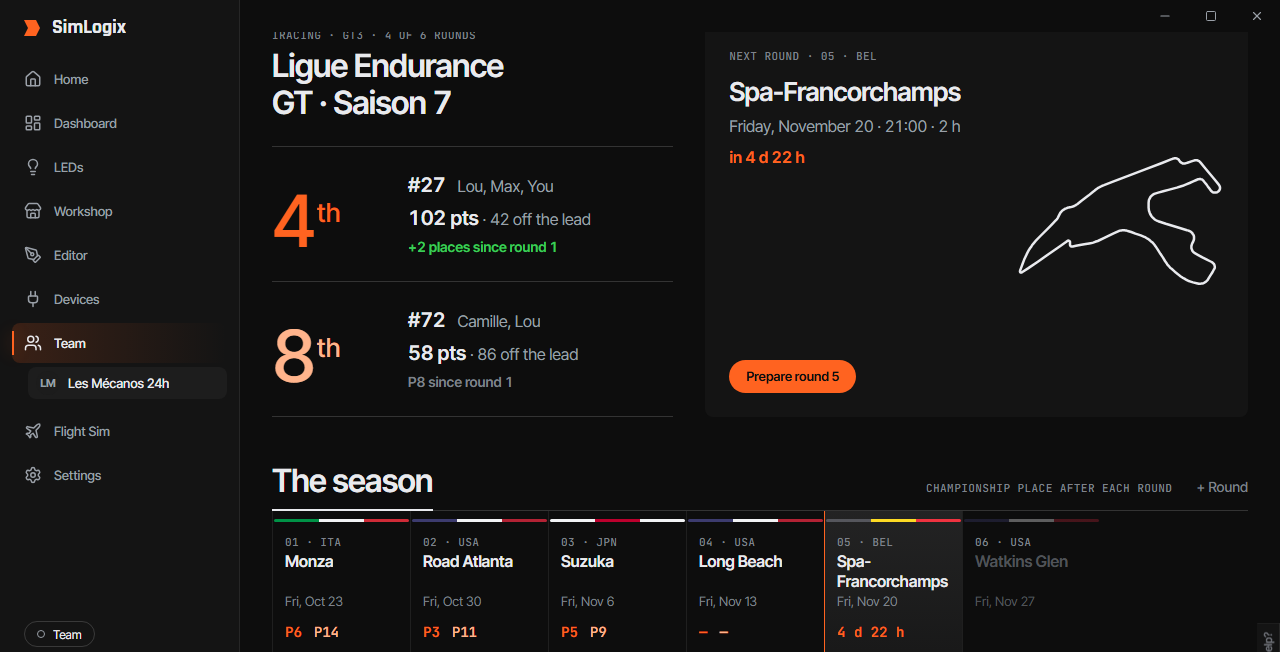
Its page answers first: for each of our cars, its place, its points, the gap to the lead and what it has gained in recent rounds; next to them, the next round, its track layout and its Prepare round button. Once the season is over, the same spot shows the last round, our places and the championship podium.
Below, the season: one column per round, with the band in its country’s colours and our finishing places, and, on the same columns, our championship place after each round, one line per car. + Round adds a round by hand, like a race.
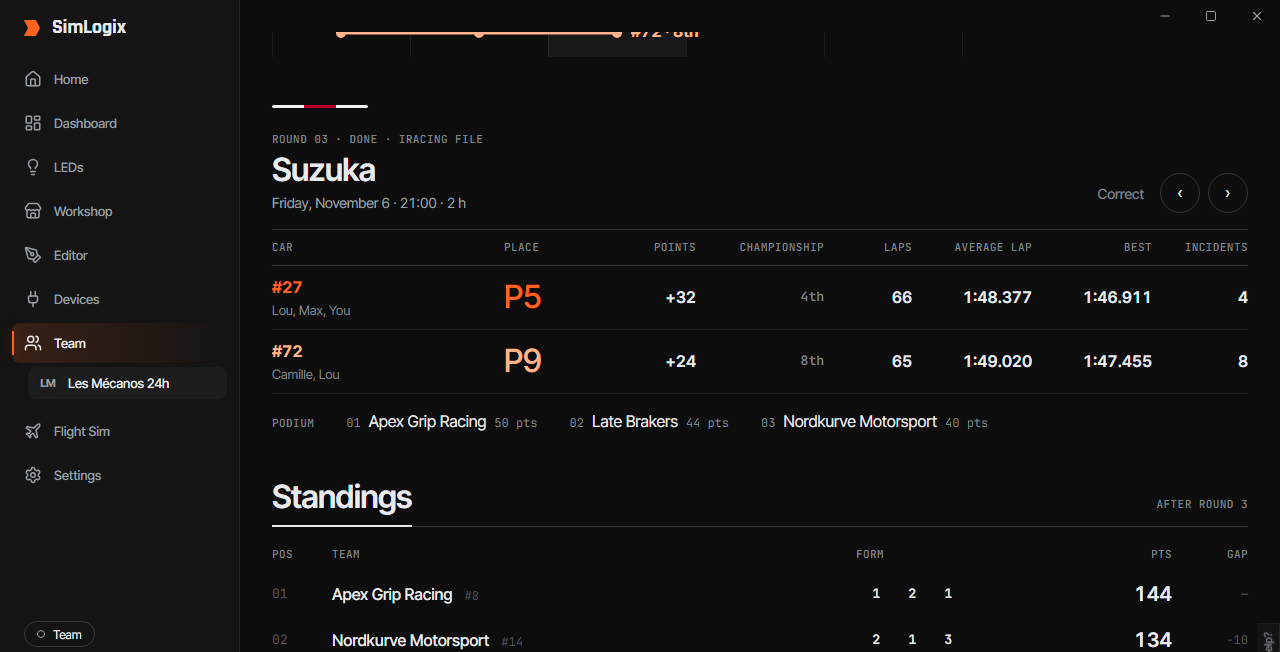
Click a round to open it below, as a table (‹ › moves to the next one):
- A round that’s been run: one line per car (place, points, championship place, laps, average lap, best lap, incidents), then its podium. Correct takes the place and points by hand: that’s the way for Le Mans Ultimate, where the league standings don’t come from a file.
- An upcoming round: who drives in each car (a crew member can skip a round), then Prepare opens the assistant already filled in: the race, its drivers, the round. The plan stays filed under the round.
At the bottom, the league standings: each team’s form, its finishing place in recent rounds, and the gap to the lead. Hover a team to light up its line.
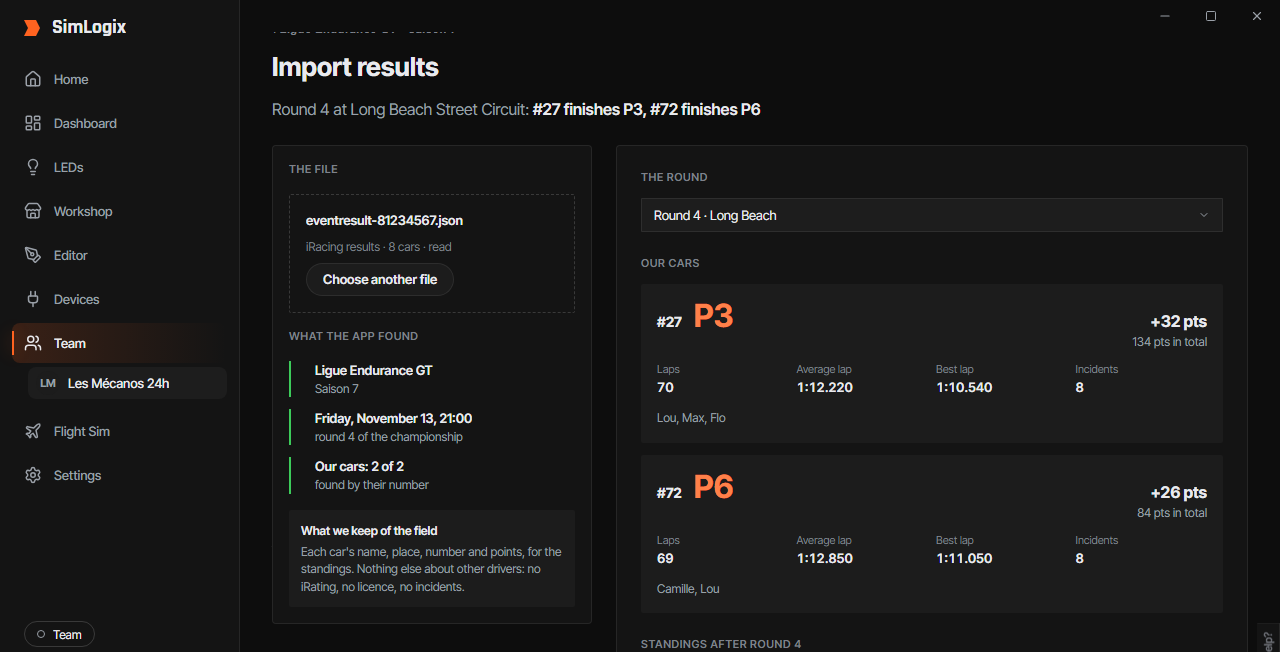
Import results (iRacing): on a race’s results page, download the JSON or the CSV, then choose it. Several files at once, a whole season for instance: each goes into the round of its day, or creates one. For one file, the app finds:
- the round, by its day; otherwise you pick it, or create one;
- our cars, by their number; if one is missing, you say which one it is;
- for each, the place, the round’s points and the total, laps, average lap, best lap, incidents and its crew;
- the standings after the round, with every team: the app adds up the points of each imported round.
Of the other teams, only the name, place, number and points are kept.
Data
The Data tab files the team’s sessions by combo: a track and a car, in one game. One tab per driver; whoever doesn’t share is greyed out, and your own sessions stay yours.
- A combo opens its sessions, the team by date: an evening driven together reads once, with its hours and its weather. A session shows its laps, the track map and the car’s logo.
- Compare with another session: two sessions of the same combo, lap by lap.
- Filter: In the dry, At night, In the rain, or by category, track, car, time of day and weather.
- Import an .ibt: an iRacing .ibt file adds its laps to your sessions.
- Share my sessions, in Settings: the team sees your last 40 sessions, lap by lap. Off, they stay on this PC.
During a race
- Whoever drives shares on their own: their car goes out as soon as they’re on track.
- The others see the team car instead of their game: their dashes, USB screens and phone follow it, as long as they haven’t started their game outside that race: another game, another session or the test bench brings them back to their own game.
- Driver changes happen on their own: whoever goes on track takes over.
- LEDs and the R-Box stay on your own game.
The iRacing team, and backup
- Link each car of the team to its iRacing team: at your first team race, SimLogix offers it (Link); otherwise, the Settings tab › Cars › Edit, from a session of the team.
- Once linked, your car only goes out during its races, and the app picks the right team on its own if you have several.
- In the team’s race without driving, your PC acts as backup: if the driver’s PC drops out for a few seconds, the standings carry on from yours.
- Without a linked team, your car goes out as soon as you drive, whatever the race or the game, and you never act as backup.
Talking to the driver: the pit wall
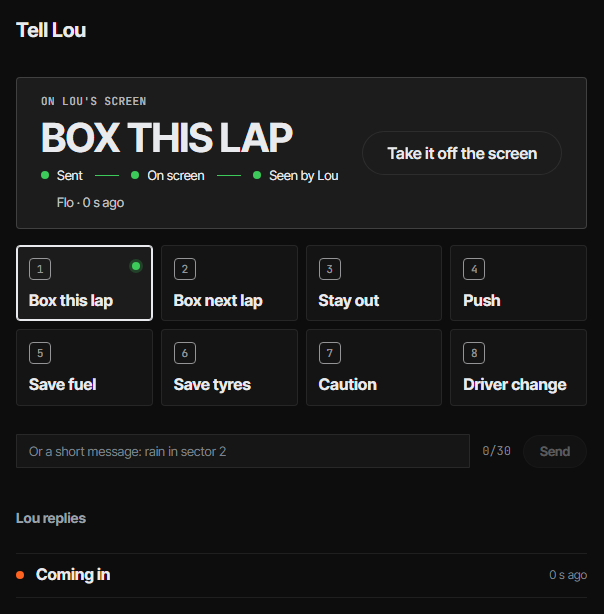
The Pit wall tab talks to whoever drives, from top to bottom: the radio, what they see every lap, the targets, their next stop. Everything shows on their dashes, USB screens and phone. Below the radio, each block sums up what’s set for the driver; Change (Set the stop for the stop) unfolds it.
The radio
- What’s on their screen, in big, and where it stands: Sent, On screen, then seen by the driver.
- Eight messages on keys (Box this lap, Stay out, Save fuel…), with a click or keys 1 to 8 on the keyboard, or a 30-character text. A message replaces the one on screen: Stay out cancels a BOX.
- Take it off the screen (or Esc) removes it; Put back brings back the one you just replaced.
- Their answers (Coming in, Problem, OK) come from their wheel buttons.
Every lap
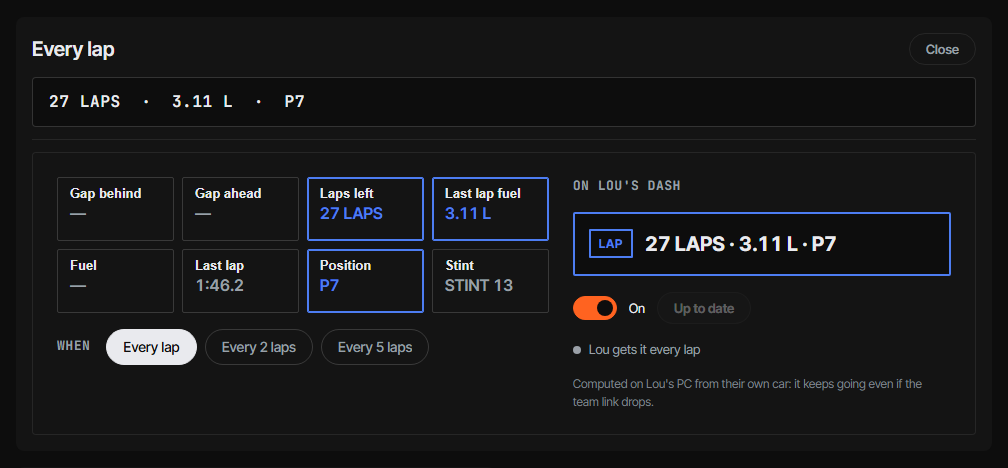
What the driver sees as they cross the line, without anyone pressing anything. Tick the items (gaps ahead and behind, laps left, last lap fuel, fuel in laps, last lap, position, stint), pick how often (every lap, every 2, every 5), then send: the preview shows their banner.
Their PC works the values out from their own car: it keeps going even if the team link drops.
Targets, and when to box
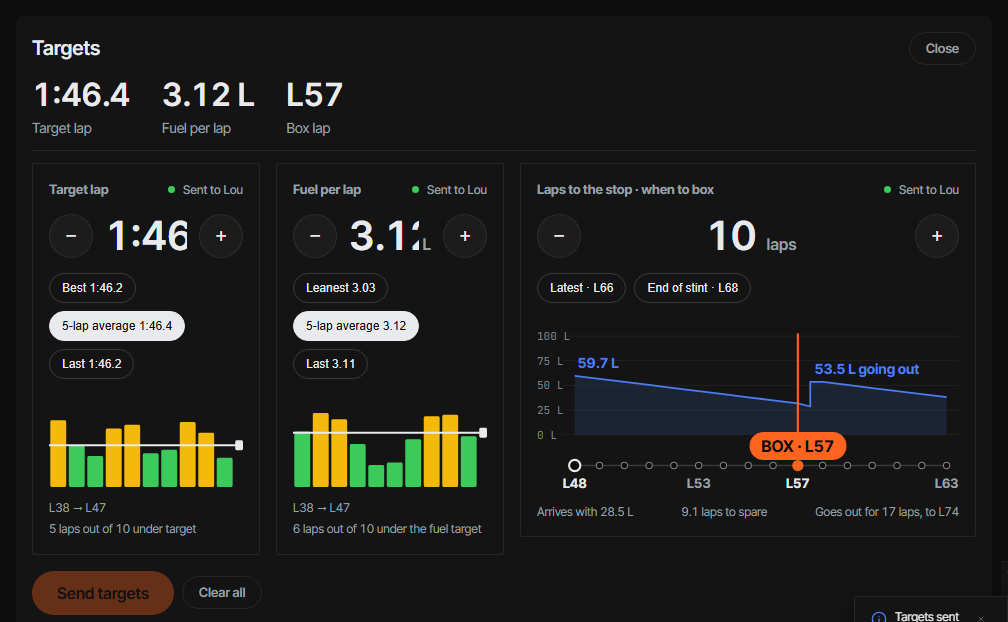
- Target lap and Fuel per lap, without typing: the ±, a recent lap in one click (Best, 5-lap average, Last, and Leanest for fuel), or the white line dragged over their last ten laps.
- When to box: the laps ahead, fuel at the set rate. Drag the BOX pin, or click Latest or End of stint: you see what will be left at the stop, running dry if it comes first, and the fuel planned at the stop going back up afterwards.
- Send targets: a target you send keeps what you set and holds until the next one.
Their next stop
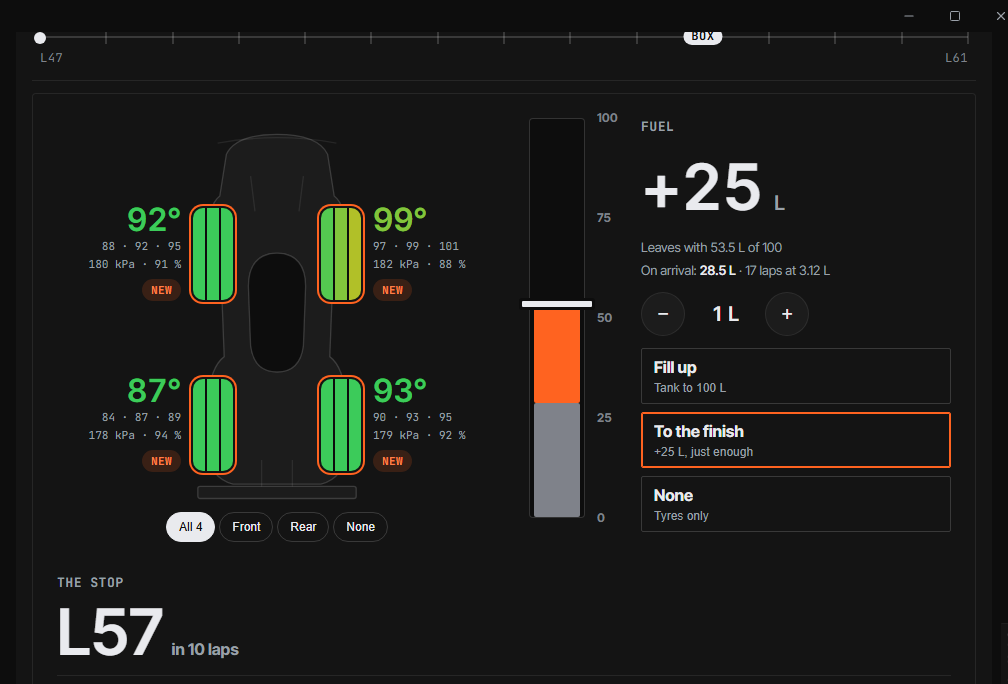
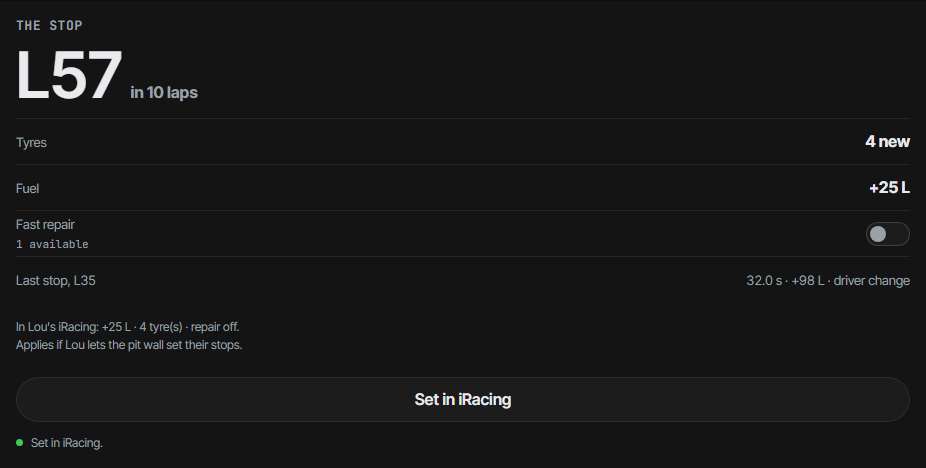
- The tyres, as the car reports them (temperatures, wear, cold pressure): a click keeps or changes a tyre, or All 4, Front, Rear, None.
- Fuel is dragged in the tank, to the litre, or set in one click: Fill up, To the finish (just enough to the flag), None. It’s worked out for the stop lap picked in When to box.
- Fast repair, and the last stop to compare.
The setting only goes into their iRacing if they turned on The pit wall sets my stops. The pit wall shows Set in iRacing once iRacing has taken it, then Changed since the last send if you touch it again: Set it again sends it again.
On the driver’s side: the pit wall banners
- The message shows as a banner on all their dashes: solid orange for a BOX, amber for caution, grey for the rest.
- Every lap, a blue-ringed “Lap” banner stays 6 s after the line, behind the pit wall’s messages.
- They’re set in Settings › Pit wall banner: top or bottom, normal or large.
- A dash that already shows the pit wall’s messages (the
team_messagechannels) gets no banner: its own block is enough.
The team’s panels
The Panels tab is the team’s library: the same panels on every PC. Anyone can change them, and every save goes out to the others.
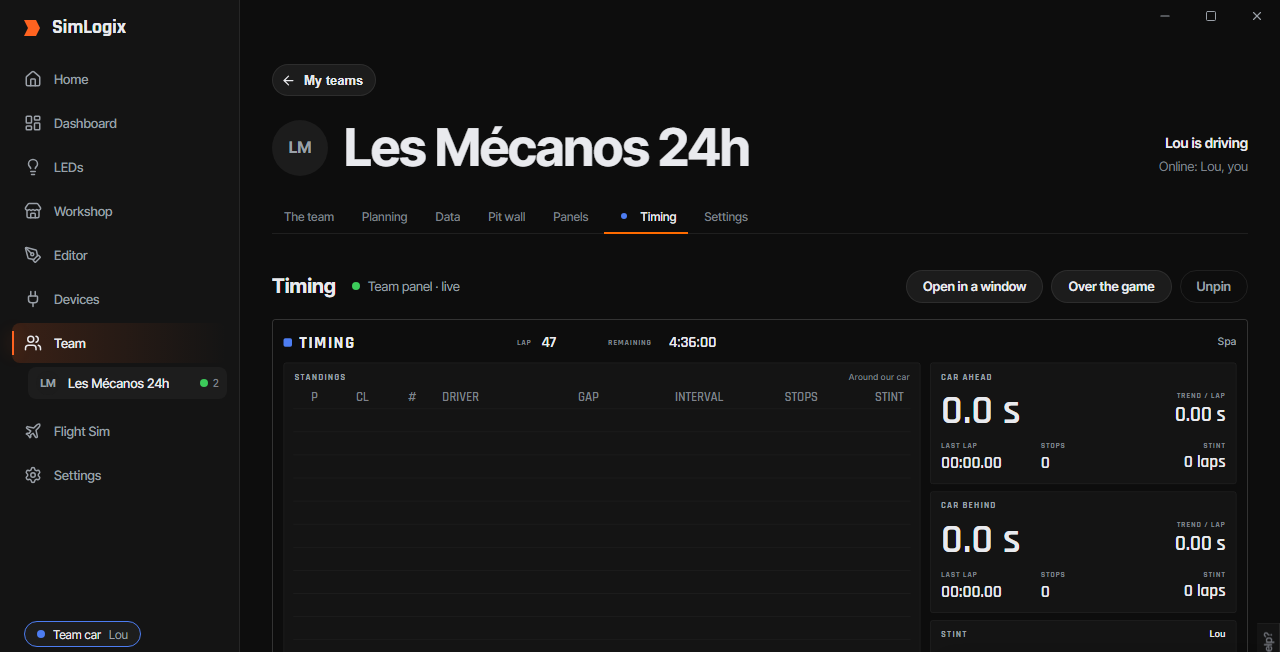
- The picked panel shows in big and live: Pin as a tab gives it its own tab after Panels, Open in a window (with Driver to follow when the team runs several cars) or Over the game. The “…” menu holds Edit, Adjust and Make default, which makes it the one everyone sees first.
- On this PC: your Team dashboards not shared yet; Share sends them to the team.
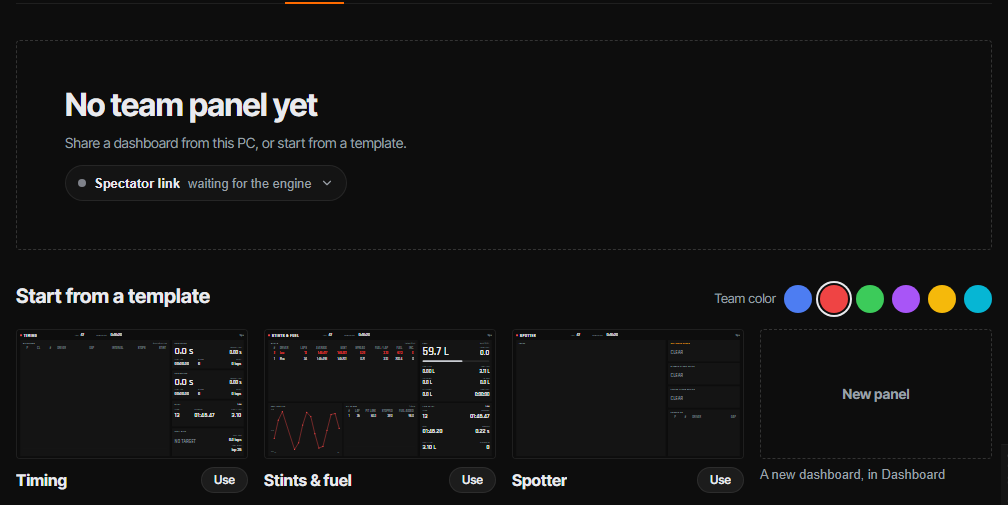
- Three templates to start from: Timing (the standings around the car, the stint, the next stop), Stints & fuel (the stints, fuel per lap, the stops) and Spotter (the map, the cars to watch, the relative). Pick the team colour, then Use: a copy lands in your dashboards and opens in the editor.
Adjusting without the editor, and two people on the same panel
- Adjust, in the tab or with a right-click in the panel’s window: drag a zone, pull its corner to make it bigger, hide it. Save for the team sends it to the whole team.
- If someone saved it while you were changing it, the app asks: Keep mine or Take theirs.
- Remove from the team takes it off every PC; a copy stays in your dashboards.
- A panel weighs 256 KiB at most: lighten its images if it’s too heavy.
Outside the app
A team panel can be watched somewhere other than its window too: as a tab, in a browser on your network, or through a link for people without SimLogix.
As a tab: in the picked panel’s “⋯” menu, Pin as a tab, and the panel gets its own tab after Panels, big and live.
- Three at most, on this PC only: everyone pins what they watch.
- From the tab, it opens in a window or over the game.
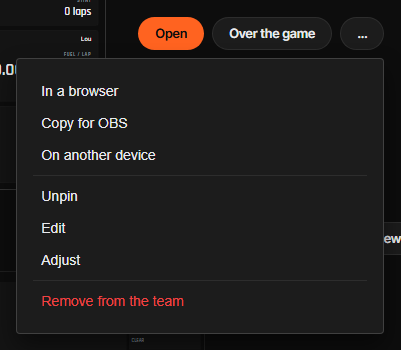
Outside the app: the same “⋯” menu serves the panel to browsers.
- In a browser opens it in this PC’s browser.
- On another device gives its QR code, for a phone or a tablet on the same Wi-Fi.
- For a stream: Copy for OBS, then in OBS, Sources › Browser, at 1920 × 1080. The panel keeps its background.
- SimLogix stays open: this PC serves the panel, and it follows the team’s car like your dashes.
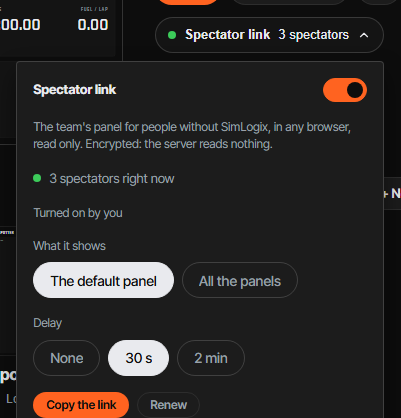
The spectator link: for a manager, a friend or your viewers. The link opens the panel in any browser, read only. At the top of Panels, its line says whether it’s on and how many are watching; a click opens its settings: turn it on, then Copy the link.
- What it shows: the team’s default panel, or all its panels (the spectator picks).
- Delay: none, 30 s or 2 min. With a delay, your rivals don’t see your stops or your fuel live.
- One link per car: when the team has its cars, each one has its own, and the window shows the link of the car you follow (“Spectator link · #7 Black”).
- Ten spectators at a time per link. The next one reads “Full” and gets in as soon as a seat frees up; the team sees how many are watching.
- Renew gives a new link and cuts every spectator of the old one.
What a spectator sees, and what they don’t
- The panel in big, where the race is at (“Lap 47 · 30 s delay”), nothing to change. On a phone, the same page, scaled.
- Never the pit wall messages, the stint plan, the availabilities or the other panels.
- The live feed comes from the PC at the wheel, with SimLogix open. Nobody at the wheel: the page says so and waits.
- Encrypted like the rest: the server reads nothing. But whoever has the link can watch: share it like a password, and renew it if it spreads too far.
- What has gone out stays readable to whoever has the link, even back on the default panel alone or with the link off: only Renew cuts it for good.
- Every team member can turn the link on, set it, turn it off and renew it.
The team’s setups
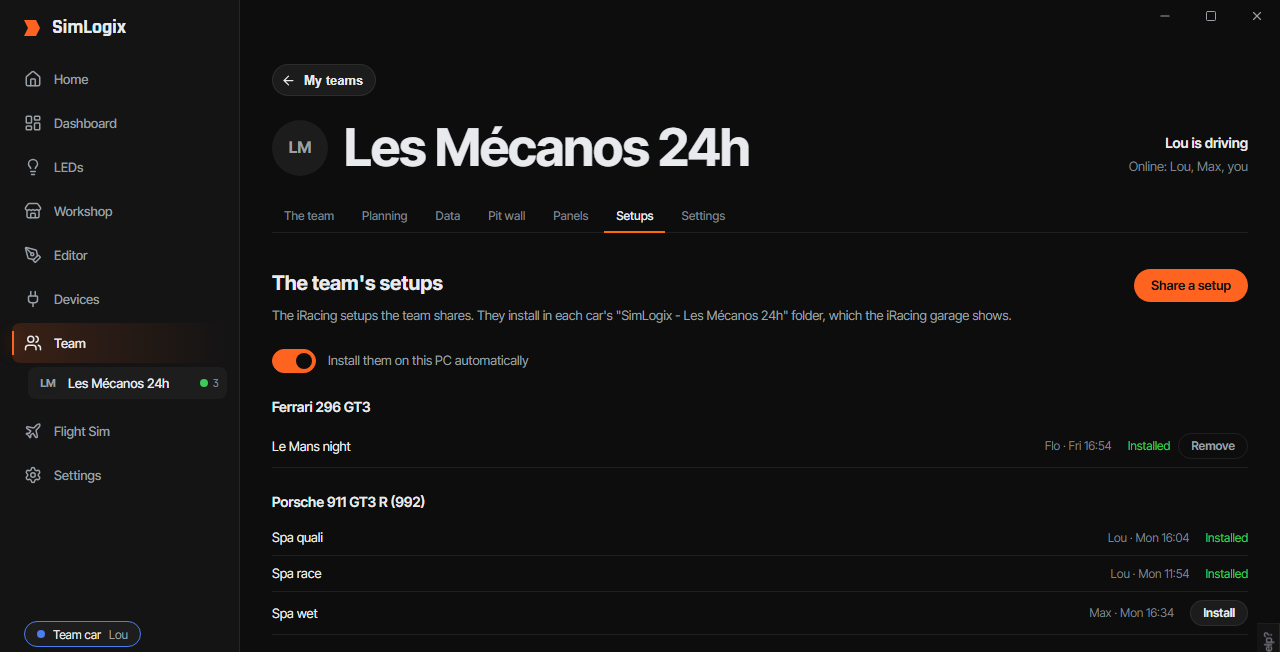
The Setups tab gathers the iRacing setups the team shares, by car. Each one reaches the others and installs in the team folder: the iRacing garage shows it under SimLogix - <team>, in the subfolder of whoever shared it.
- Install them on this PC automatically: on, a shared setup installs as soon as it arrives. Off, it waits for a click on Install.
- Installed: the same file is already in the team folder on this PC.
- Remove: only whoever shared it, or the captain, removes it from the team.
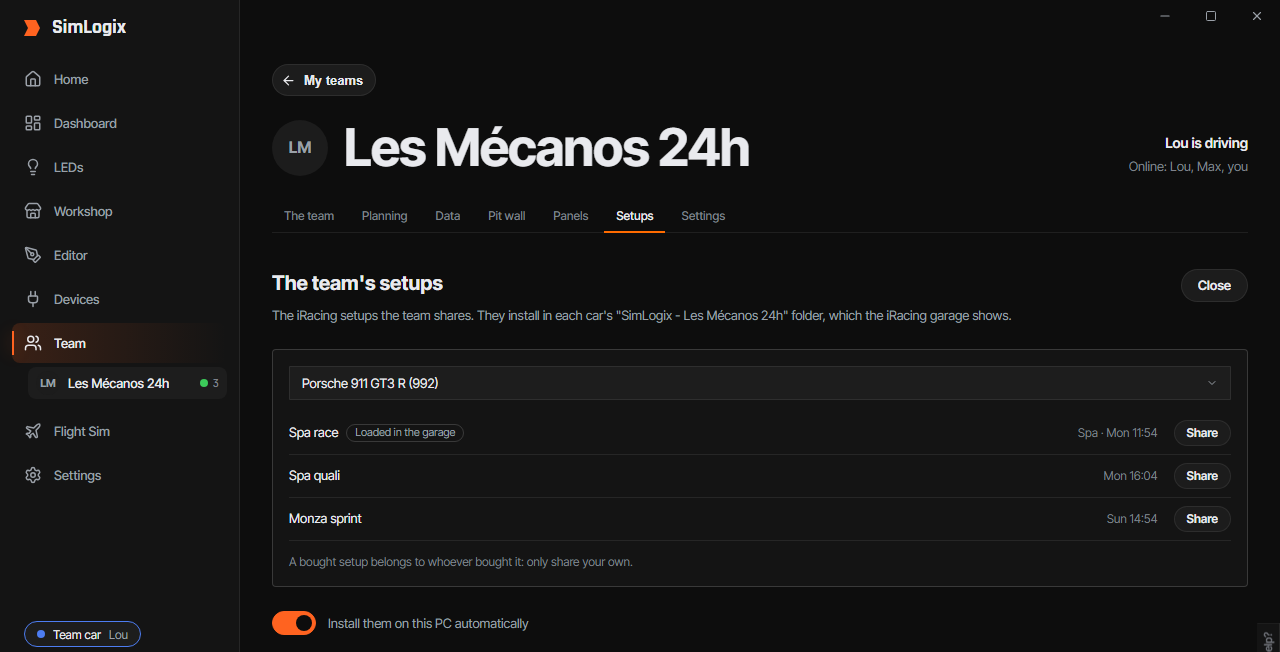
Share a setup: the car of your iRacing session is already picked, and the setup loaded in the garage is on top, marked “Loaded in the garage”. Share sends it to the team.
- Outside iRacing, pick the car: the list shows this PC’s car folders.
- Sharing one of your setups again under the same name replaces it for everyone: it’s its new version.
An edited setup, a removed one, and what not to share
- A setup you edited in the garage on this PC isn’t overwritten by the automatic install: its row offers Install, which replaces it with the team’s version. A new version shared after your edit does replace it on its own.
- A setup removed from the team stays in your garage: SimLogix deletes nothing.
- A renamed team installs in a new folder; the old one stays.
- A setup weighs 96 KiB at most, 100 per team.
- A bought setup belongs to whoever bought it: only share your own.
The indicator
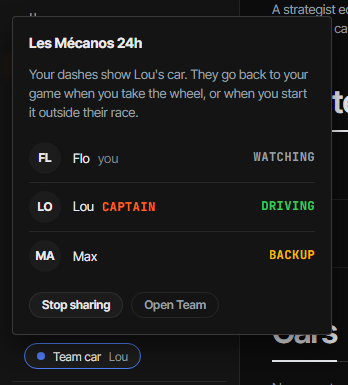
At the bottom of the sidebar, above the engine status. A click opens the team, who’s doing what, and Stop sharing: your car no longer goes out, you still follow the team. With the sidebar collapsed, the indicator is just a coloured dot; its text shows on hover.
| Colour | Text | What it means |
|---|---|---|
| Green | Live · you're sharing | You’re driving: your car goes to the team. |
| Blue | Team car · the driver | Your dashes show the team car. |
| Orange | Live · backup | In the team’s race, not driving. |
| Orange | Connecting… | The relay isn’t answering yet; the app keeps trying. |
| Grey | Live · nobody driving | Online, but nobody is driving. |
| Outline | Team | Sharing off, or the engine isn’t there yet. |
| Red | Link refused | The relay refuses the link: ask the team for it again. |
Members and settings
- Members, at the top of the Settings tab: who’s in, and each one’s role, Strategist, Driver or Custom. A strategist changes the planning and the panels, talks to the driver, sets their stops and invites; a driver reads, gives their availability and answers the pit wall. Without a right, what it allows is refused when sent, and the Planning no longer offers it (it’s read-only, you give your availability). The captain sets the roles: nobody at first, the first to take the role (Become captain) keeps it and can hand it to a member who has opened the team at least once, or remove one (“…” › Exclude…: the invite link changes, the others get the new one by themselves, the absent ones when they come back within 7 days; the spectator link changes too). The role is tied to a key that stays on their PC: nothing goes through an account. Invite and Code are there too. A member shows up when their SimLogix is open.
- Further down: Automatic sharing, Share my sessions, The pit wall sets my stops (off until you turn it on: the fuel, tyres and fast repair picked by the pit wall then go into your stop, in iRacing), Pit wall banner, your name, Show what you're doing (your session in the game and your Team page, next to your name in all your teams; off, they only see your car and your role), Your key in the team (Save puts it in a file, Restore takes it back on another PC: the captain role follows it), Delete the team for everyone for the captain (on everyone’s PC, 7 days in the My teams bin, from where only the captain restores it for everyone), and leaving (not the captain: hand the role over first); at the top, the team and its cars.
What goes out, and who reads it
Everything is encrypted on your PC, with a key held in the invite link. The SimLogix relay, which the data travels through, can read neither the car nor the members’ names, and writes nothing to disk. The details: the privacy policy.