Dashboards
Pick, launch and customize a dashboard. And link it to your car, so it shows up on its own.
The Dashboard page starts with the device, like the LEDs page: each screen of your rig, then the phone. The chosen dashboard shows on it in large, with its pages. Below, Your dashboards: SimLogix’s and yours; a click puts one on top. The community’s are in the Workshop. The SimLogix dashboard has its own page.
Launch, and where it runs
- At the top, pick the device: a screen of your rig, or Phone. A green dot: it shows a dashboard.
- Under Your dashboards, click a dashboard: it moves to the top, on that device, or its screen alone at its format (Screen only).
- Put on the screen launches it there, on the page shown; if it runs there, Stop on the screen. On the phone, a QR code to scan, with Show QR and Stop. See Launch a dashboard.
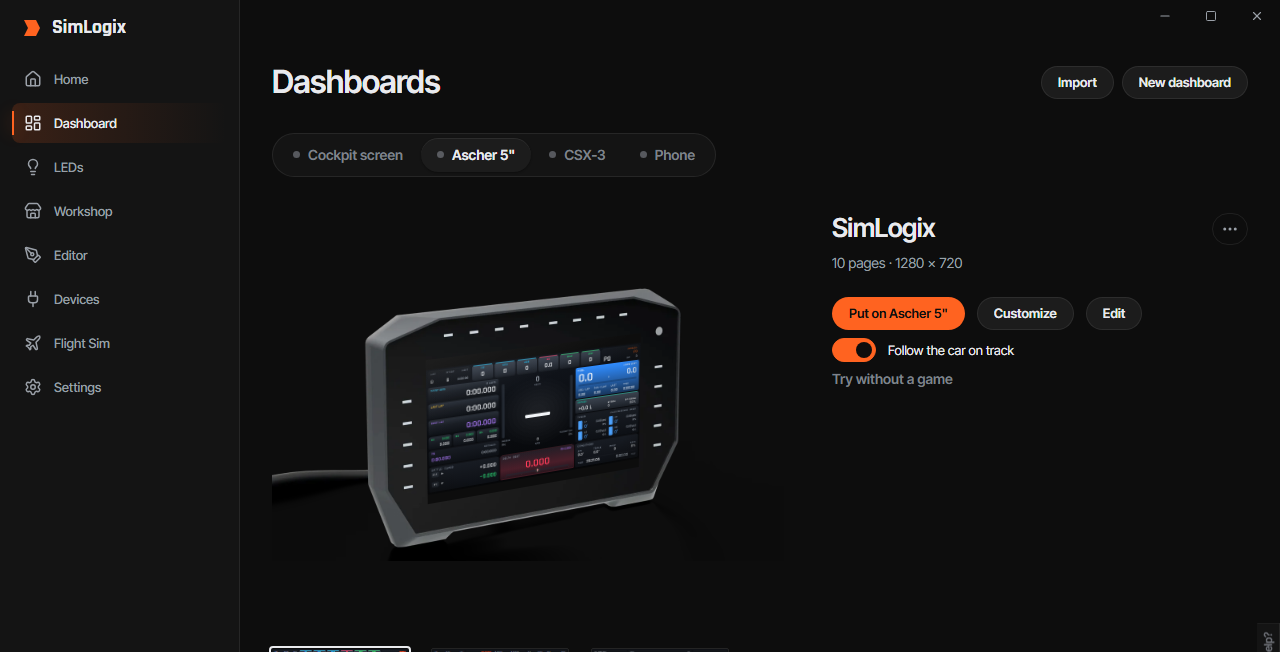
Switching dashboards, several screens, relaunching
- To switch dashboards on a screen, pick it then Put on the screen: the new one replaces the old one. Back to brings back the one running there. One cockpit window, one per USB screen.
- The phone opens a new session at each launch; they’re cleared when SimLogix closes.
A card’s menu
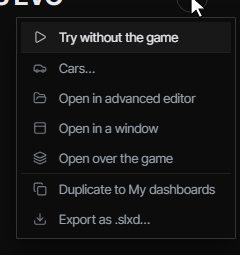
Right-click a card, or More on top:
- Try without the game, below;
- Customize… and Cars…, below;
- Open in advanced editor: to change it, see the editor course;
- Open in a window: the dashboard in a window on your PC, to move and resize, next to the others. That’s how you watch a Team panel; it follows what you save in the editor, and the ← → arrows change page;
- Open over the game: the dashboard on a see-through background, over the game running in borderless windowed mode (exclusive fullscreen hides it). It opens in placing mode: drag it, pull the corner to resize, then Done. Once placed, clicks go through to the game; the same menu choice brings it back to placing, and it keeps its place from one time to the next. For an overlay, leave the dashboard’s background empty;
- on yours: Duplicate, Rename…, Export as .slxd…, Publish to catalogue…, Delete.
A preset, a new dashboard, importing
- A preset never changes: the editor makes a copy when you save. Duplicate to My dashboards makes one right away.
- At the top of the page: New dashboard (a name, a resolution, then an empty dashboard) or Import.
- Right-click the page background: Sort by name or date.
Try without the game
The dashboard runs on a recorded lap, without starting the game, and your rig follows the same lap: screens, wheel LEDs.
- Right-click a card › Try without the game.
- Turn a knob, by click or keyboard (keys 1 to 8): under the dash, a line says which layer reacts, and circles it.
- Set a situation: Yellow flag, In the pits, Low fuel… or Run all six, five seconds each.
- Close the window: the bench stops.
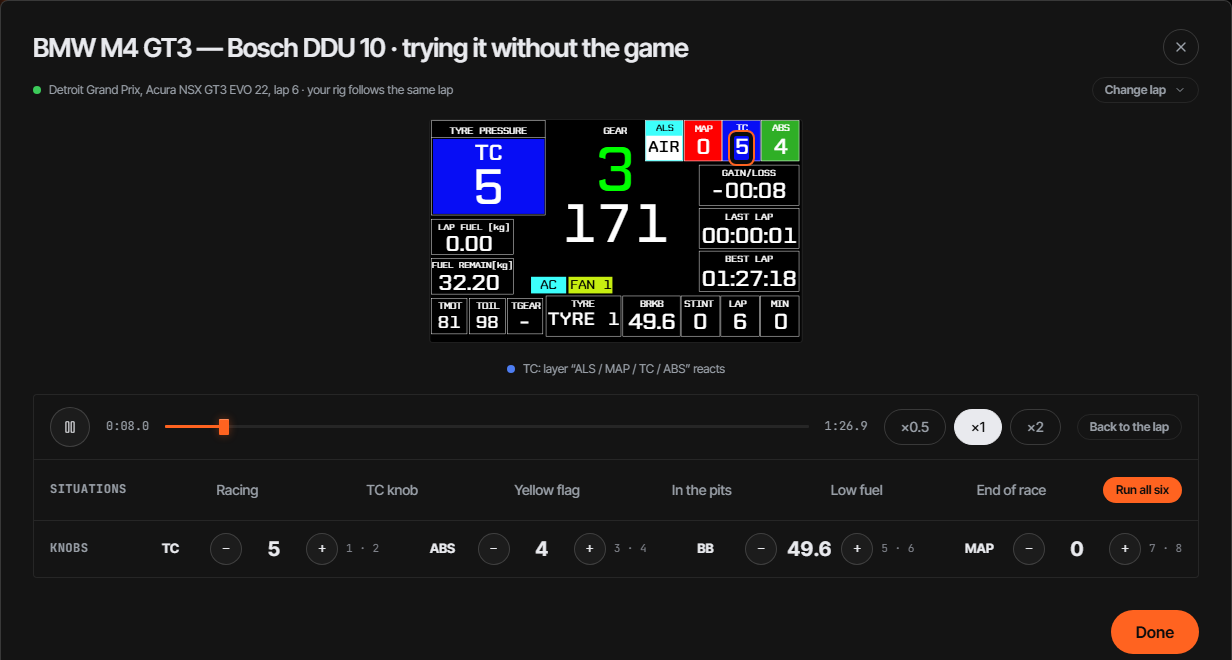
Another lap, a rig screen, what the bench doesn’t do
- Change lap: the provided lap, or the fastest clean lap of an iRacing .ibt file.
- Also on: a rig screen already open (cockpit, USB) shows the dash you’re trying while you try it, then gets its own back.
- Each situation starts from the lap as it is; Back to the lap removes everything set.
- The lap’s car reads as in iRacing: a dash linked to the car recognises it.
- A game that starts stops the bench; with a game running, it doesn’t start.
- Team and session recording don’t see the bench. The pit message and the gap ahead / behind aren’t in it.
Customize
The settings a dashboard offers, with a preview running on a recorded lap. On the SimLogix dash: its pages, its dials, its alerts.
- On top, Customize, or right-click › Customize….
- Change a setting: the preview follows, and so does an open screen.
- Reset all goes back to the settings saved in the dashboard.
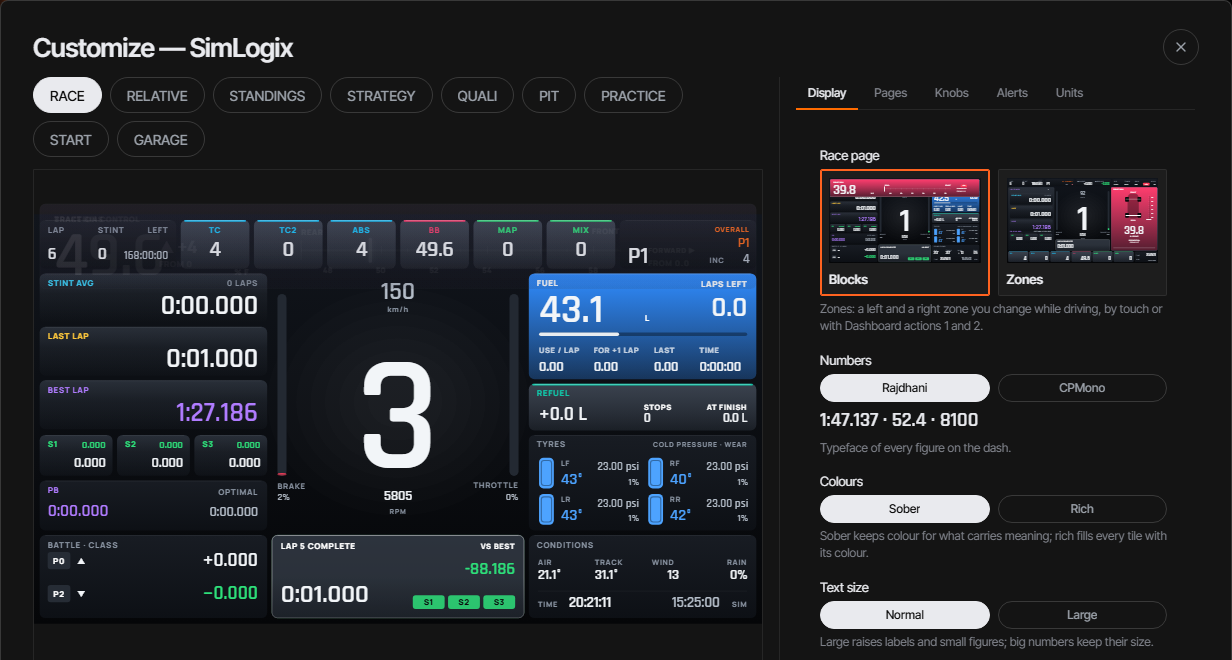
Several pages, per dashboard, and what doesn’t follow
- A dashboard with several pages names them above the preview: a click shows one, and the line below says when it comes (on its own, or from the wheel).
- A dashboard with many settings sorts them into tabs.
- The settings apply to this dashboard, on every screen.
- A phone launched from here picks up new settings when you reload its page; a config’s phone follows on its own.
- A copy (Duplicate) and an export leave without them.
- Among the presets, the SimLogix dash, the BMW M4 GT3 and the Porsche 911 GT3 R have settings so far.
Follow the car
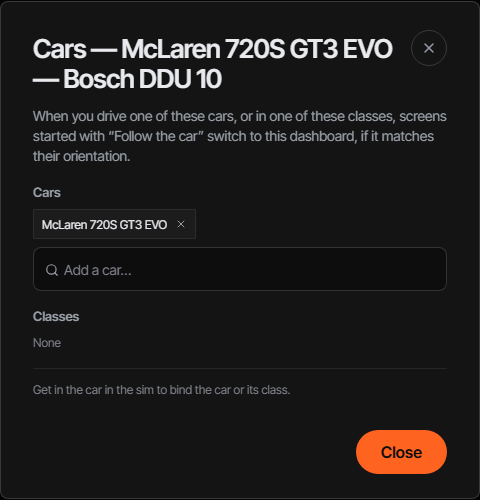
A dashboard linked to a car or a class shows up on its own when you drive it.
- Right-click › Cars….
- Search the car by name; in the car in the game, you can also link the current car or its class.
- At launch, keep Follow the car on track.
Who wins, classes, spares
- The screen starts from your config’s category rule, otherwise the dashboard you launched. If it follows the car, the car’s dashboard, then the class’s, takes over, among those with the same orientation.
- The GT3 screens are linked to their car ahead of time; the GTP / LMH, to the six GTPs.
- Only iRacing, Automobilista 2 and Le Mans Ultimate give the class.
- The phone doesn’t follow the car.
- Spare dashboards are set in the config, at the screens step; a wheel button switches between them, see Wheel buttons.
A page that comes on its own
In a dashboard with several pages, a page can come on its own with the moment: race, qualifying, practice, pit lane, start, garage. In the editor, right-click its tab › Show on its own. A page picked from the wheel, by touch or with the dots stays until the next moment.
A page can also follow the real car’s screen: right-click its tab › Car display page, then page 1 to 8. In iRacing, when you switch page on your car’s screen (its page command), the dashboard follows. Only some cars have that command.
The GT3 screens
Eleven iRacing GT3s have the real car’s screen, rebuilt from its manual: its pages, its limiter, its alarms. Each one is linked to its car ahead of time: with Follow the car on track, it shows up as soon as you take the car.
| Car | Screen | Pages |
|---|---|---|
| Acura NSX GT3 EVO 22 | Bosch DDU 10 | RACE 2 (Pit Time in the pit lane) |
| Aston Martin Vantage GT3 EVO | Cosworth ICD | RACE, MECHANICS |
| Audi R8 LMS GT3 EVO II | Bosch DDU S2 PLUS | RACE, RACE NIGHT |
| BMW M4 GT3 | Bosch DDU 10 | three pages and the service mode |
| Chevrolet Corvette Z06 GT3.R | Bosch DDU 11 | Race, Race Basic |
| Ferrari 296 GT3 | Bosch DDU 10 | RACE 1, QUALI, PIT |
| Ford Mustang GT3 | MoTeC C187 | Race, Race 2, Quali |
| Lamborghini Huracán GT3 EVO | Bosch DDU S2 PLUS | dark page, Race Day, QUALI |
| McLaren 720S GT3 EVO | Bosch DDU 10 | RACE 1, QUALI |
| Mercedes-AMG GT3 EVO | Bosch DDU 9 | RACE, TYRES |
| Porsche 911 GT3 R (992) | Porsche 10.3” display | RACE 1, RACE 2, QUALI, BRAKE and the mechanics’ pages |
Switching pages, clearing an alarm, the old replicas
- On the wheel, Next page and Previous page switch pages; a qualifying or pit page also comes by itself at the right time.
- Dashboard action 1 does what the real car’s button does: it clears an alarm on the Aston and the Porsche, it goes to page 2 on the Ferrari.
- On the Porsche, RACE 1, RACE 2 and QUALI also follow the car’s own page command in iRacing (Car display page in the editor).
- The SimLogix GTP / LMH is linked to the six GTPs.
- The old BMW, McLaren, Porsche, Ferrari, Aston and Acura replicas, copied from commercial dashboards, have left the app. A config that used one says so (a missing screen): pick the car’s screen.
The Workshop
Dashboards, LED profiles and Team panels shared by the community have their own page, Workshop, sorted by shelf: Dashboards, LEDs, Team panels. More in the Workshop, under your dashboards, leads there. Installing puts a copy in Mine, which no longer updates.
Publishing one of yours
Right-click › Publish to catalogue…, then Publish. The team reviews each submission before publishing it. Your AI assistant can prepare the listing; sending it stays your click.
Good to know
Check it works
- Under the preview, the target screen says it shows your dashboard.
- Driving a linked car, the screen switches to its dashboard.
Stuck?
The phone doesn’t connect? The The phone can’t reach the app sheet. The USB screen stays black? The The USB screen stays black sheet.