AI assistant
Your AI assistant builds your dashboards and LEDs. You talk to it in its own app, the result lands in SimLogix.
- 5 min
- Claude Desktop, Claude Code, Gemini CLI, Codex
SimLogix plugs into the assistant you already use, through the MCP protocol. It builds things: it doesn’t read your laps and doesn’t touch your settings. SimLogix neither runs nor pays for any model.
Connect it
- Settings › AI assistant: the assistants found on your PC. Connect next to yours.
- Fully quit it, then start it again.
- At the top of the panel, its name replaces No assistant connected: it’s connected.
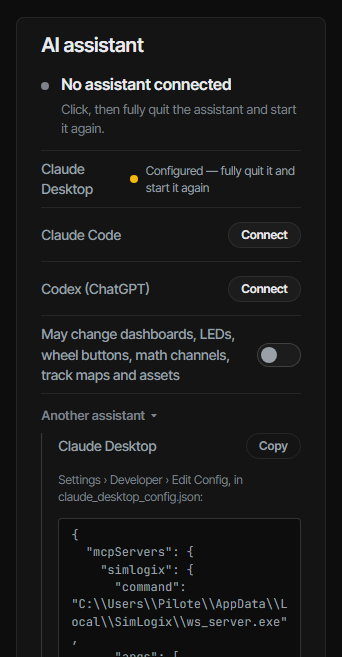
Quitting Claude Desktop, another assistant, after an update
- Closing the Claude Desktop window isn’t enough: right-click its icon in the notification area › Quit. For Claude Code or Gemini CLI, open a new session. For Codex, quit and restart the ChatGPT app, or open a new session of its CLI or extension.
- Another assistant, or a button that fails: expand Another assistant, click Copy and paste where the app says. Any assistant that starts its tools on your PC (MCP over stdio) works; one that only reaches them over the internet doesn’t.
- SimLogix has to stay open; minimised to the notification area is enough. The editor can stay closed.
- After each SimLogix update, restart your assistant: the install cuts its link.
Ask it
Talk to it like someone who knows the app:
- “A simple dash for my 800 × 480 screen: gear, delta, fuel laps”
- “A dash for my phone, at its size”
- “Put all my dashboards in kg”
- “Copy this car’s dashboard”, with a photo attached
- “Put the QUALIF page of the Porsche preset on my dash”
- “A panel for our engineer: stints and fuel”
How it works
A small change (“put the fuel in kg”) happens right away. A new dashboard, or one to redo, is built with you:
- The level: it first asks what you want, quick, clean or pro. The more polished, the more back and forth.
- Your answers: a few questions at a time, about your screen, your car, what you really look at in a race, what you like.
- The layout: what goes where, and how big, before any drawing.
- Mock-ups: two or three directions rendered by SimLogix in a single image, which SimLogix also shows in a notification (Your assistant's mockups). Nothing is saved: you pick one, or mix them.
- The finish: it checks the dashboard in a race, an alert, the pits, under a flag and with extreme values, and fixes what sticks out.
In the editor you find one named block per area of the screen (FUEL, DELTA…), not dozens of loose nodes.
Everything it can do
- Dashboards: read them, change them, build them block by block, change up to twelve at once, show mock-ups without saving anything, open them in the editor, link them to cars or classes.
- Pages: copy a page from one of your dashboards or a preset to another, scaled when the screen differs.
- Customize: add options to it (a unit, a colour, a threshold) that you then change without the editor.
- Team panels: it handles them apart (who watches them, on what screen) and starts from the three templates.
- Replicas: it reads a JRT dash or a photo, lays the picture as a reference layer to compare pixel by pixel, and can draw a real screen’s font glyph by glyph.
- Math channels, wheel buttons (it asks you to press the one to set), library (save a block), tracks (draw a map from a picture).
- Workshop: it fills in the listing; you review it and publish it yourself.
- It also offers ready-made requests in its own menu, titled in French for now: night or colour-blind version, fit another screen, add a page, translate the labels…
LEDs
It writes your LED variants and looks at the render: the wheel, one row per race situation. Describe your wheel (“a 16-LED bar and two 4-LED pods”) or plug it in, then ask for instance “green, yellow, red, then all blue at the limiter”. It starts from a preset without changing it. Profiles and variants: the LEDs page.
Stay in control
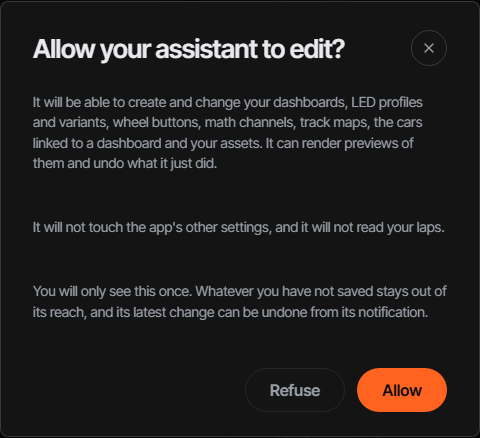
- When you click Connect, then at its first write, SimLogix asks you this question.
- Each change shows a notification, with Undo for 12 seconds. You can also tell it “undo”.
- Everything goes through its tools: it never takes over your mouse, keyboard or screen. If it lacks a tool, it tells you.
The exact rules
- Allow ticks the My assistant may change my dashboards and their cars, LEDs, wheel buttons, math channels, track maps and assets box: untick it to make it ask again. Refuse only applies to the current request. When it writes, with no answer within 45 seconds, the request expires.
- Its last 20 changes can be undone, newest first, as long as SimLogix stays open and you haven’t changed anything on top. For a dashboard, the notification shows Before and After.
- It never writes into an editor tab you haven’t saved. A preset dashboard it changes becomes a copy.
- The log records each request, without its content.
Good to know
Check it works
- At the top of the AI assistant panel, your assistant’s name.
- Ask it “list my dashboards”: it answers with yours.
Stuck?
The assistant doesn’t see SimLogix, or refuses to write? Follow the The assistant doesn’t see SimLogix sheet, one question at a time.