Wheel buttons
Give an action to the buttons of your wheel or button box: switch page, dashboard or brightness, or press a game key.
SimLogix reads your buttons in the background, without taking them from the game. A button can trigger a SimLogix action, or press a game key for you.
Press, then choose
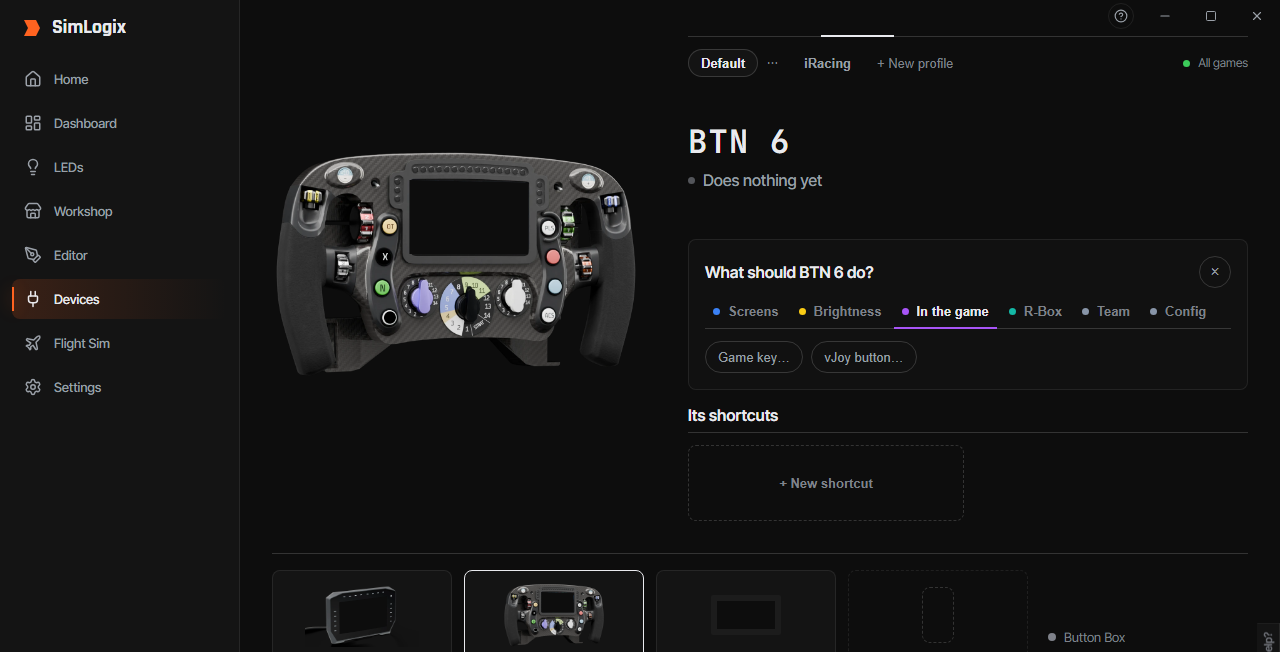
- Devices: press a button on your wheel or button box. The device gets picked, and a ring lands on the button you pressed.
- In its Buttons tab, the action picker opens: a family (Screens, Brightness, In the game…), then the action.
- The shortcut joins Its shortcuts, as a tile under the wheel.
The actions, and for which configs
- Screens: Next dashboard, Previous dashboard, Main dashboard, Next page, Previous page, Go to a page (1 to 9), Show a dashboard while the button is held.
- Dashboard action 1 to Dashboard action 4 do what a touch on the screen would, for a dashboard that uses them: the SimLogix dash switches its zones, its gap column, its start test; the GT3 screens shipped with the app use them for their pages.
- Brightness: Night mode (screens and LEDs), Brighter screens, Dimmer screens, Brighter LEDs, Dimmer LEDs.
- Config: Next config for the sim, Relaunch the config.
- R-Box: R-Box ▲, R-Box OK, R-Box ▼, and Show an R-Box page: a multi-position rotary picks one per click (the R-Box).
- Team: Pit message seen, To the pit wall: coming in, To the pit wall: problem, To the pit wall: OK. Your team’s pit wall sees you read its message, or your answer; outside a team, nothing is sent.
- A shortcut is saved at once, for all your configs of the same game.
- The phone follows Next page and Previous page, set on all screens; the gamepad icon in its corner turns that off.
In a config
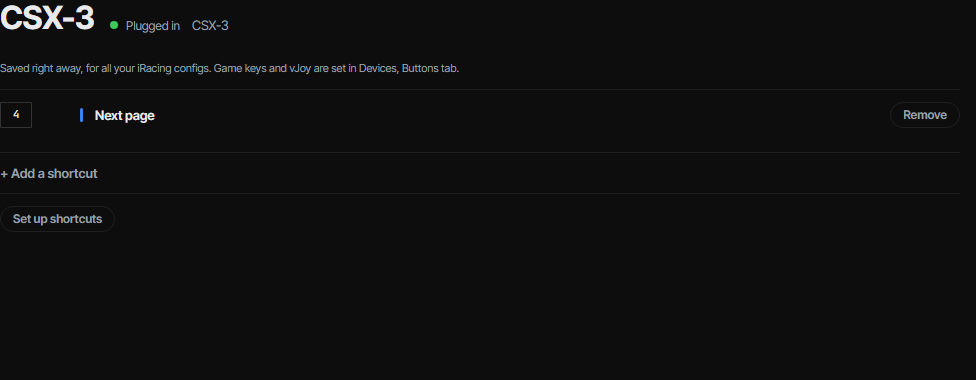
Your config has its own shortcuts too, with the screen they target.
- Your config › Edit › Buttons: press a button, your wheel or button box shows up.
- + Add a shortcut: the action, and the Target screen: All screens, or This wheel's screen for a button on the wheel that carries the screen.
- Pick the button, then press the button. Esc cancels the wait.
A game key
For a game command (TC+, ABS–, wipers…), SimLogix presses a key that you bind once in the game.
- Devices: press the button.
- In the game › Game key…, then the key.
- In the game, bind that key to the command.
vJoy, the shift variant, profiles
- vJoy button…: a vJoy button, 1 to 128, for a game that reads gamepads rather than the keyboard. It needs the vJoy driver.
- Add a shift variant: a second button held changes the action, like a Shift key.
- The key goes out alone, without Ctrl or Shift, pressed then released, to the window in front: the game, when racing.
- One profile active at a time: your game’s when it starts, otherwise the all-games one (All games). A shortcut set in a config creates its game’s profile: your keys for that game go there.
Find a button
In Devices, a press picks the device and puts the ring on the button, with its number: enough to know which one you’re holding. A presented wheel names its buttons, and a wheel with lit buttons has its Backlight → link to the LEDs page.
Good to know
Check it works
- In Devices, a press puts the ring on the right button.
- Your shortcut changes the page on the target screen.
Stuck?
A button does nothing? See whether a press shows in Devices. If it doesn’t, SimLogix doesn’t see it: check that it answers in Windows, “USB game controllers” panel.