Install SimLogix
One Windows installer, no admin rights. SimLogix then starts its own engine, in the background.
- 3 min
- Windows 10 and 11, 64-bit
Install
- Download the installer from simlogix.net.
- Run it: it installs for your Windows account, without admin rights.
- “Windows protected your PC”? More info, check the publisher is Florian Lebigre EI, then Run anyway.
What you need, and that Windows message
- Windows 10 or 11, 64-bit. Nothing else to install: if WebView2 is missing, the installer adds it, with Internet during the install.
- If SimLogix was running, the installer closes it before copying its files.
- The message comes from SmartScreen as long as Windows doesn’t know the app well: it goes away over time.
First start
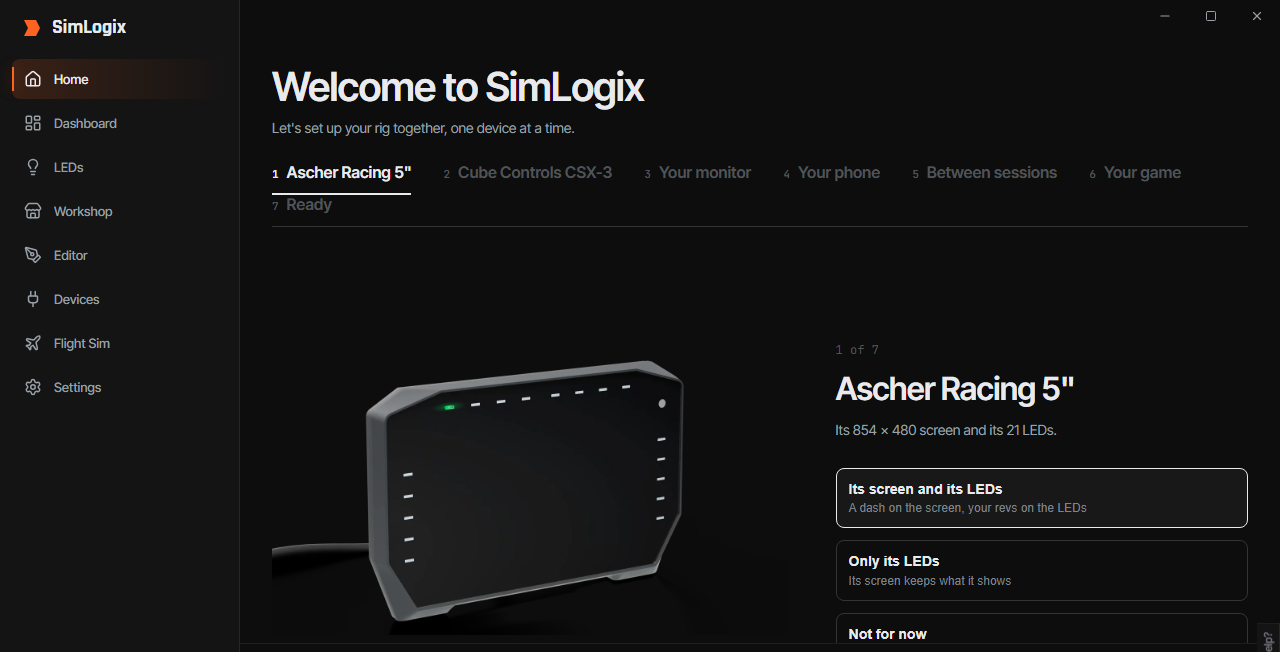
After the logo comes the first-run setup: SimLogix sets up your rig with you, one device at a time. Follow Your first config.
Closing the window doesn’t quit SimLogix: it stays in the notification area, to start your config when you open your game.
The window and the notification area
- Left-click the SimLogix icon: the window comes back. Right-click: Open SimLogix or Quit.
- To make the close button really quit: Settings › General, untick Keep running in the background.
- Starting SimLogix while it runs just brings its window back.
Updates
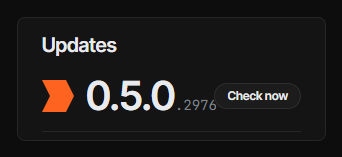
- At launch, SimLogix checks for a newer version and offers it. Nothing is forced.
- To check right away: Settings › Updates › Check now.
- Your version is just above: add it to every report.
Good to know
The app opens in English: for French, Settings › General › Language.
Every update is signed by the team: SimLogix refuses a package that doesn’t come from it.
Using an AI assistant? Restart it once after each SimLogix update.
Check it works
- SimLogix opens on the first-run setup: your first device.
- With the window closed, its icon stays in the notification area.