A screen SimLogix doesn't know yet
Your dash has a screen SimLogix doesn't know yet? Survey it, two minutes, and send it: we add it, and it works on the next launch, without a new version.
- 2 min
- VoCore USB screens (C872 1004)
- Answer on the SimLogix Discord
SimLogix recognises a USB screen by its panel: each model answers with a code, and the app knows which picture to send it. A code it doesn’t know, it doesn’t guess, because a picture at the wrong size can freeze the screen. It asks you to survey it.
Spotting it
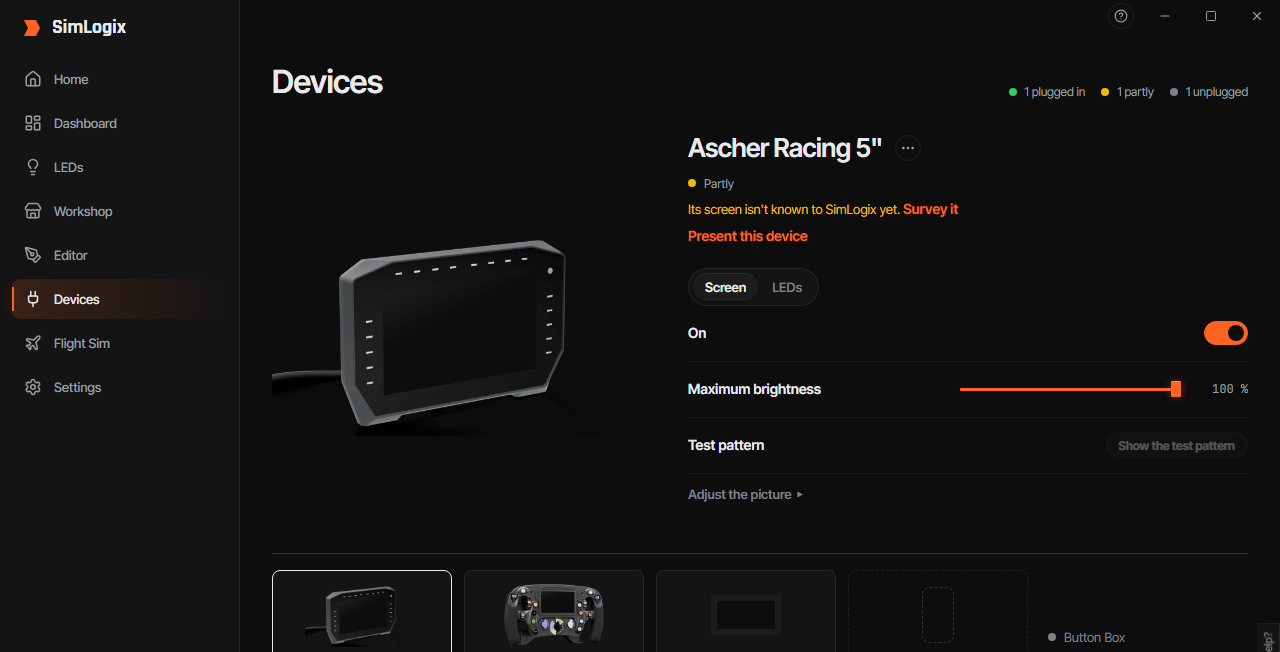
In Devices, your device’s page says “Its screen isn't known to SimLogix yet.”, with the link “Survey it”. If SimLogix doesn’t know the device either, the screen has its own card at the bottom: “USB screen · Not known yet”.
Before you start:
- close any other program that uses the screen: a screen can’t be shared between two programs;
- its driver must be installed, see the USB screen driver.
The survey, in four steps
Click “Survey it”. Look at your dash’s screen, not the PC’s: SimLogix draws on it, and you say what you see.
1. The test pattern
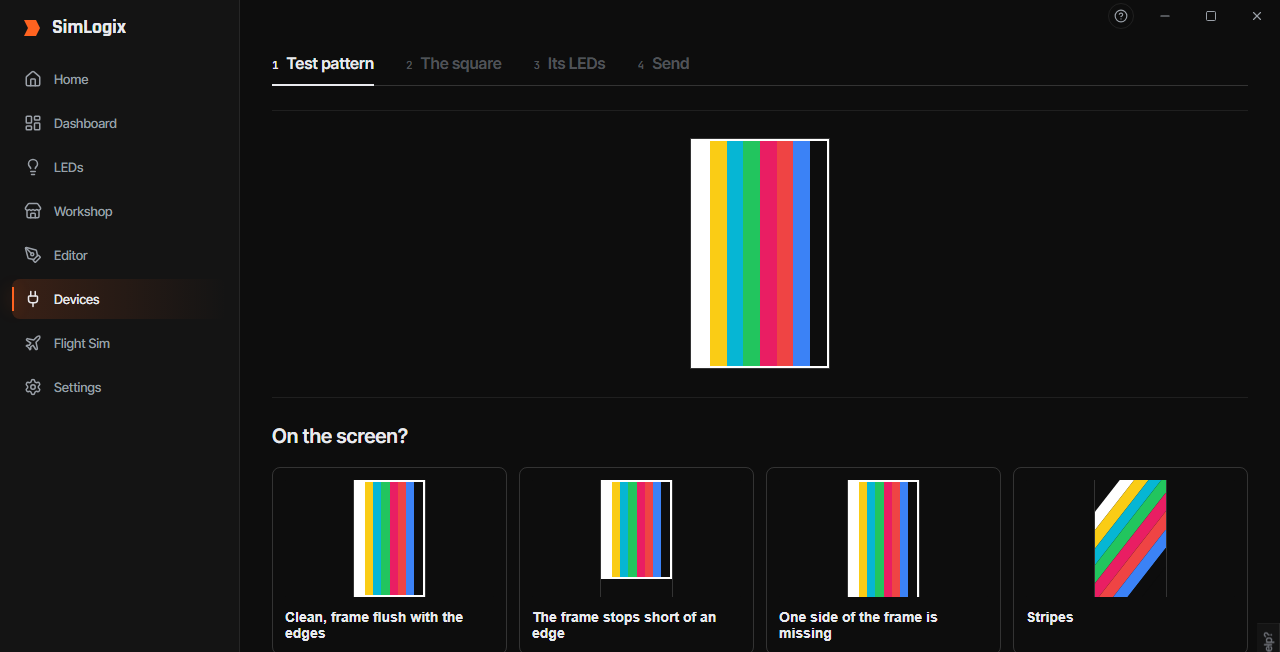
Eight colour bars in a white frame, at a size SimLogix tries. Answer what you see:
- “Clean, frame flush with the edges”: that’s the right size;
- “The frame stops short of an edge” or “One side of the frame is missing”: SimLogix tries another height;
- “Stripes”: the width is wrong, it moves to the next size;
- “Nothing”: it changes how it sends the picture, then the size.
It redraws on its own: answer again, until “Clean, frame flush with the edges”. You can also go through the sizes with “Other size”. If none works, “No size works”: the survey is sent anyway.
2. The square
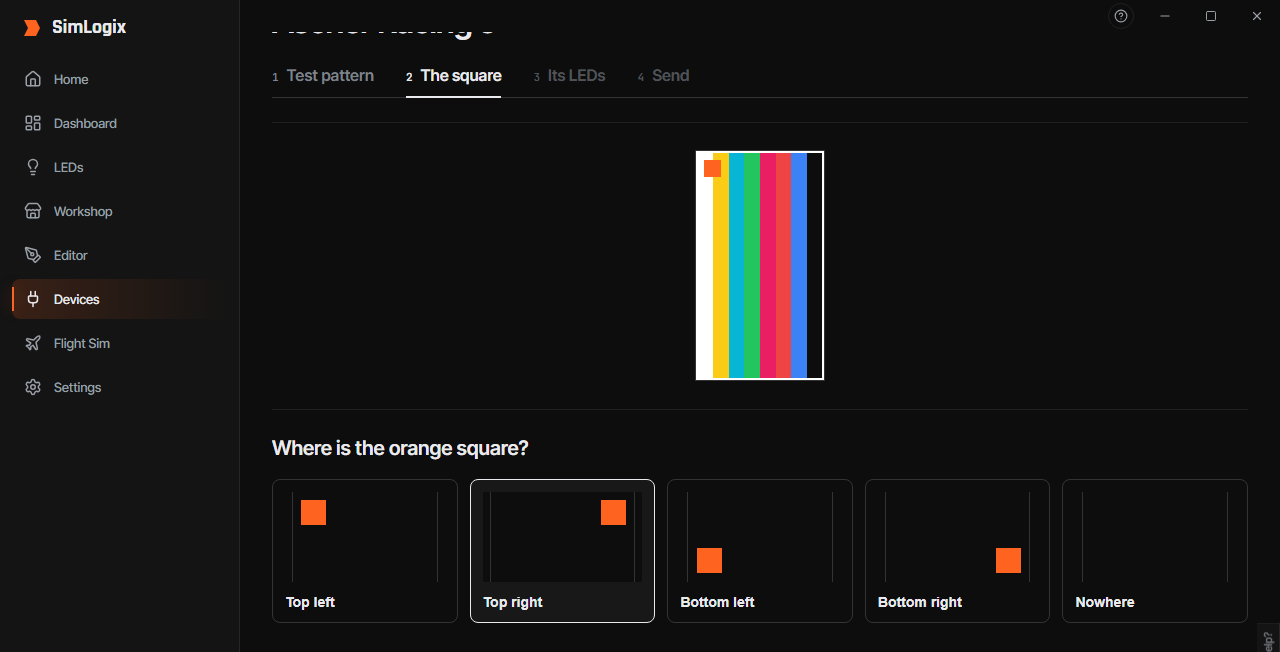
SimLogix moves an orange square around the screen for about ten seconds: watch it. Then say which corner it stopped in. That tells us which way the panel is mounted, and whether it accepts redrawing only part of the picture.
If the screen drops out during this test, that’s an answer too: plug it back in, then “start again”.
3. Its LEDs
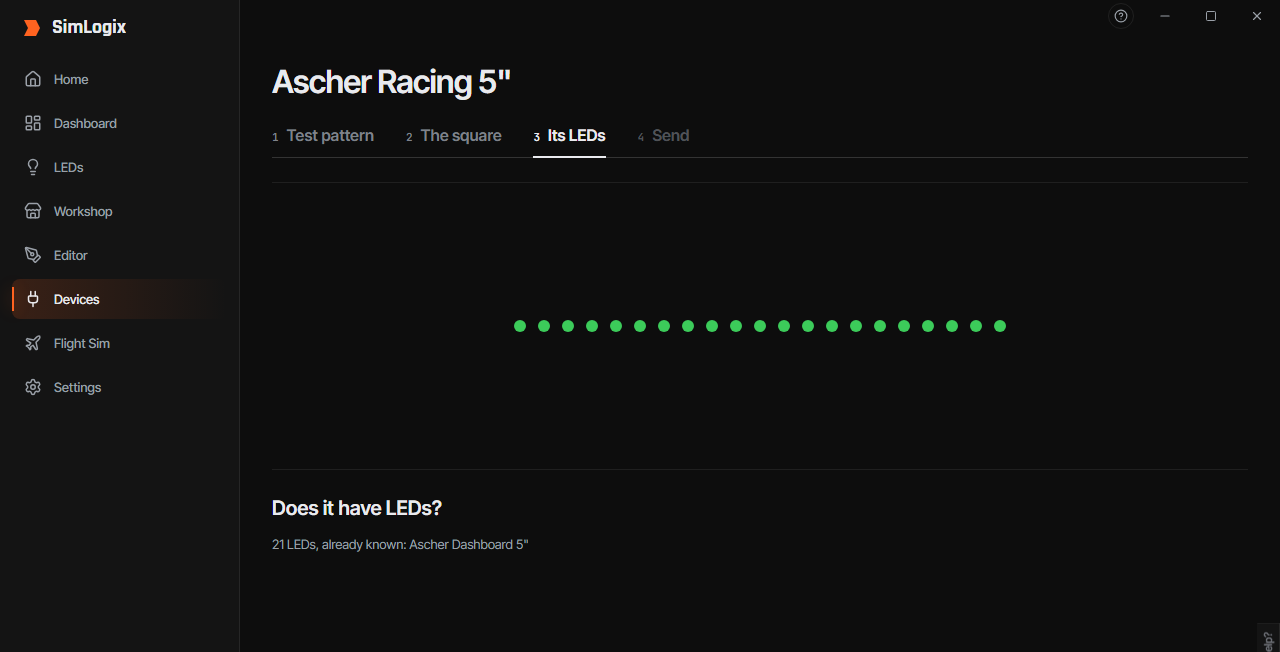
If SimLogix already knows your device’s LEDs, it takes them as they are: nothing to do. Otherwise, “Find them” (15 seconds), or “It has none”. If you’ve already presented the device, its LED order goes with the survey; otherwise it’s surveyed afterwards: LEDs SimLogix doesn’t know yet.
4. Send
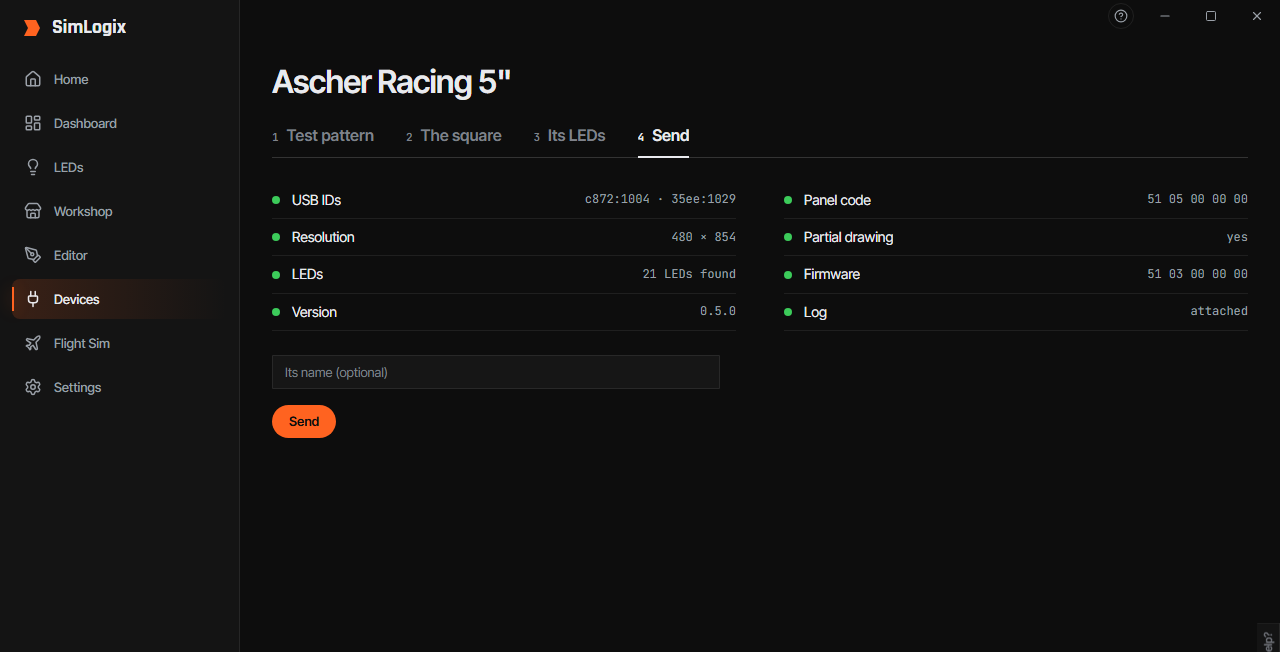
The list of what goes out, and what’s still missing: nothing is sent while a step is missing. Give it a name if you like, your dash’s model for instance, then “Send”.
Afterwards
The survey reaches the SimLogix team, with the app’s log. We check it, then publish your screen’s definition. On SimLogix’s next launch, or within six hours if the app stays open, the screen is recognised: nothing to install. You’re told in your ticket’s thread, on the SimLogix Discord (#support).
What the survey contains
- What the screen says about itself: its panel code, its firmware, its USB ID, and those of the devices plugged into the same hub.
- Each size tried and your answer, the square test result, its LEDs.
- The list of your devices, the app version, its last log.
Nothing else: no files, no dashboards, no account.
Trouble
- “The screen stopped responding”: unplug it, plug it back in, then “start again”.
- “Another program holds it”: close it, then “start again”.
- The survey doesn’t go out: check your connection, then send it again.