LEDs SimLogix doesn't know yet
Your device has LEDs SimLogix doesn't know yet? Present them, then send their survey: we add them, and on the next launch they have their name, their order and their pods, without a new version.
- 5 min
- Serial LEDs, new models of known wheels
- Answer on the SimLogix Discord
SimLogix knows the LEDs of every device it drives: their name, their order and their pods. LEDs it doesn’t know yet, it lights as a flat strip, in their wiring order. For a new model from a wheel brand it knows, it doesn’t light them at all until the model is added. Their survey teaches it the rest.
Spotting them
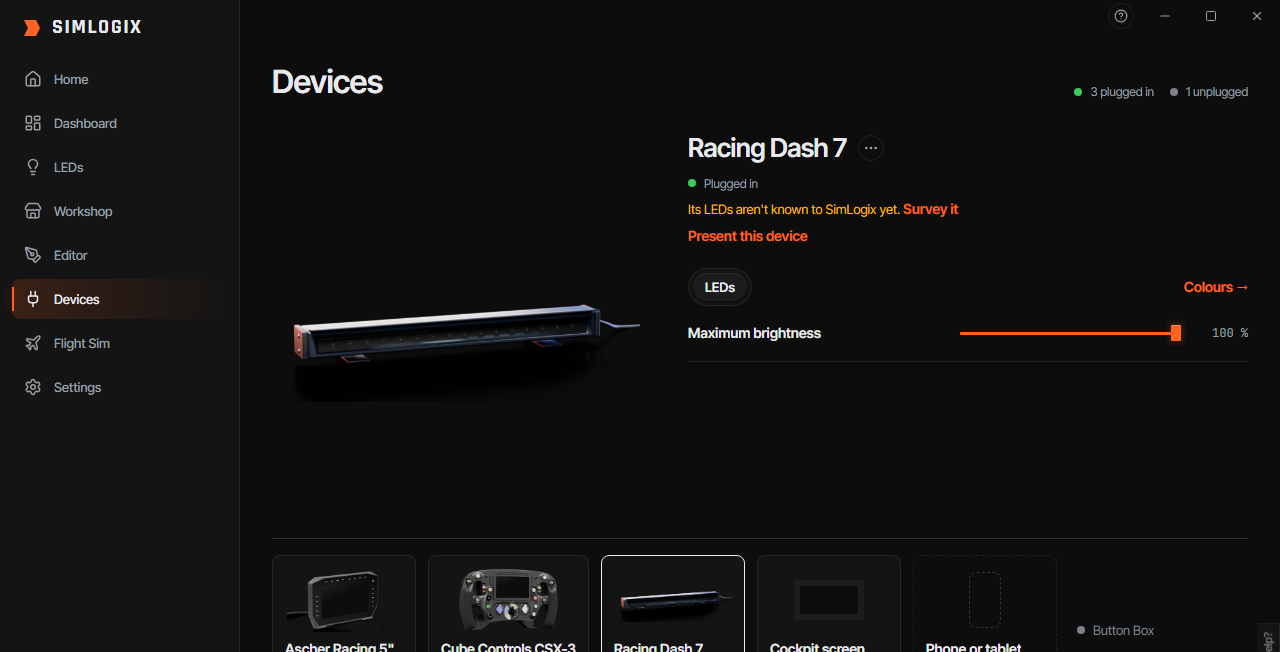
In Devices, the device’s page says “Its LEDs aren't known to SimLogix yet.”, with the link “Survey it”.
- LEDs plugged in over USB serial only show up once found: in LEDs, New profile › My device isn't listed — scan ports.
- A new model from a wheel brand SimLogix knows shows up on its own.
If its screen isn’t known either, start with its survey: it takes its LEDs too.
The survey, in two steps
1. Their order
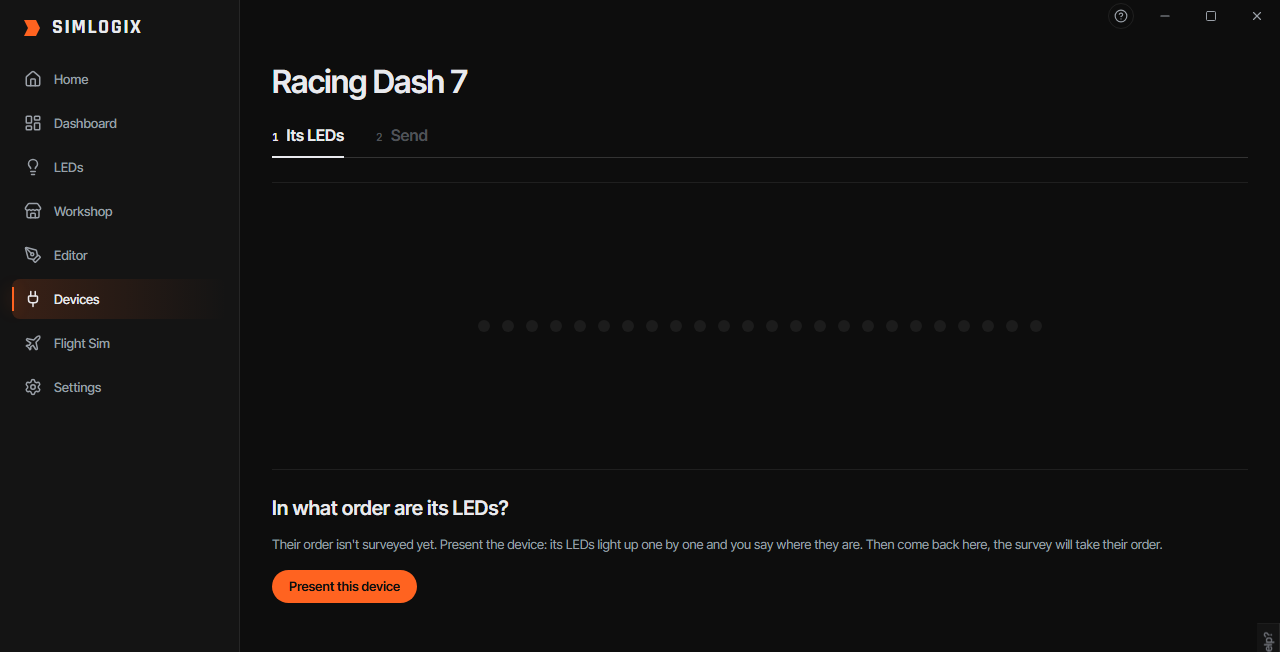
Click “Survey it”, then “Present this device”: its LEDs light up one by one, and you say where each one is, in its pod or in the bar.
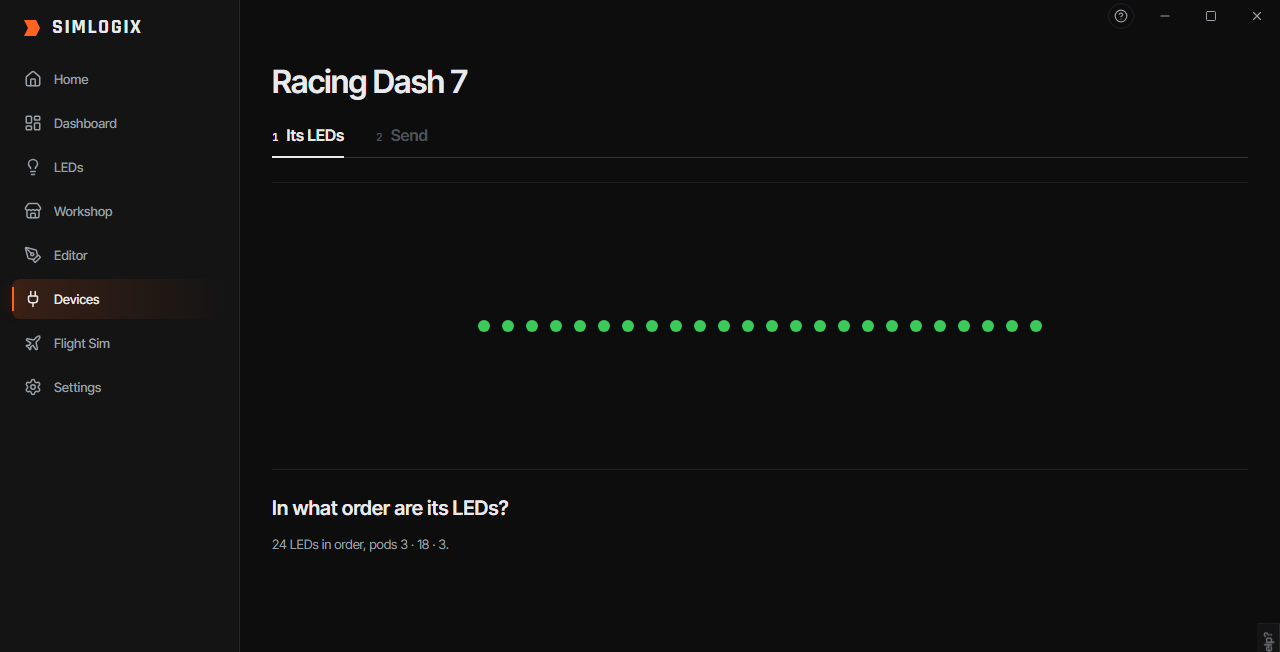
Then come back to its page and click “Survey it” again: the survey takes their order and their pods.
A new wheel model doesn’t have this step: SimLogix can’t light its LEDs yet. Send the survey as it is. Once the model is added, its page says “Its LED order isn't known to SimLogix yet.”: present it, then click “Survey it” again, and its order is added for everyone.
2. Send
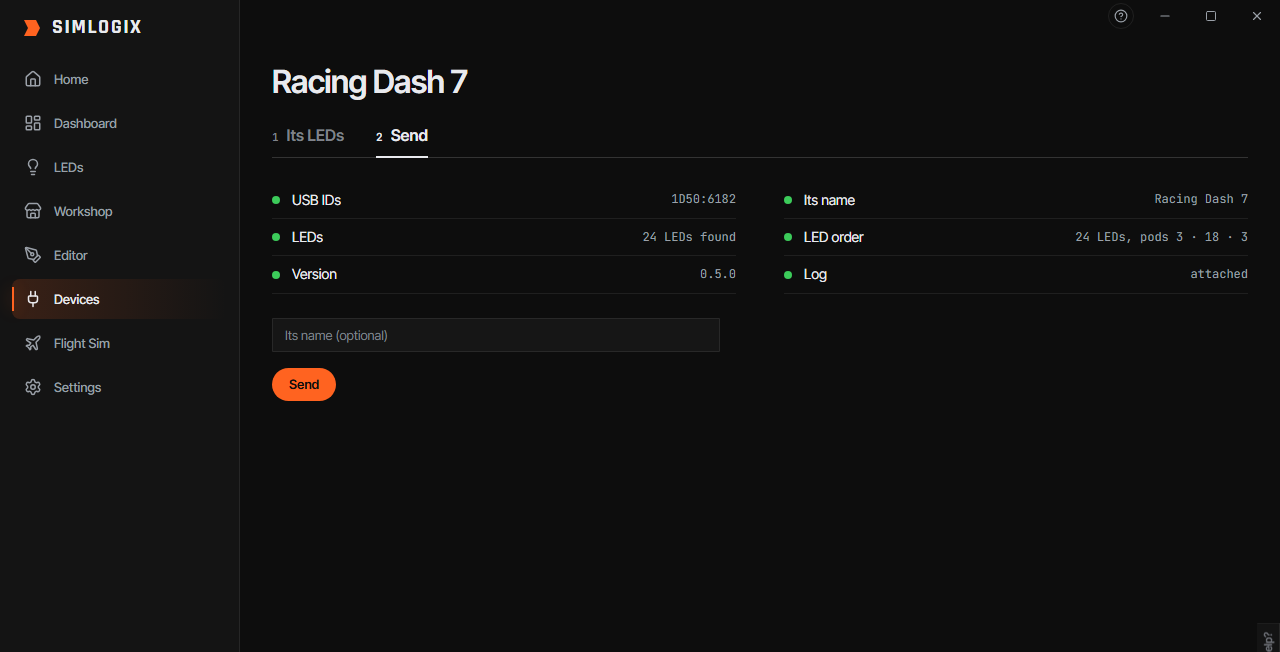
The list of what goes out. Give it a name if you like, your device’s model for instance, then “Send”.
Afterwards
The survey reaches the SimLogix team, with the app’s log. We check it, then publish your device’s definition: its official name, its LEDs in order and in pods, its shape in the app. On SimLogix’s next launch, or within six hours if the app stays open, it is recognised, with no scan to redo: nothing to install. You’re told in your ticket’s thread, on the SimLogix Discord (#support).
What the survey contains
- What the device says about itself: its USB ID and the name it gives itself.
- Its LEDs: how many, their order and their pods.
- The list of your devices, the app version, its last log.
Nothing else: no files, no dashboards, no account.
Trouble
- “Plug it in to survey its LEDs.”: the device isn’t plugged in, or another program holds its port. Close that program, then plug the device back in.
- Its LEDs aren’t found by the scan: close any other program that drives its LEDs, then scan again.
- The survey doesn’t go out: check your connection, then send it again.