The SimLogix dash
SimLogix's own dashboard: a page for every moment of the race, coming up on its own, and settings to fit it to your screen.
The SimLogix dash is the dashboard that ships with the app, designed for the wheel screen (1280 × 720). It also works on the phone, in a window on your PC and as an overlay. Its pages change on their own with the moment: the grid, the race, the pit lane, the garage.
Launch it
- Dashboard: pick the screen at the top, click SimLogix under Your dashboards, then Put on the screen.
- The phone, the second monitor: see Launch a dashboard.
- Link it to your cars so it shows up on its own: see Follow the car.
Its pages
| Page | When it comes | What it shows |
|---|---|---|
| RACE | in a race, by default | Laps, stint, fuel, tyres, battle, delta, conditions. In blocks or in zones, your choice. |
| RELATIVE | from the wheel | The cars around you and their gaps, your class, and where you would rejoin if you pitted now. |
| STANDINGS | from the wheel | The standings, all classes, with the gap to the leader or to the car ahead. |
| STRATEGY | from the wheel | When the race ends based on the leader, the fuel to finish, the pit window. |
| QUALI | on its own in qualifying | Your sectors, the predicted time, the gap to pole, tyre warm-up. |
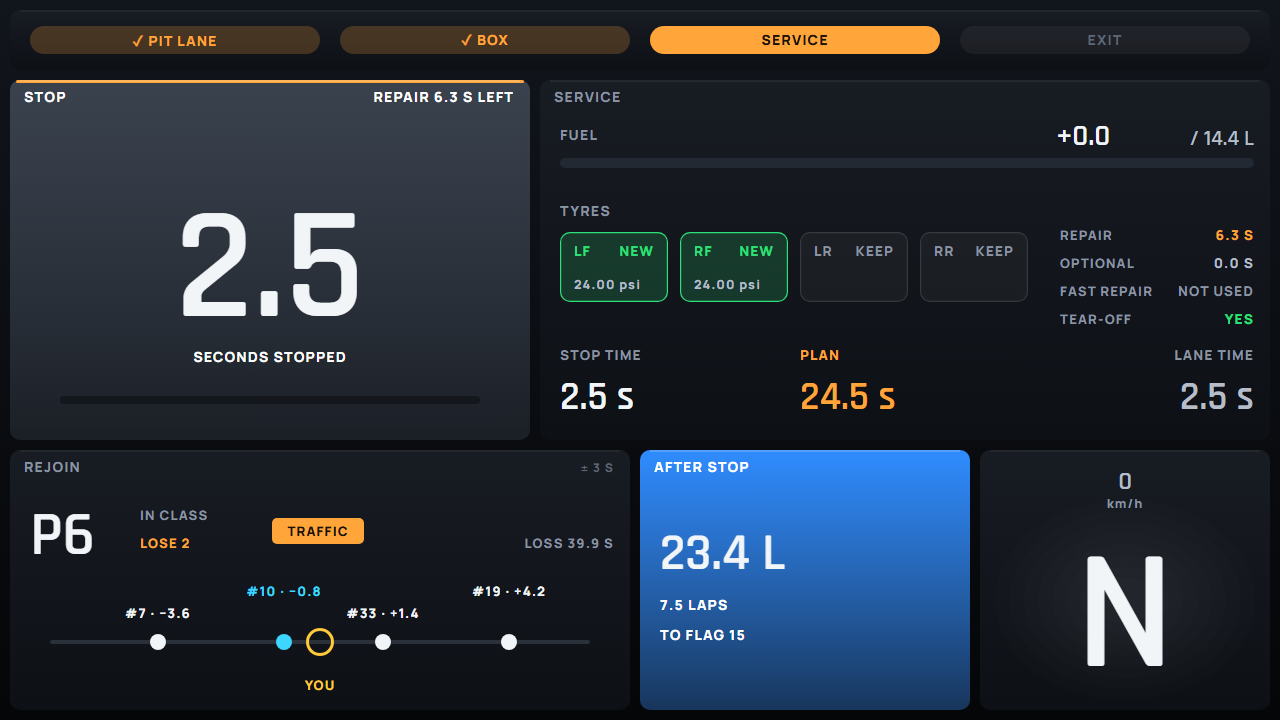
| PIT | on its own in the pit lane | Pit lane speed, the stop timer, the service you set and your place at the exit. |
| PRACTICE | on its own in practice, if you turn it on | Your last laps, the tyres, fuel use, the engine. |
| START | on its own before the start | The lights, your clutch and revs, and the launch test. |
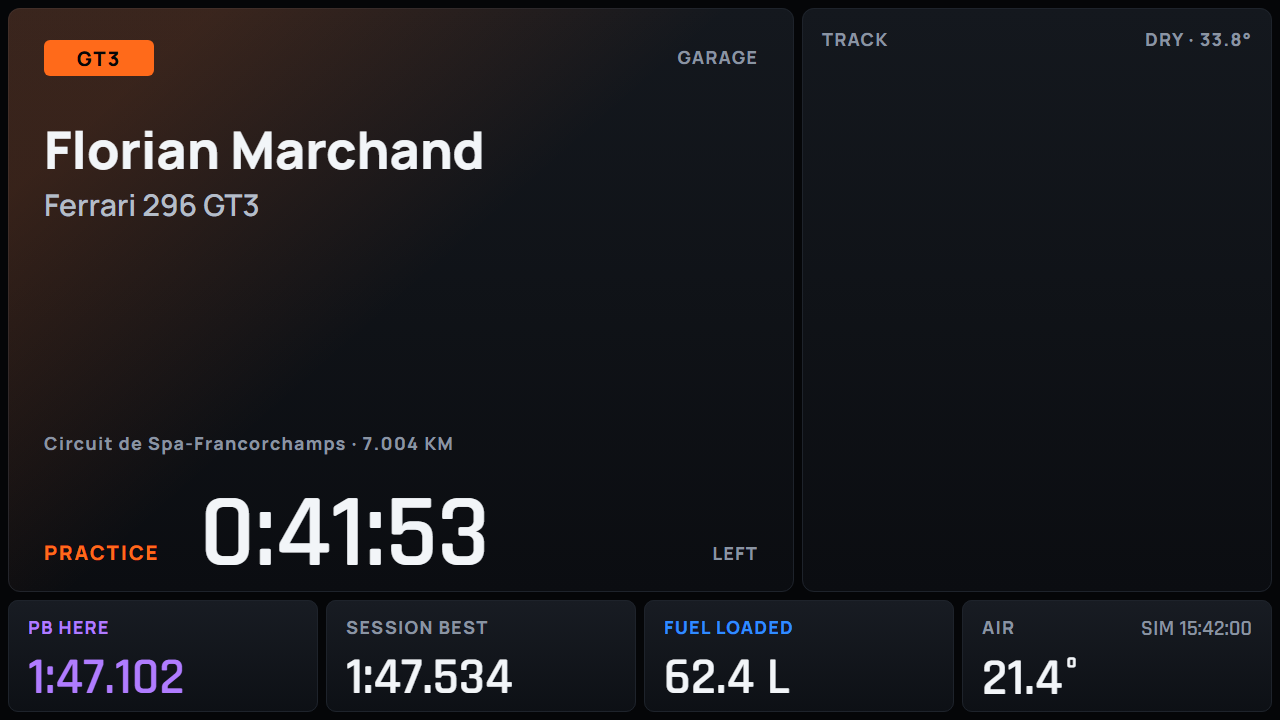
| GARAGE | on its own in the garage | Your class, your car, the track, the time left, your marks. |
Pages that come on their own leave when the moment passes: the start page once you pass 50 km/h after lights out, the pit page at the pit lane exit.
Changing page by hand
- From the wheel: the “next page” and “previous page” buttons of a config, see Wheel buttons.
- By touch: a swipe on the phone or on a touch screen.
- With the mouse: move it over the window and the page dots appear at the bottom; click a dot to open its page.
- A page you pick by hand stays until the next change of moment (pit entry, the start…).
Set it up
Right-click the card › Customize…. The preview shows the page you pick; a setting that brings a page in or out shows it right away. The settings sit in five tabs:
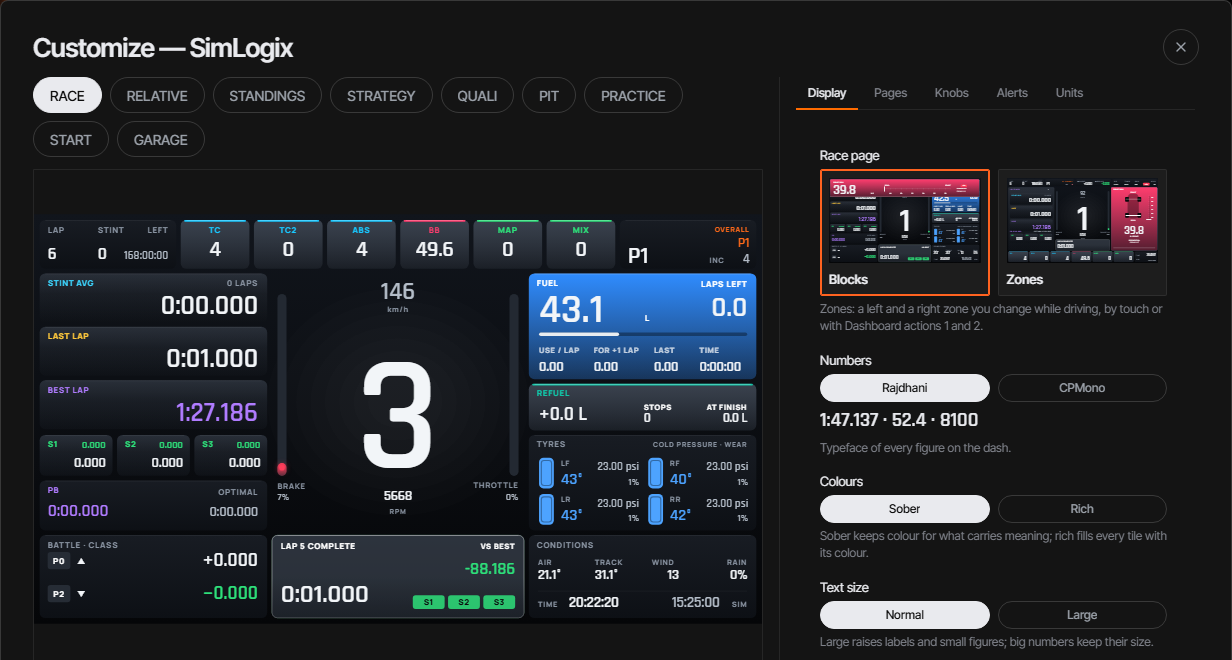
- Display: the race page in Blocks (everything on screen) or Zones (a zone on the left and one on the right, which you change while driving); the font for figures; colours, sober or rich; Text size.
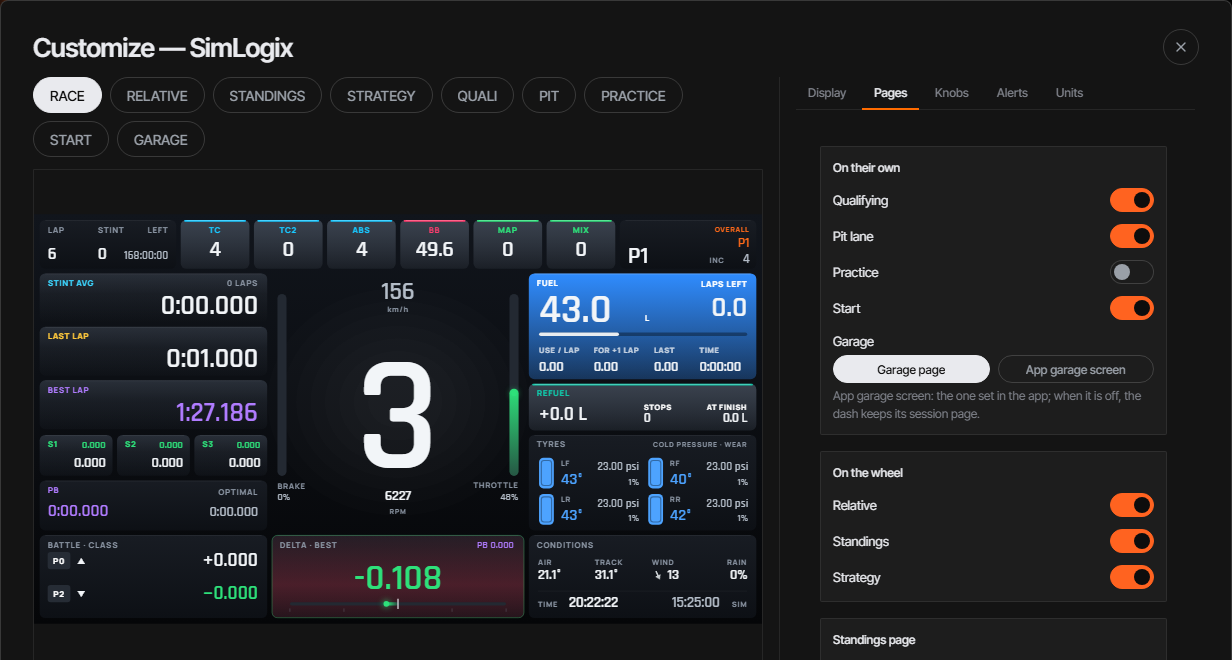
- Pages: those that come on their own (qualifying, pit lane, practice, start; in the garage, the dash’s page or the app’s garage screen), those kept on the wheel (relative, standings, strategy), and settings for some pages: the standings gap column, the fuel margin, your clutch bite point and your launch revs.
- Knobs: what each of the six knobs shows (TC, ABS, brake bias, engine map…).
- Alerts: the alert style, full or discreet; each alert on its own (TC and BB pop-ups, end-of-lap card, flags, spotter, engine, “box this lap”); the box fuel threshold.
- Units: speed, fuel in litres or kilograms, tyre pressure.
The Pages tab
Text size, for a small screen
In Large, labels grow by about 30% and small figures by about 15%. Big figures (gear, lap times, fuel) keep their size. Handy on a wheel screen, where the dash is scaled down.
The launch test
To practise starts, outside a race (practice, qualifying):
- Stop on track, and open the START page by hand.
- Tap TEST START, or press Dashboard action 1.
- Five lights come on, then go out after a random wait. Go at lights out.
- The analysis shows up: your reaction, clutch release, revs at lights out and at their lowest, 0-50 and 0-100 km/h, the first 20 and 100 metres. The run’s traces sit over those of your best start with this car.
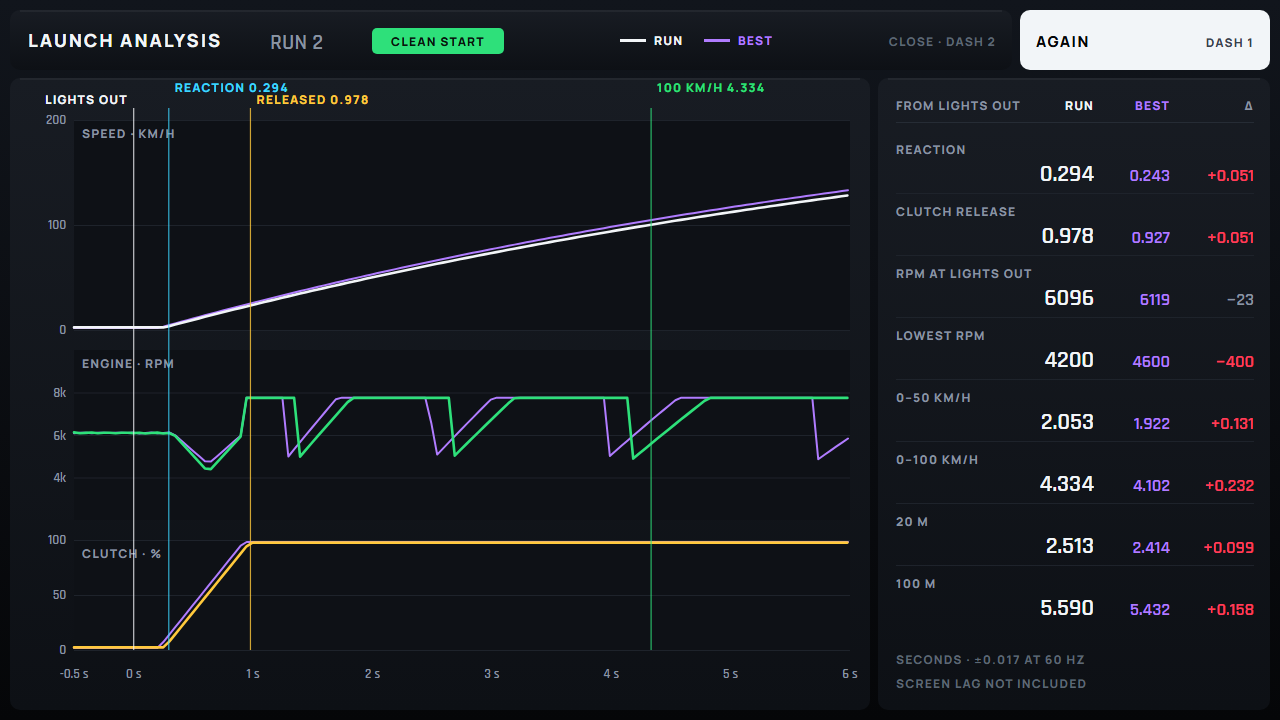
Moving before lights out counts as a jump start. Dashboard action 2 closes the analysis.
The bite point and the launch revs
The game doesn’t give them: set them in Customize… › Pages. The start page then shows them on the clutch and the rev counter. At 0, they stay hidden.
By touch and from the wheel
On a touch screen, or with Dashboard action 1 and Dashboard action 2 in a config:
- in Zones, the left and right zones change what they show;
- on the standings, the column switches between the gap to the leader and the gap to the car ahead;
- on the start page, the test starts and closes.
Touch on the wheel screen is turned on screen by screen, on a screen that reports touch: Devices › your screen › Touchscreen.
Good to know
Check it works
- Entering the pit lane, the screen switches to PIT, then back at the exit.
- In the garage, the screen shows GARAGE, or the app’s garage screen if you chose it.
Stuck?
A page doesn’t come on its own? Check its setting in Customize… › Pages. Text too small? Set Text size to Large. The wheel screen stays black? The The USB screen stays black sheet.